📋 Module Overview
In this tutorial, we'll learn how to assign pre-defined fee structures to students, either individually or in bulk, to generate their actual fee invoices.
The Assign Fees module is the critical step that turns your Fee Structures into actionable student invoices. It creates the individual fee records that students and parents see and pay.
🧭 How to Access
Navigate to: Finance → Assign Fees
📅 When to Assign Fees
Fees are typically assigned at key points in the academic cycle:
Start of the Academic Year / Term: For tuition and standard annual fees.
Upon New Student Enrollment: For admission/registration fees.
Monthly: For recurring monthly charges.
Before Special Events: For exam fees, excursion fees, etc.
👤 Individual Fee Assignment
Use this method for one-off assignments, like a new student or a special charge.
Process:
Select the Student (by name or ID).
Choose the Fee Structure or specific Fee Category.
Apply a Discount if applicable (system recalculates automatically).
Set the Due Date.
Click Assign.
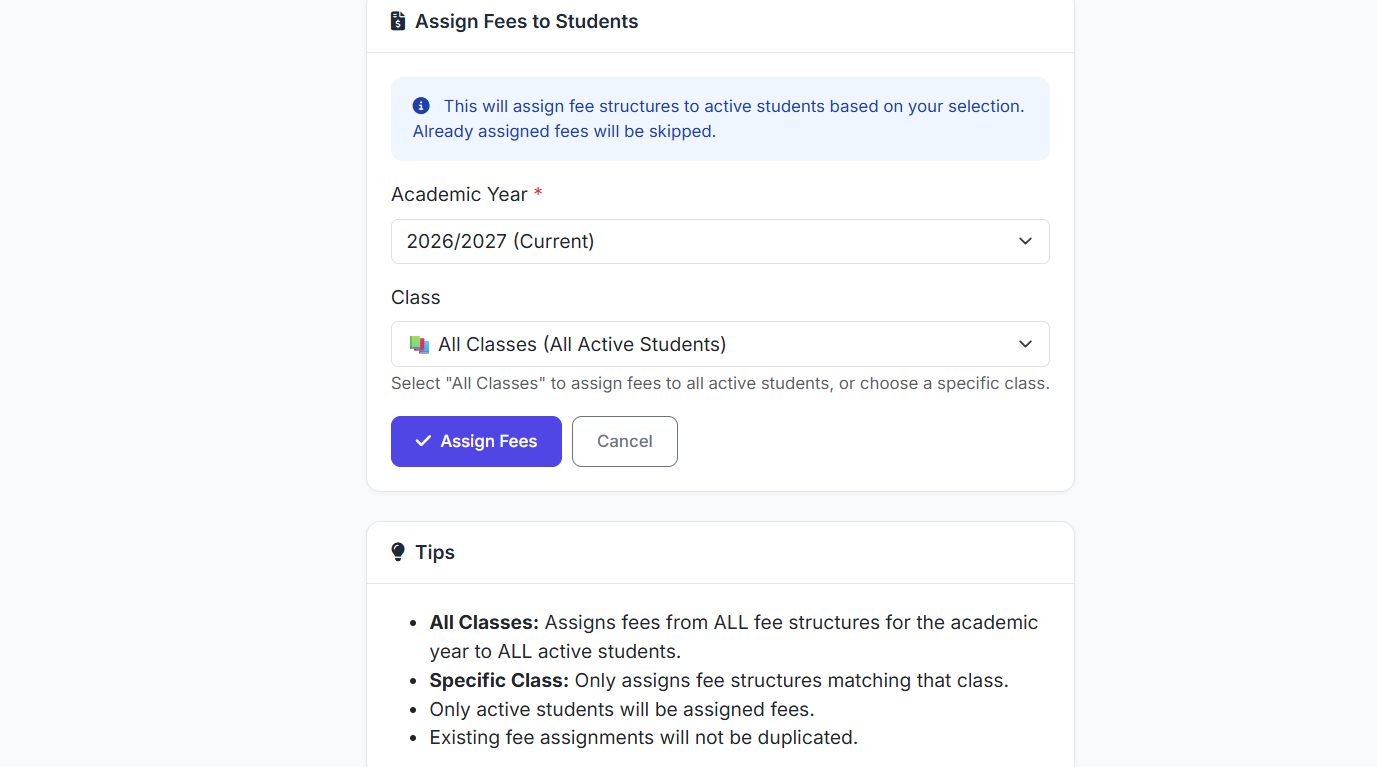
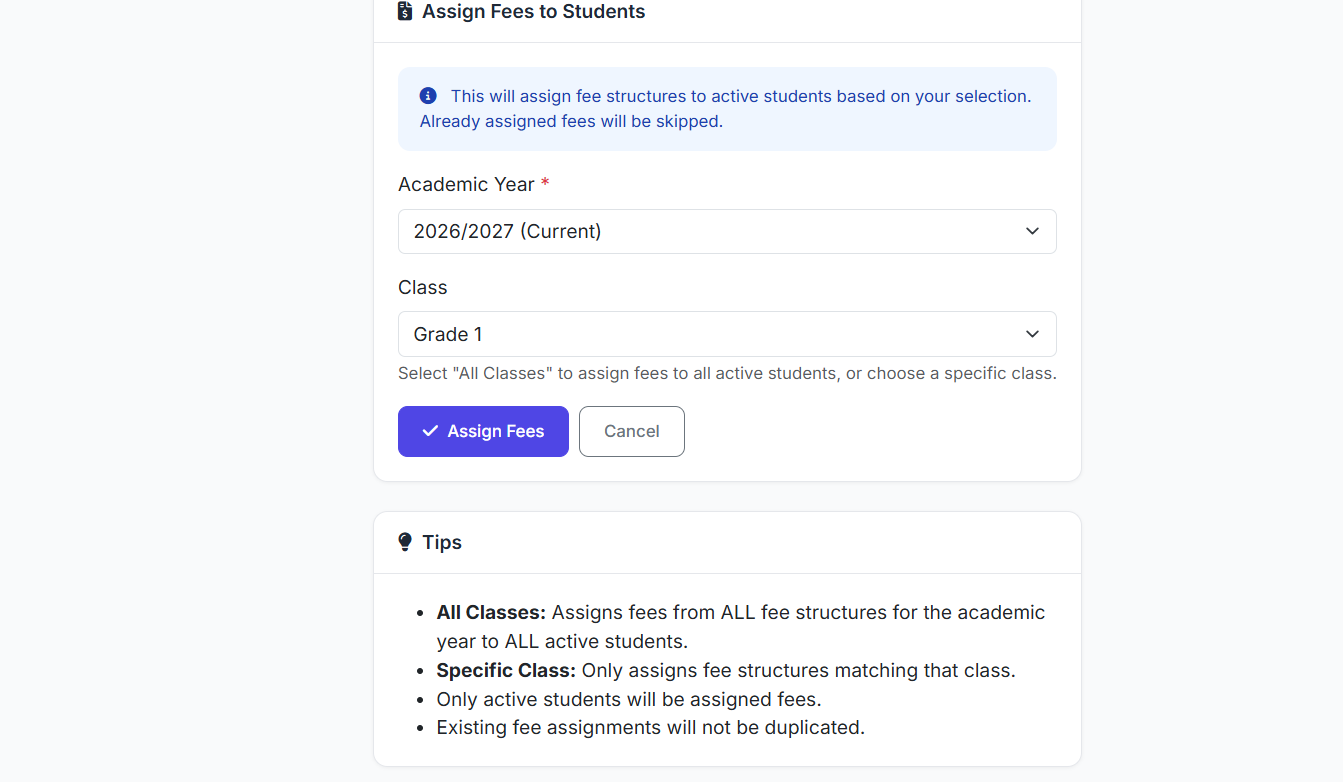
🚀 Bulk Fee Assignment by Class or Students
The most efficient method for assigning standard fees to an entire group.
Process:
Select the Academic Year.
Choose the Class (and Section, if needed).
Select one or more Fee Structures to assign.
The system generates a preview showing the calculated fees for every student in the class.
Review the preview.
Click Confirm Assignment.
⚙️ Alternative Method: Assign from Fee Structures
You can also initiate assignment directly from the Fee Structures list:
Find the desired fee structure.
Click the Assign to Students action.
The system shows all eligible students.
Select the students or confirm for all.
Complete the assignment.
🎁 Applying Discounts During Assignment
Discounts can be applied seamlessly:
Bulk Assignment: Set a rule to auto-apply a specific discount (e.g., "Sibling Discount") to all eligible students in the batch.
Individual/Manual: Select a discount for specific students in the preview stage for special cases.
The system instantly recalculates the net payable amount whenever a discount is applied.
👁️ Preview Before Confirmation
Always review the preview screen before finalizing. It displays for each student:
Student Name
Assigned Fee
Original Amount
Applied Discount
Final Payable Amount
This critical step prevents errors and ensures accuracy.
✅ Best Practices
Assign Promptly: Issue fee assignments at the start of each billing cycle (term, month) to give parents clear notice.
Leverage Bulk Actions: Use bulk assignment by class for efficiency with standard fees.
Verify Discounts: Double-check that the correct discounts are applied to the right students (e.g., sibling discounts for eligible families).
Review the Preview: Never skip the preview step. It is your final quality check.
Maintain Records: Keep a log of assignment dates and person responsible for auditing purposes.
The Assign Fees module efficiently bridges your financial planning (Fee Structures) and collection (Student Fees), ensuring every student is billed accurately and on schedule.
Next, we will demonstrate the Payment Collection process.