🎯 Module Overview
In this tutorial, we'll learn how to design, generate, issue, and manage official student certificates (e.g., Transfer, Character, Achievement) digitally, ensuring consistency, security, and efficiency.
The Certificates module automates the creation and management of official student documents. It allows schools to design reusable templates, issue certificates with auto-populated student data, and maintain a secure, auditable record of all issued documents.
🧭 How to Access
Navigate to: Documents → Certificates
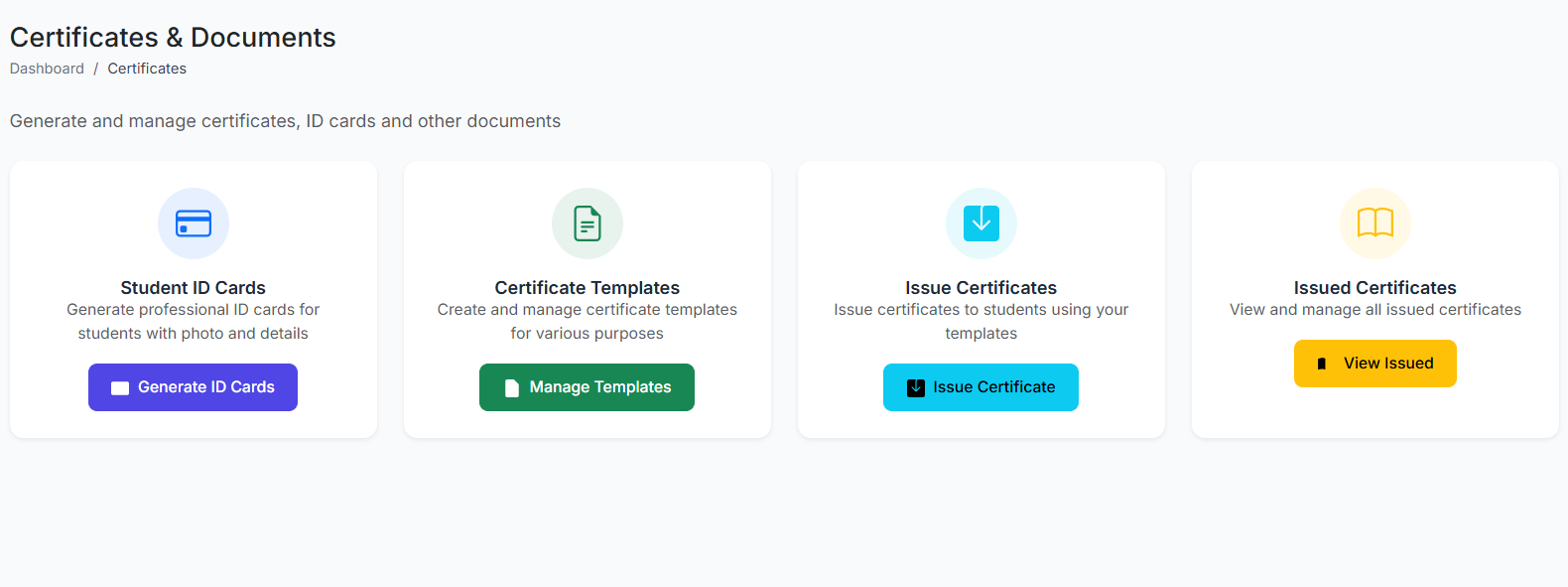
This opens the Certificates Dashboard, your central hub.
🧩 Module Components
The module is organized into three main sections:
| Section | Purpose |
|---|---|
| 1. Certificate Templates | Design and store reusable certificate layouts. |
| 2. Issue Certificates | Generate certificates for individual students using a template. |
| 3. Issued Certificates | View, print, download, and manage all certificates generated. |
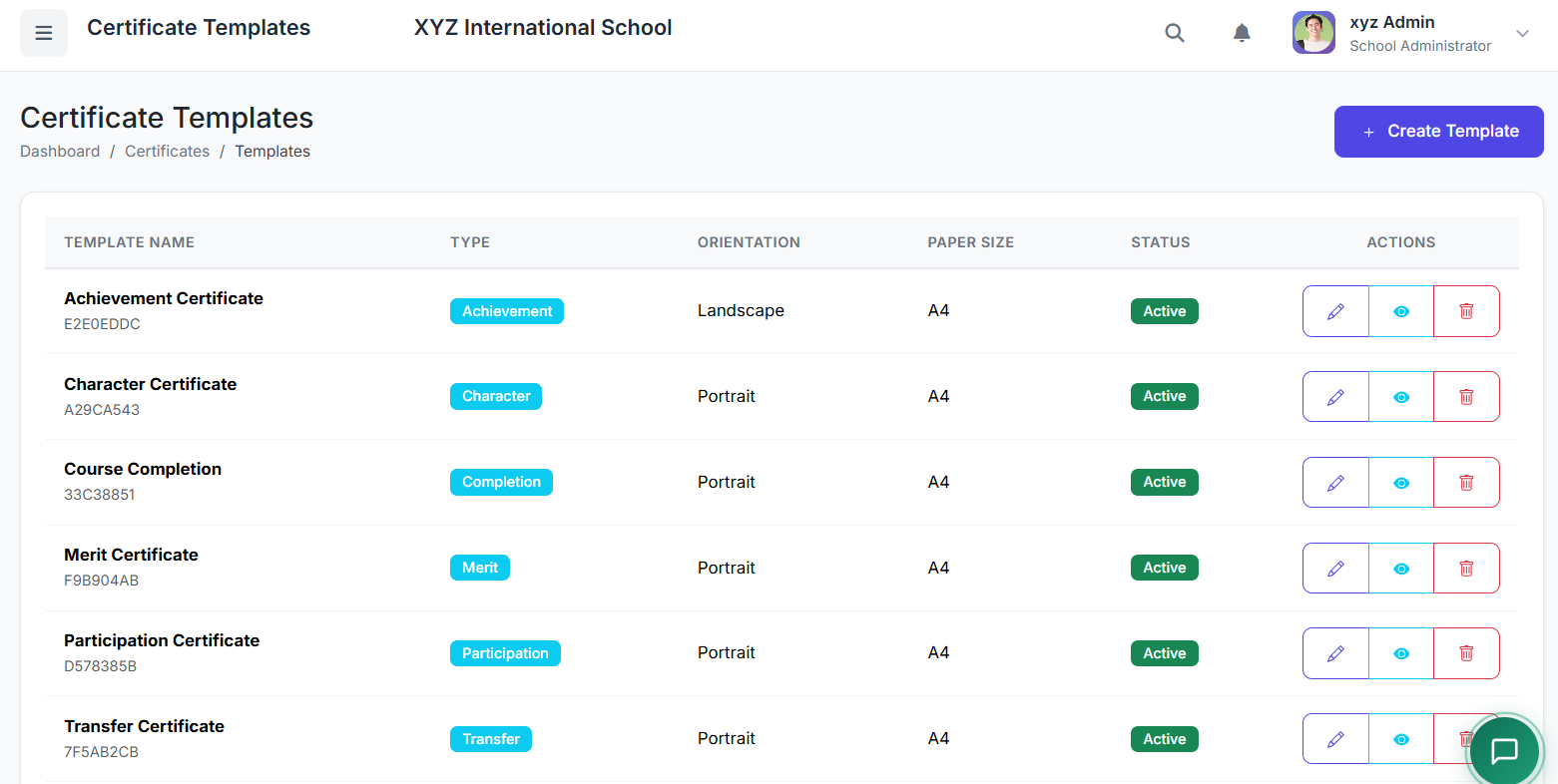
🎨 Part 1: Creating & Managing Templates
Creating a New Template:
Go to Templates and click Create Template.
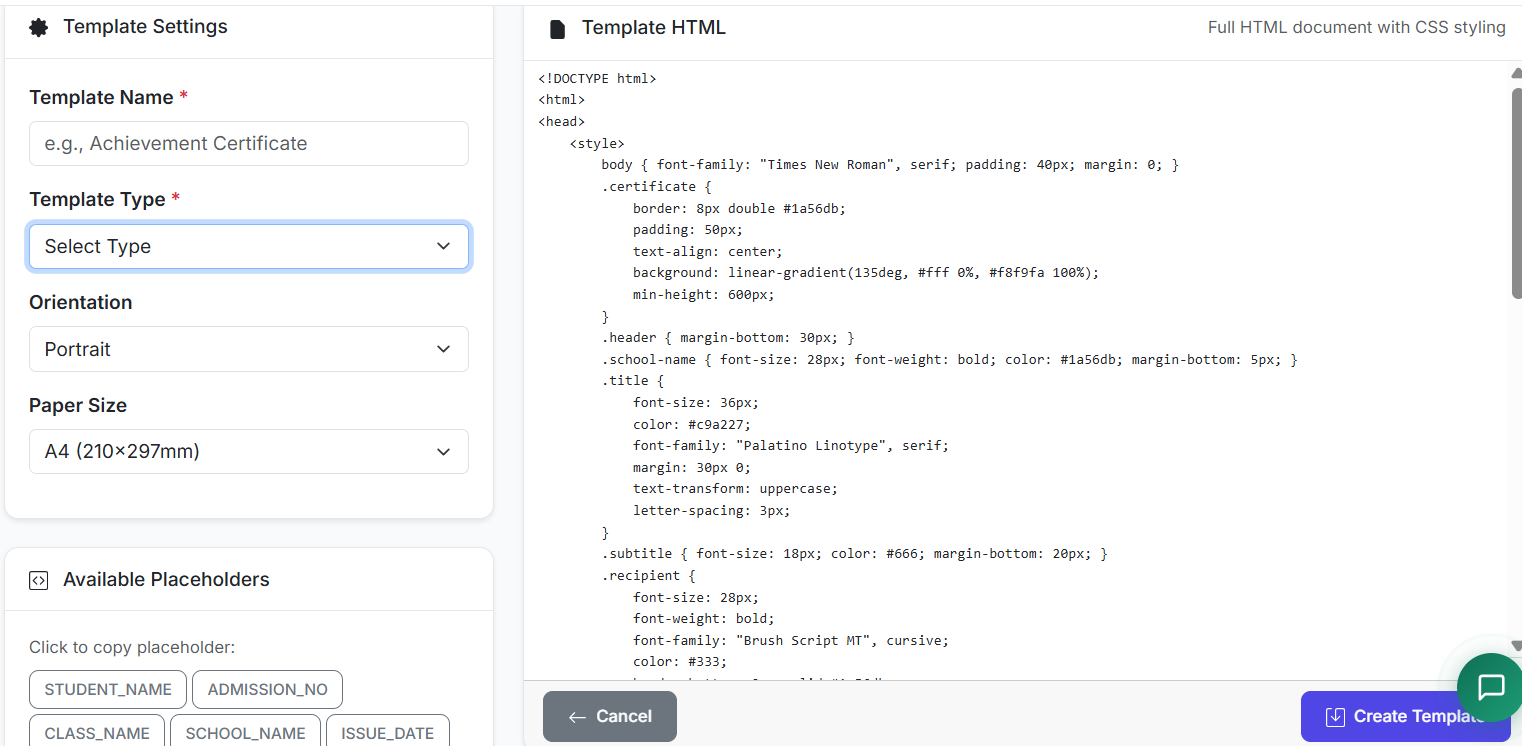
Fill in Template Details:
Template Name (e.g., "Transfer Certificate")
Certificate Type (e.g., Transfer, Character, Merit)
Orientation (Portrait/Landscape)
Paper Size (A4, Letter, etc.)
Design the Layout:
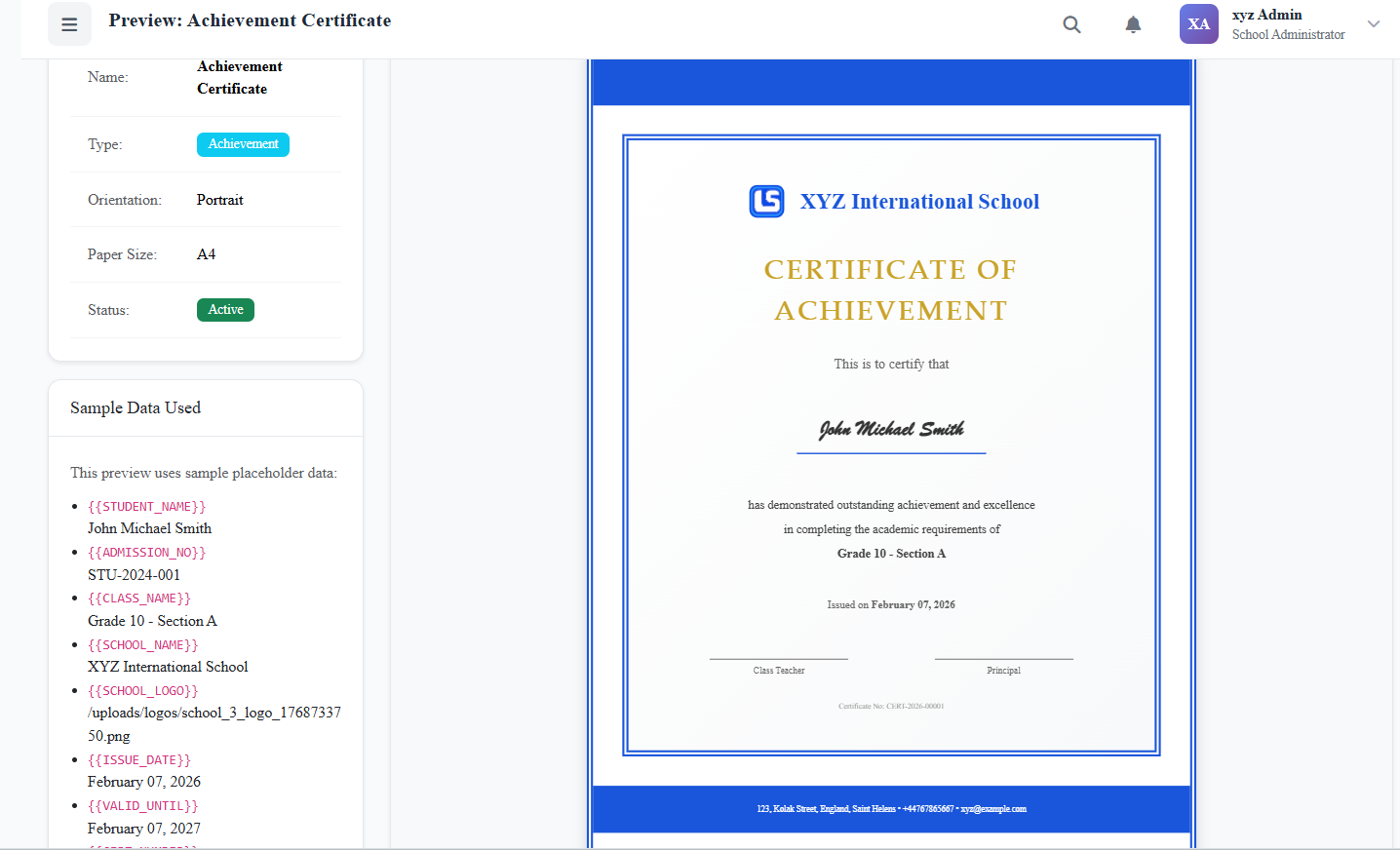
Use the HTML/WYSIWYG Editor to create the certificate's visual design.
Add school logos, borders, official seals, and formatted text.
Insert Dynamic Placeholders:
Use placeholders like
{student_name},{admission_no},{class},{date_of_birth},{current_date},{certificate_number}.These will auto-fill with real data when issuing.
Save & Activate: Set status to Active and save.
🖨️ Part 2: Issuing a Certificate
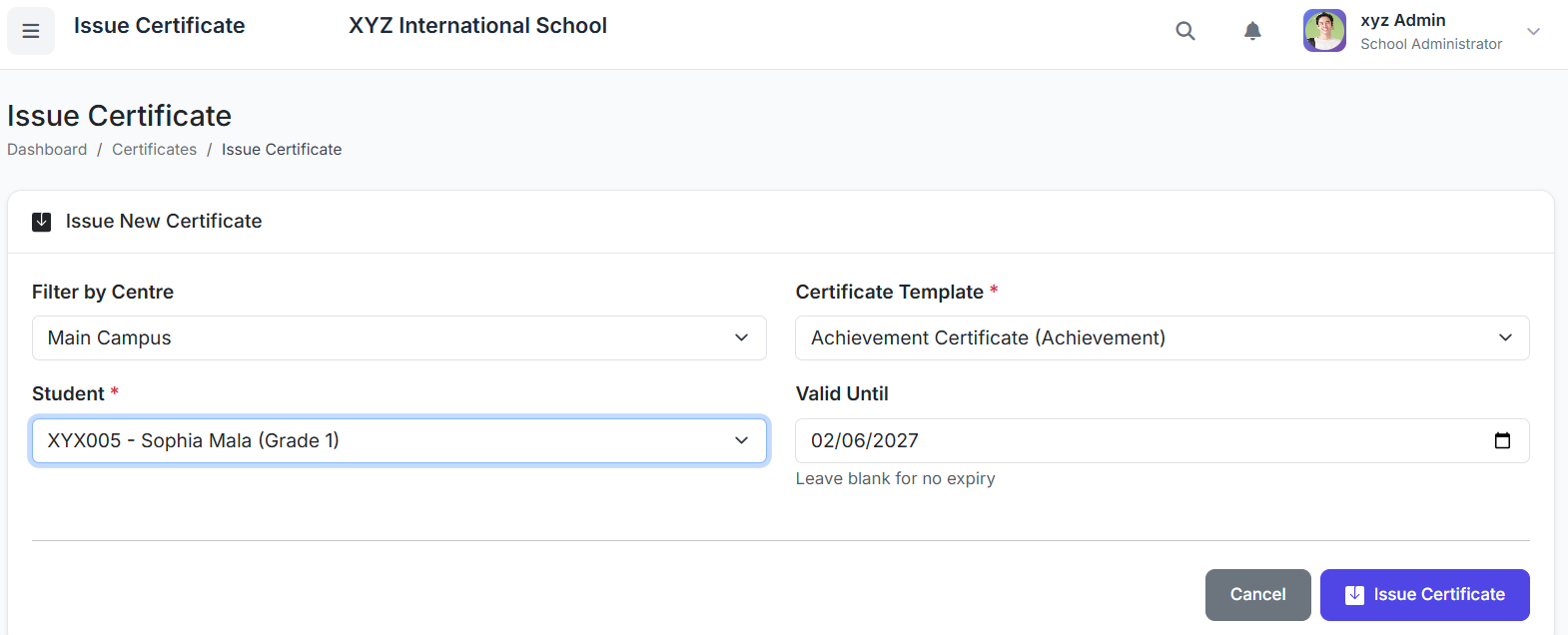
Steps to Issue:
Go to Issue Certificates.
Select Template: Choose the active template you designed.
Select Student: Pick the student receiving the certificate.
Configure Details:
Issue Date (defaults to current date).
Validity Period (Optional; e.g., for ID cards).
Generate: Click Issue Certificate.
The system auto-generates a unique certificate number.
It creates the final document by merging the template with the student's data.
📂 Part 3: Managing Issued Certificates
The Issued Certificates List:
View all generated certificates. Columns typically show:
Certificate Number
Student Name
Certificate Type
Issue Date
Validity Period
Status (Issued, Revoked)
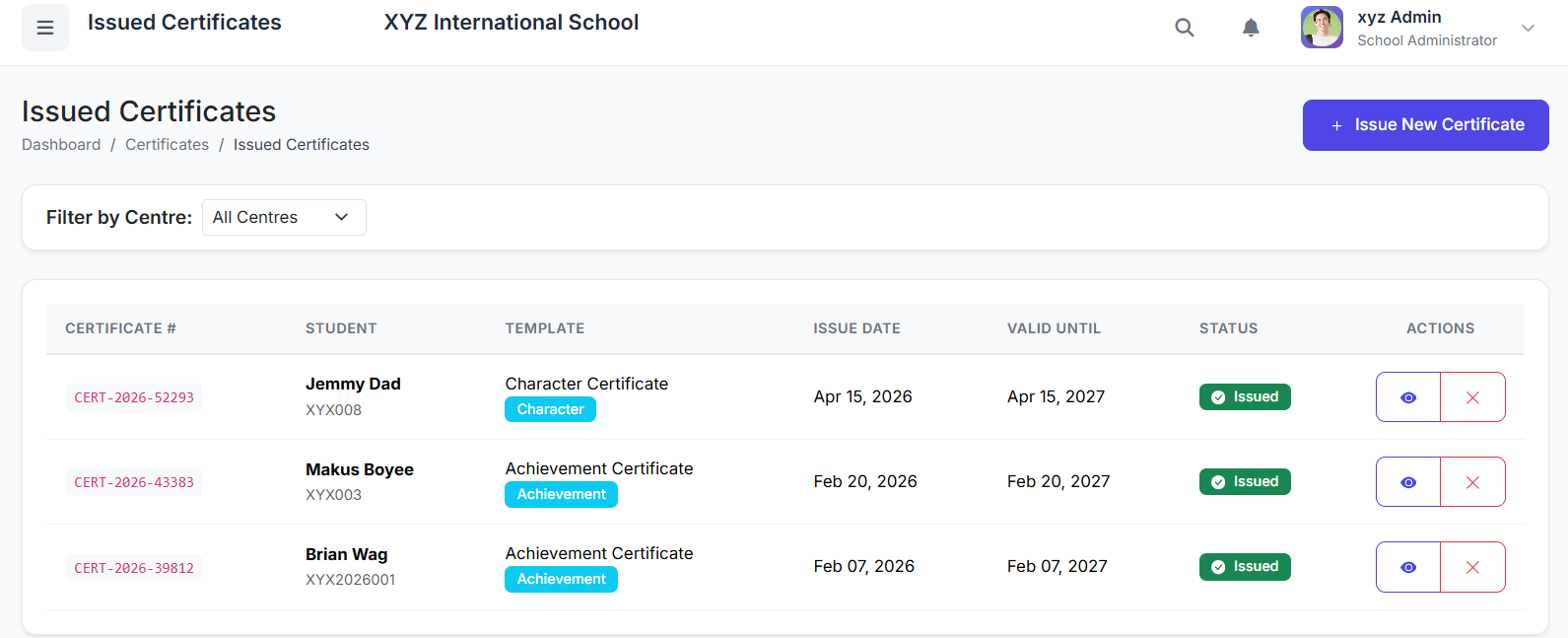
Actions Available:
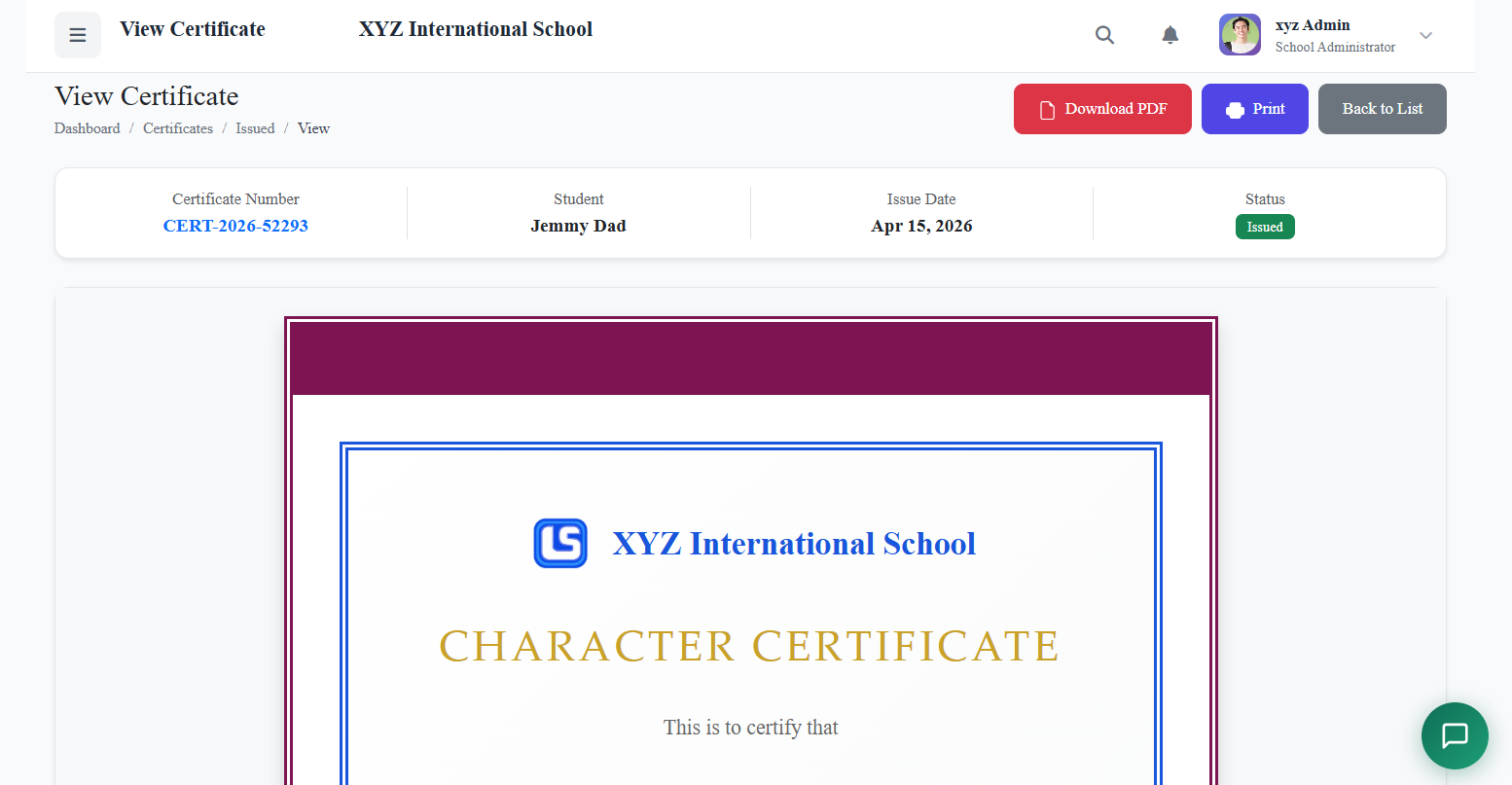
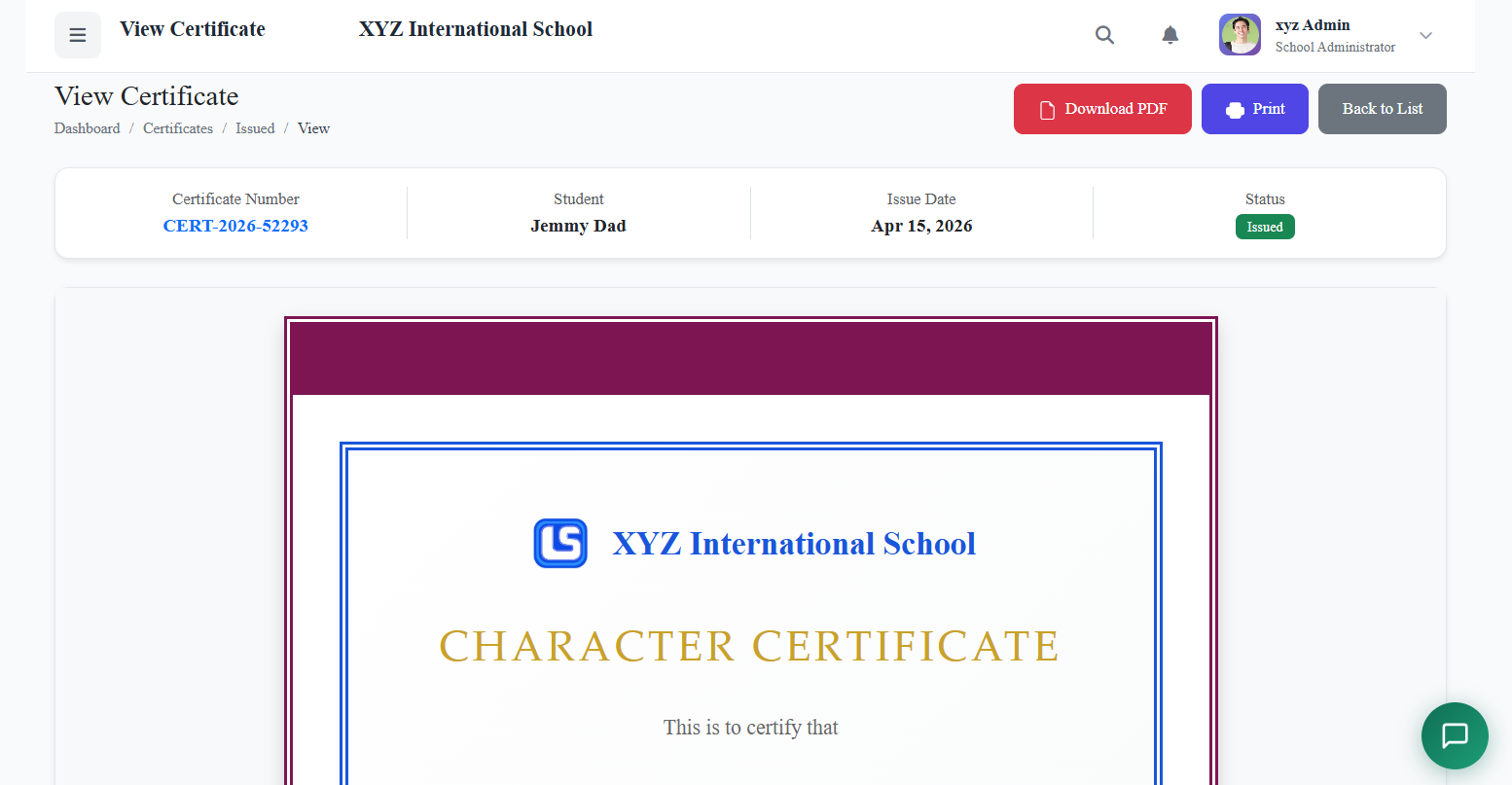
Preview: View the certificate on screen.
Print: Send directly to a printer.
Download PDF: Save a digital copy for emailing or archiving.
Revoke: Invalidates a certificate if an error is found or it is cancelled.
⚠️ Revoking a Certificate
If a certificate must be invalidated:
Find the certificate in the Issued Certificates list.
Click Revoke.
Enter a mandatory reason for revocation (for audit trail).
Confirm.
Result: The certificate is marked as Revoked in the system and should not be considered valid.
🔒 Security & Record-Keeping
Unique Serialization: Each certificate gets a unique, system-generated number for tracking.
Complete Audit Trail: The system logs who issued each certificate and when, and records any revocations with reasons.
Data Integrity: Certificates are generated from a single source of truth (student records), minimizing manual entry errors.
✅ Best Practices
Design Templates First: Create and finalize all certificate templates before the start of the academic year.
Use Placeholders: Maximize the use of dynamic placeholders to eliminate manual typing and ensure accuracy.
Secure Printing: Use designated, high-quality paper for printing official certificates.
Digital Backup: Download and archive PDFs of all issued certificates in a secure location.
Review Before Issuing: Always preview the certificate with student data before final issuance.
Restrict Access: Limit "Issue Certificates" permissions to authorized administrative staff only.
The Certificates module transforms a traditionally manual and error-prone process into a streamlined, professional, and secure digital workflow, ensuring your school can produce official documents with ease and confidence.
Next, we will explore the ID Cards module.