🏫 Module Overview
Welcome back. Our focus today is how to assign subjects to specific classes and assign teachers—a key step in building your school's curriculum
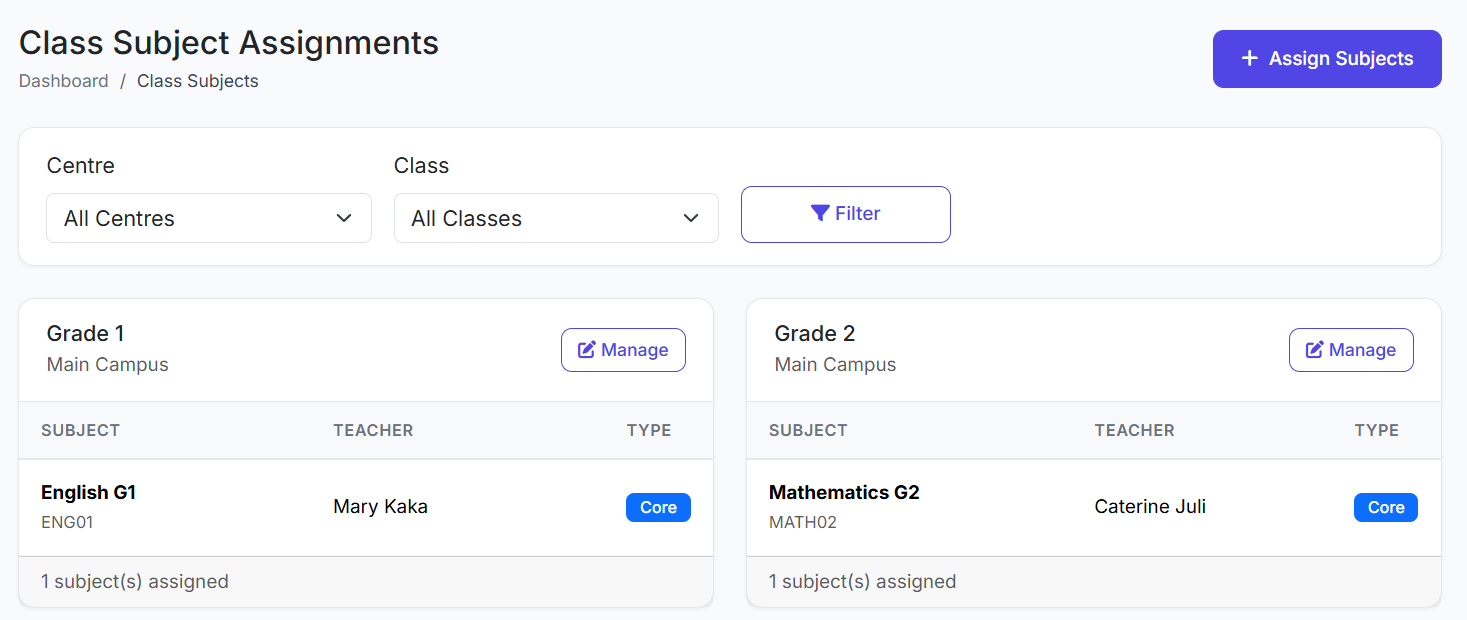
The Class Subjects module connects Subjects with Classes. It allows you to define which subjects are taught in each class and to assign a specific teacher to each subject-class combination.
🧭 How to Access
Click Academic in the main sidebar.
Select Class Subjects.
📐 Purpose & Importance
This module is essential for:
Defining the Curriculum: Specifying the exact subjects for each class.
Teacher Assignment: Allocating subject teachers to specific classes.
Exam & Timetable Foundation: Ensuring only assigned subjects appear in exam setups and timetables.
Flexibility: Configuring different subject sets and teachers for different classes.
📋 Class Subjects List Overview
The main page shows all subject-to-class assignments. Key columns include:
| Column | Description |
|---|---|
| Class Name | The class receiving the subject. |
| Subject Name | The subject being taught. |
| Assigned Teacher | The teacher responsible for this subject in this class. |
| Status | Active or Inactive. |
| Actions | Edit or Delete the assignment. |
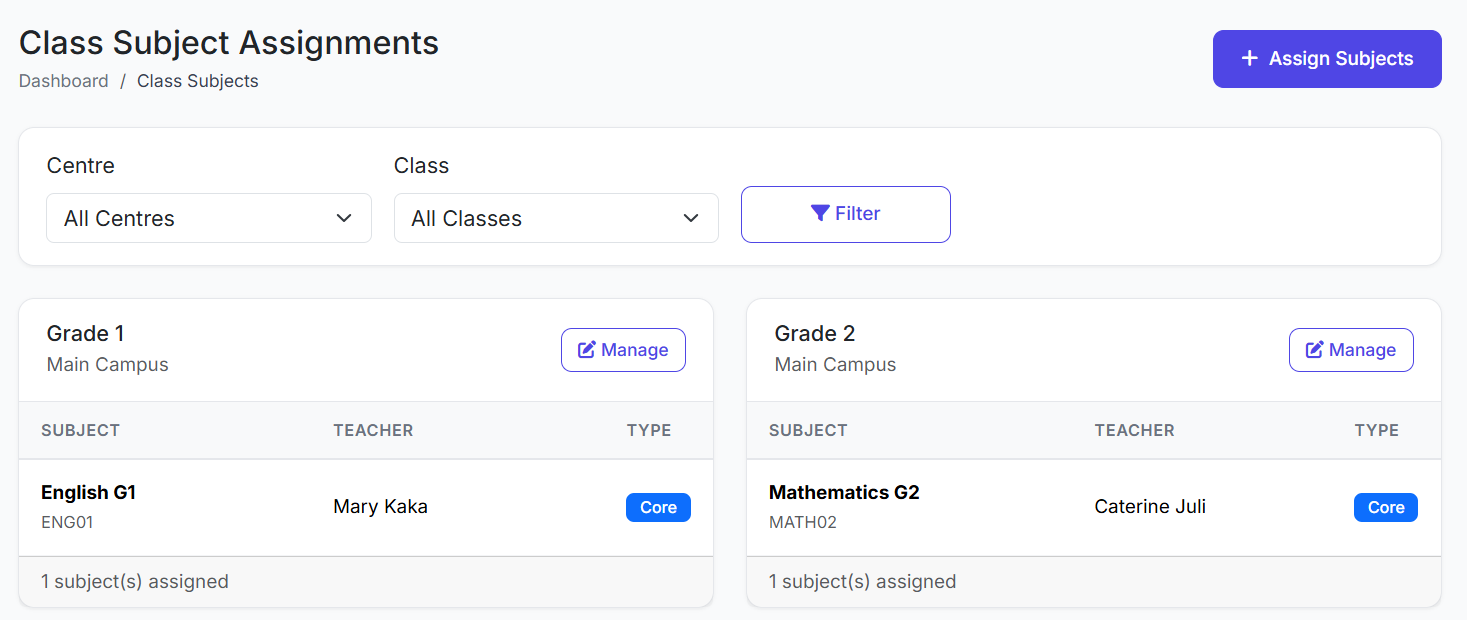
🔍 Filtering the List
Use the filter dropdowns at the top to quickly find assignments:
Filter by Class: View all subjects for a specific class.
Filter by Subject: See which classes a specific subject is assigned to.
➕ Assigning Subjects to a Class
You can assign subjects individually or in bulk.
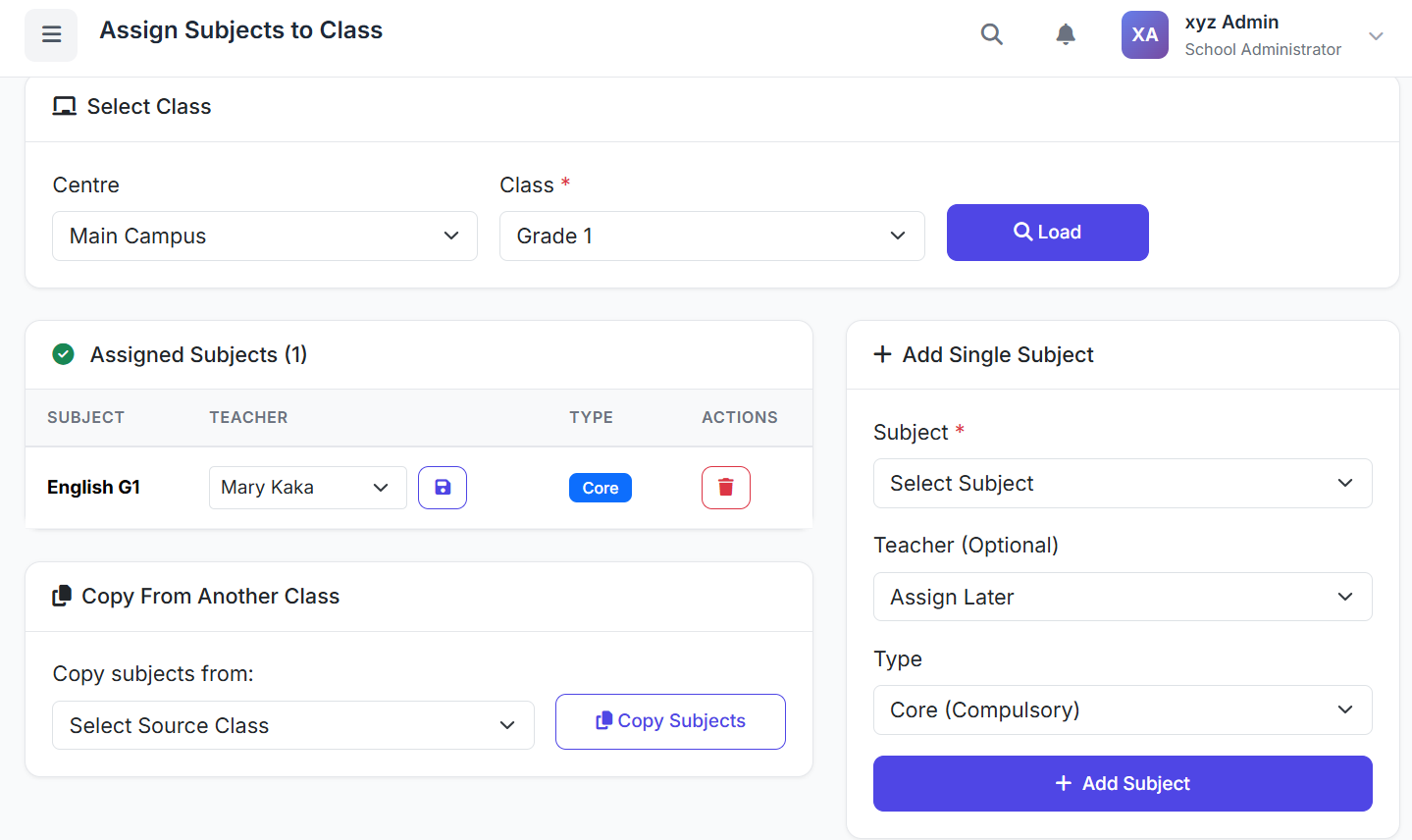
Method 1: Individual Assignment
Click Add Class Subject.
Fill in the form:
Class: Select the target class.
Subject: Choose the subject to assign.
Teacher: Assign a teacher (optional now, can be done later).
Status: Set as Active or Inactive.
Click Save.
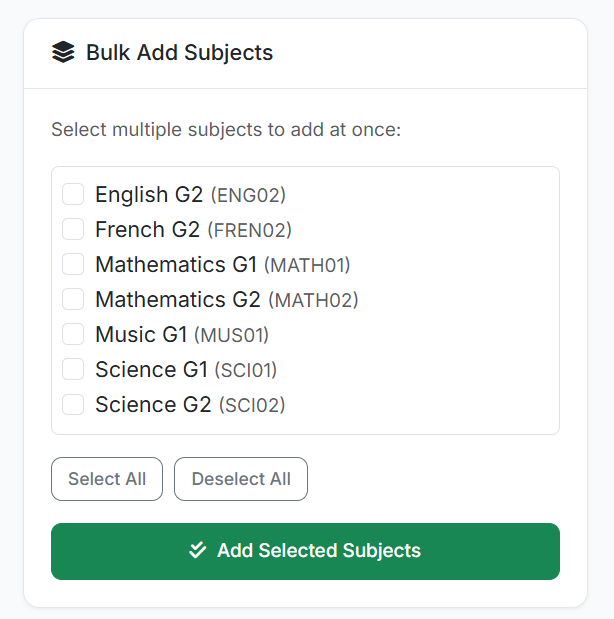
Method 2: Bulk Assignment (Faster Setup)
Click Bulk Assign.
Select a Class.
Check multiple Subjects from the master list.
Optionally assign teachers to each.
Click Assign Selected.
👩🏫 Assigning Subject Teachers
The assigned Subject Teacher is responsible for:
Teaching that subject in the specified class.
Entering grades and assessments.
Appearing on the class timetable for that subject.
To assign or change a teacher:
Edit the class-subject assignment.
Select a teacher from the Teacher dropdown.
Save the changes.
🔄 Understanding the Relationship
A teacher can be assigned to multiple subjects and multiple classes. This provides maximum flexibility.
Example Structure:
Grade 5
Mathematics → Teacher: Mr. John
English → Teacher: Mrs. Sarah
Science → Teacher: Mr. John
Grade 6
Mathematics → Teacher: Mr. James
English → Teacher: Mrs. Sarah
✏️ Editing an Assignment
To modify a class-subject link:
Find the assignment in the list.
Click the Edit (pencil) icon.
Update the Teacher or Status.
Click Update.
🗑️ Removing a Subject from a Class
Note: This only removes the subject from the class curriculum; it does not delete the subject itself from the master list.
Find the assignment.
Click the Delete button.
Confirm the removal.
✅ Best Practices
Plan Early: Set up all class subjects at the beginning of the academic year.
Assign Teachers First: Assign teachers before creating timetables to avoid conflicts.
Use Bulk Assignment: Save time by using the Bulk Assign feature for initial setup.
Keep Updated: Review and update assignments when there are staff or curriculum changes.
Maintain Consistency: Ensure all sections of the same class have the same subject set.
You now know how to build your curriculum by linking subjects to classes and assigning teachers in the Class Subjects module.
Next, we will explore Timetable Setup, where these assignments come together to create the weekly schedule.