Introduction
Here, I'll explain how Academic Years work in SSMS and why they are a critical part of your school's setup.
Academic Years form the foundation of all academic operations, including student enrollment, attendance, exams, fees, and reporting.
📍 Accessing Academic Years
To access the Academic Years module:
Go to Academic from the sidebar
Then select Academic Years
This opens the Academic Years management page.

📚 Why Academic Years Matter
Academic Years help organize your school data effectively. They ensure that:
| Benefit | Description |
|---|---|
| Data organization | Student records, attendance, and grades are stored by year |
| Flexible fees | Fee structures can differ from one academic year to another |
| Proper promotion | Students can be promoted correctly between years |
| Historical preservation | Past years' data is preserved |
| System awareness | The system always knows which year is currently active for daily operations |
Without properly configured academic years, academic data would be difficult to manage.
📋 Academic Years List Page
On this page, you'll see all academic years displayed in a table.
Each academic year includes:
| Column | Description |
|---|---|
| Year Name | e.g., 2025/2026 |
| Start & End Dates | Academic year duration |
| Current Indicator | Shows whether the year is current |
| Status | Upcoming, Active, or Completed |
| Actions | Edit, Set as Current, or Delete |
➕ Adding a New Academic Year
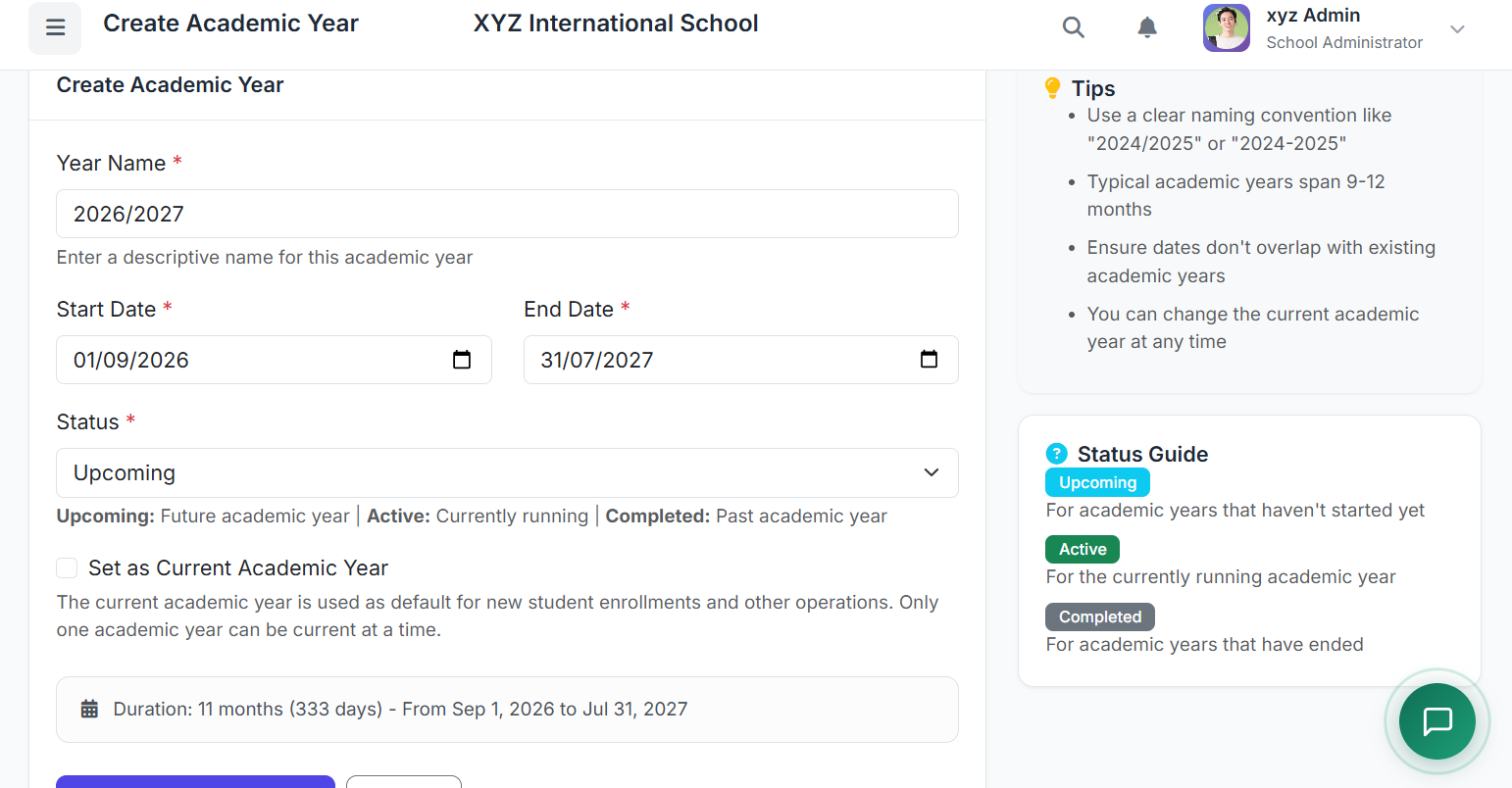
To create a new academic year, click the Add Academic Year button.
In the form:

| Field | Description |
|---|---|
| Year Name | Clear name, e.g., 2025/2026 |
| Start Date | First day of academic year |
| End Date | Last day of academic year |
| Current Year | Optionally mark as current |
| Status | Set appropriate status |
Once done, click Create Academic Year to save.
⭐ Setting the Current Academic Year
Only one academic year can be set as current at any time.
Only one academic year can be set as current at any time.
The current academic year affects:
Default selections in forms
Attendance recording
Fee calculations
Report generation
To set a year as current:
Locate the academic year in the list
Click the Set as Current button
Confirm the action
The previously active year will automatically be updated.
🔄 Academic Year Status Explained
Each academic year has a status:
| Status | Description |
|---|---|
| Upcoming | Future academic years |
| Active | The year currently in progress |
| Completed | Past academic years |
Keeping statuses updated helps maintain clarity and accurate reporting.
📅 Managing Terms Within an Academic Year
Each academic year usually comes with one or more terms — depending on your school's academic calendar and operations.
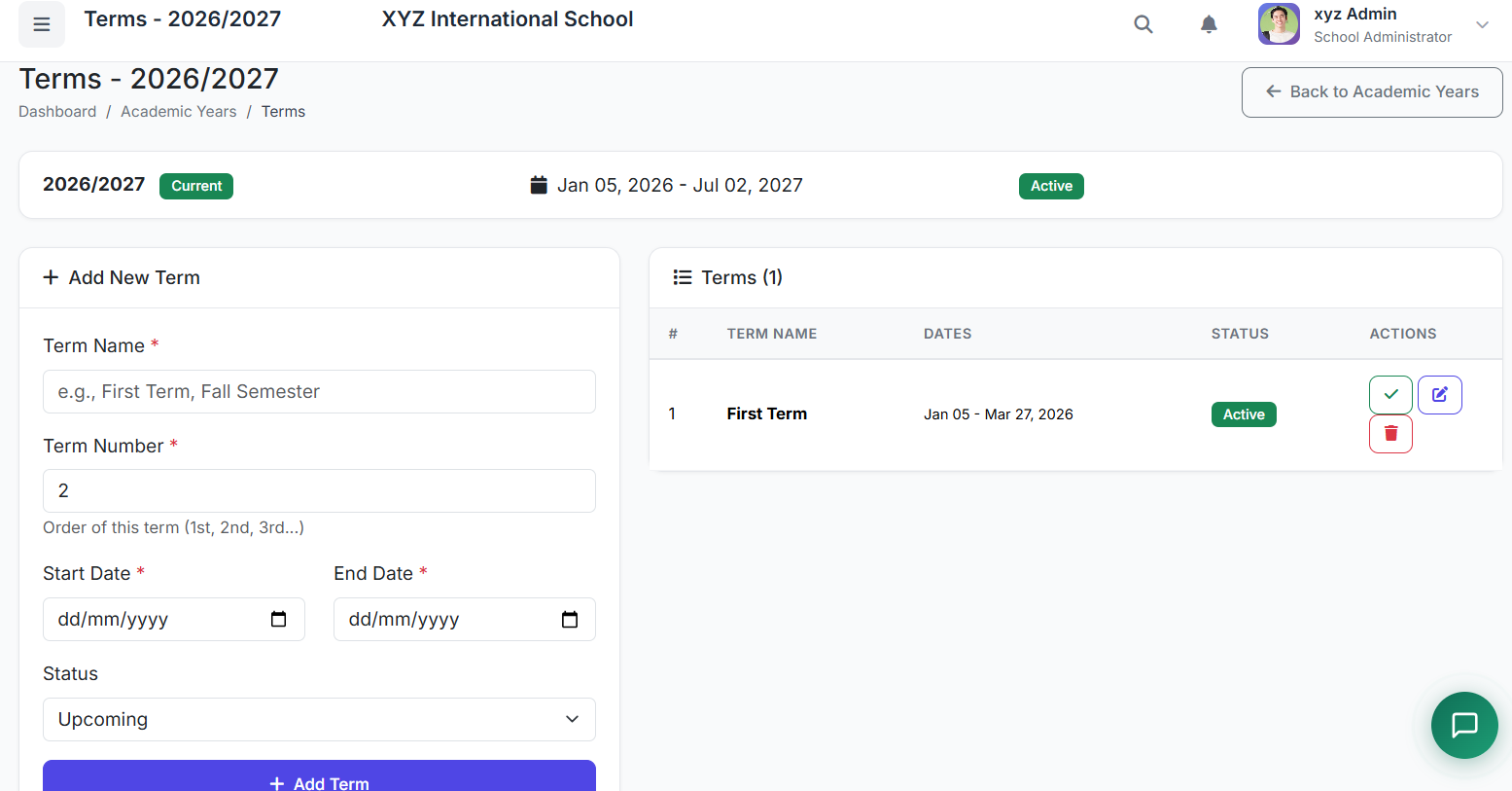
To set up terms in a current academic year:
Click the term icon on the academic year list
Enter the following information:
| Field | Description |
|---|---|
| Term Name | e.g., First Term, First Session, Fall Semester |
| Term Number | Determines order (1 = 1st term, 2 = 2nd term, etc.) |
| Start Date | Term start date |
| End Date | Term end date |
| Status | Upcoming, Active, or Completed |
Click Add Terms
Each time you need to add another term for the academic year, return to this page to do so.
✅ Best Practices
To manage academic years effectively:
Create academic years at least one year ahead
Always ensure only one current year is set
Use consistent naming formats like 2025/2026
Avoid deleting past academic years — they hold historical records, especially for reporting
Update statuses as academic years progress
🏁 Closing
That's how Academic Years work in SSMS.