📉 Module Overview
In this tutorial, we'll learn how to record, track, and report on all school expenditures to manage budgets and maintain financial transparency.
The Expenses module is used to log and monitor all outgoing school payments, from salaries and utilities to supplies and maintenance. It provides essential data for budgeting, cost control, and accurate financial reporting.
🧭 How to Access
Navigate to: Finance → Expenses
🗂️ Understanding Expense Categories
Categorizing expenses is crucial for organization and analysis. Common categories include:
| Category | Examples |
|---|---|
| Salaries & Wages | Teacher salaries, administrative staff pay. |
| Utilities | Electricity, water, internet, phone bills. |
| Supplies | Stationery, laboratory materials, office supplies. |
| Maintenance | Repairs, cleaning services, facility upkeep. |
| Transport | Fuel, vehicle maintenance, transport allowances. |
| Events | Sports day, cultural festival, graduation costs. |
| Equipment | Purchase of computers, furniture, lab equipment. |
| Marketing | Advertising, brochure printing, open day costs. |
| Insurance | School property, vehicle, liability insurance. |
| Miscellaneous | Other unforeseen or small costs. |
📋 Expenses List Overview
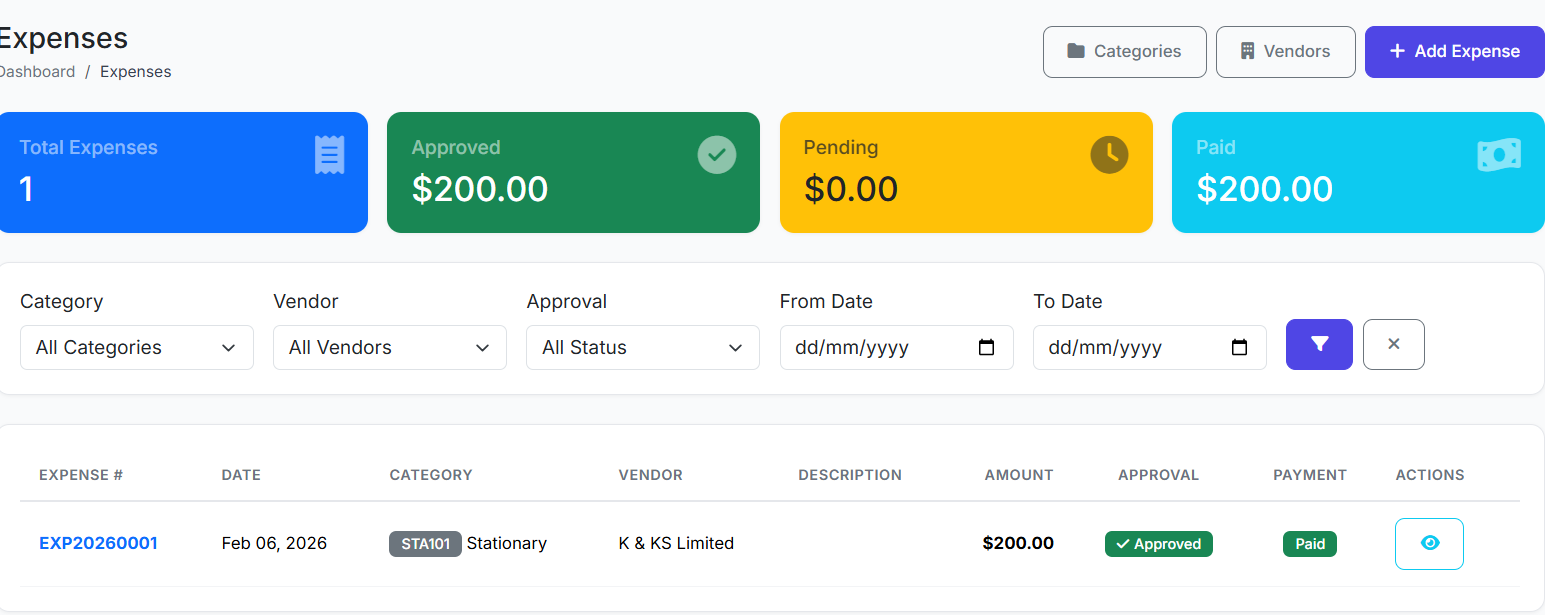
The main page displays all recorded expenses. Key columns include:
| Column | Description |
|---|---|
| Date | Date the expense was incurred/paid. |
| Category | The expense type (e.g., Utilities). |
| Description | Brief note on the purpose. |
| Vendor/Payee | Recipient of the payment. |
| Amount | Cost of the expense. |
| Payment Method | Cash, Cheque, Bank Transfer, etc. |
| Receipt | Indicator if a receipt is attached. |
| Actions | View, Edit, Delete (based on permissions). |

➕ Recording a New Expense
Click Add Expense.
Fill in the form:
Expense Date: Date of payment/purchase.
Category: Select from the list.
Description: Clearly state what was paid for (e.g., "July Electricity Bill").
Vendor/Payee: (Optional) Name of the company or person paid.
Amount: Enter the cost.
Payment Method: Select Cash, Cheque, Bank Transfer, etc.
Reference Number: (Optional) Cheque number or transaction ID.
Approved By: (Optional) Select the authorizing staff member.
Remarks: (Optional) Additional notes.
Attach Receipt: Upload supporting document (highly recommended).
Click Save Expense.

📊 Expense Reports & Analytics
Access powerful reports via Reports → Expense Reports to gain insights:
| Report Type | Purpose |
|---|---|
| By Category | Analyze spending patterns (e.g., how much was spent on Utilities this quarter). |
| By Date Range | View expenses for a specific period (monthly, termly, yearly). |
| By Vendor | Track total spending with a particular supplier. |
| Budget vs. Actual | Compare planned budget against real expenditure to identify variances. |
These reports are vital for cost control and informed financial planning.
✅ Best Practices
Timely Recording: Log expenses immediately after payment to maintain accurate, up-to-date records.
Receipt Compliance: Always attach receipts where possible. This is non-negotiable for audit trails.
Categorize Consistently: Use the same category names for similar expenses to ensure report accuracy.
Enforce Approvals: Implement a workflow where high-value expenses require prior approval from management.
Regular Reviews: Generate and review monthly expense reports to monitor trends and prevent budget overruns.
Budget Comparison: Regularly compare actual expenses against the annual budget to stay on track financially.
The Expenses module provides the tools needed for disciplined financial management, ensuring all school spending is documented, categorized, and available for analysis to support sound fiscal decisions.
Next, we will explore Payroll Management.