Introduction
Today, I’ll be demonstrating the Messages module.
This module provides a private internal messaging system within the Smart School Management System, allowing secure and direct communication between teachers, parents, administrators, and other users.
Navigating to Messages
To access the messaging system, navigate to the Communication menu and click on Messages.
This opens the messages inbox, which serves as the central hub for all private communications within the system.
Messages Inbox Overview
This is the Messages Inbox. Here, users can see all received and sent messages in a clean, organized list.
Each message shows:
Sender or recipient
Subject
Short preview
Date sent
Read or unread status
From here, users can reply to messages or delete them when no longer needed.
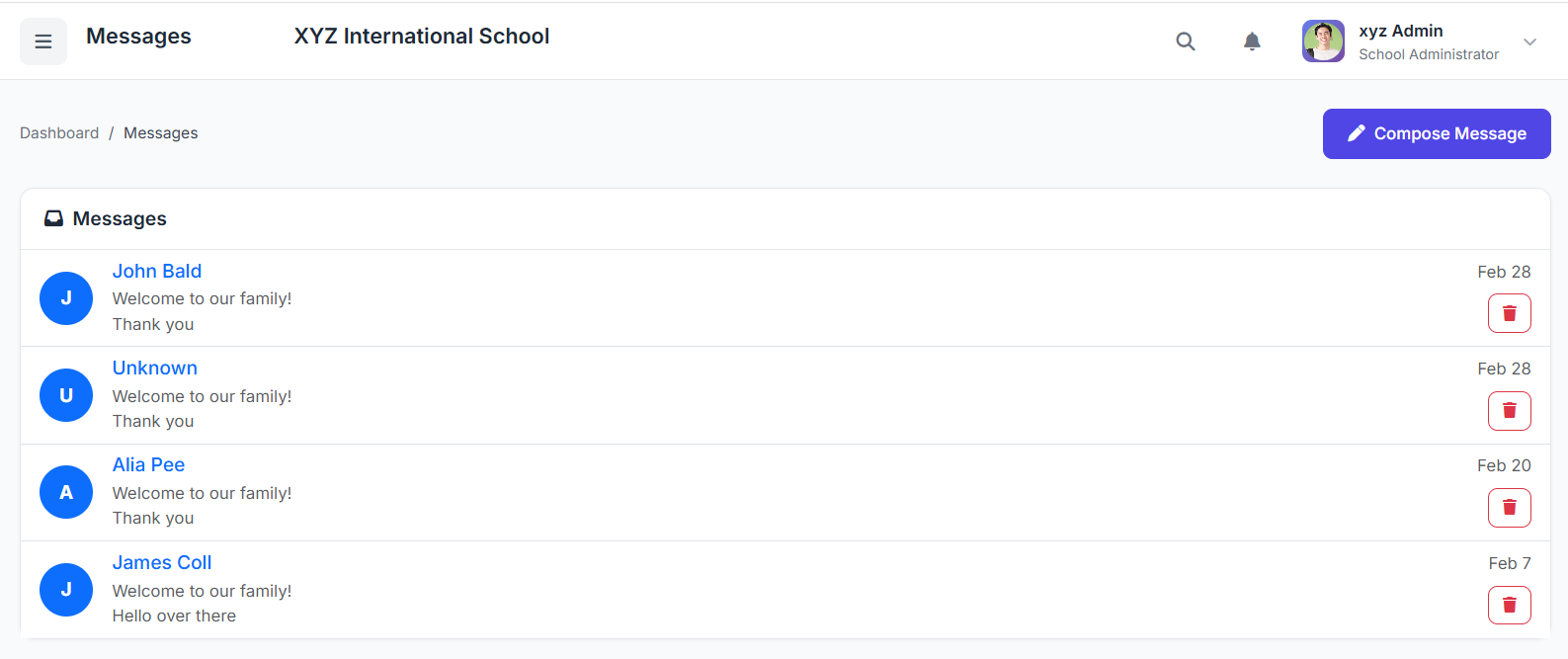
Note: Parents can only receive messages in their inbox but are not allowed to send messages at the moment.
Composing a New Message
To send a new message, click on Compose or New Message.
In the message form:
First, select the recipient(s).
Users can select by role, such as teachers or parents.
Writing the Message
Next, enter a clear subject line, followed by the message content.
The message editor allows full-text messaging to clearly communicate information.
Sending the Message
Once the message is ready, click Send.
The message is immediately delivered to the selected recipients and appears in the Sent folder for future reference.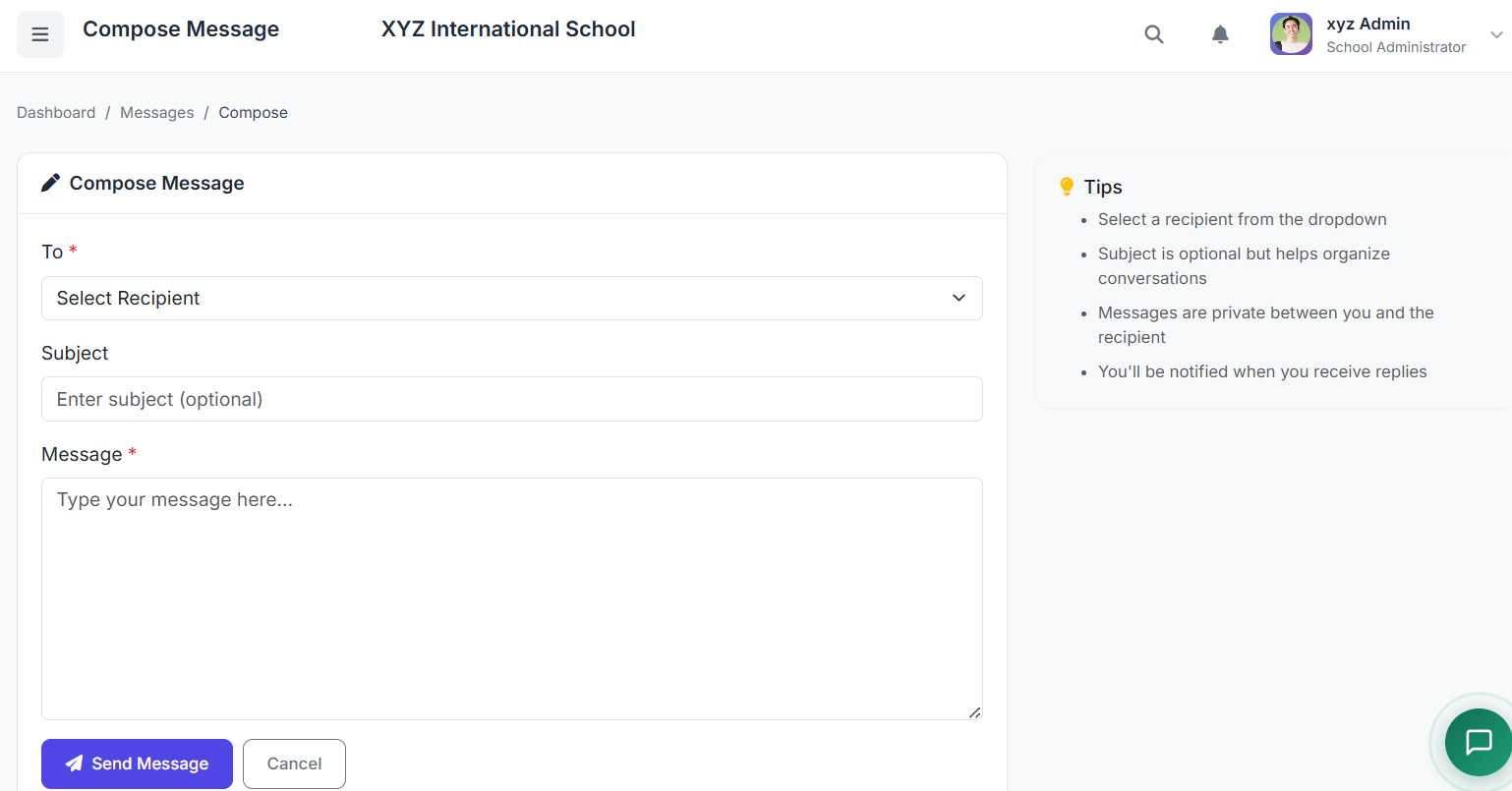
Reading and Replying to Messages
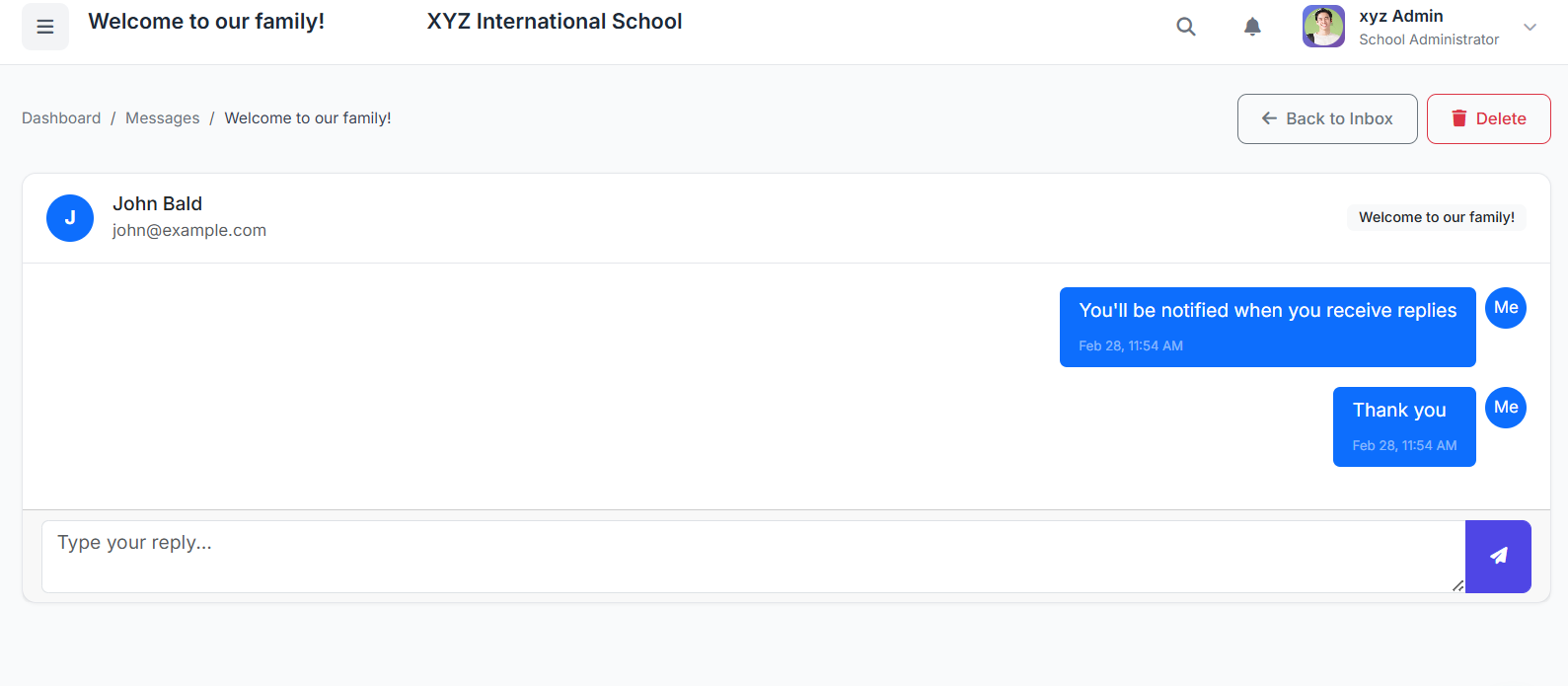
To read a message, simply click on it from the inbox.
The full message content opens in a conversation view, making it easy to follow discussions.
Users can reply directly, and the previous message is automatically included for context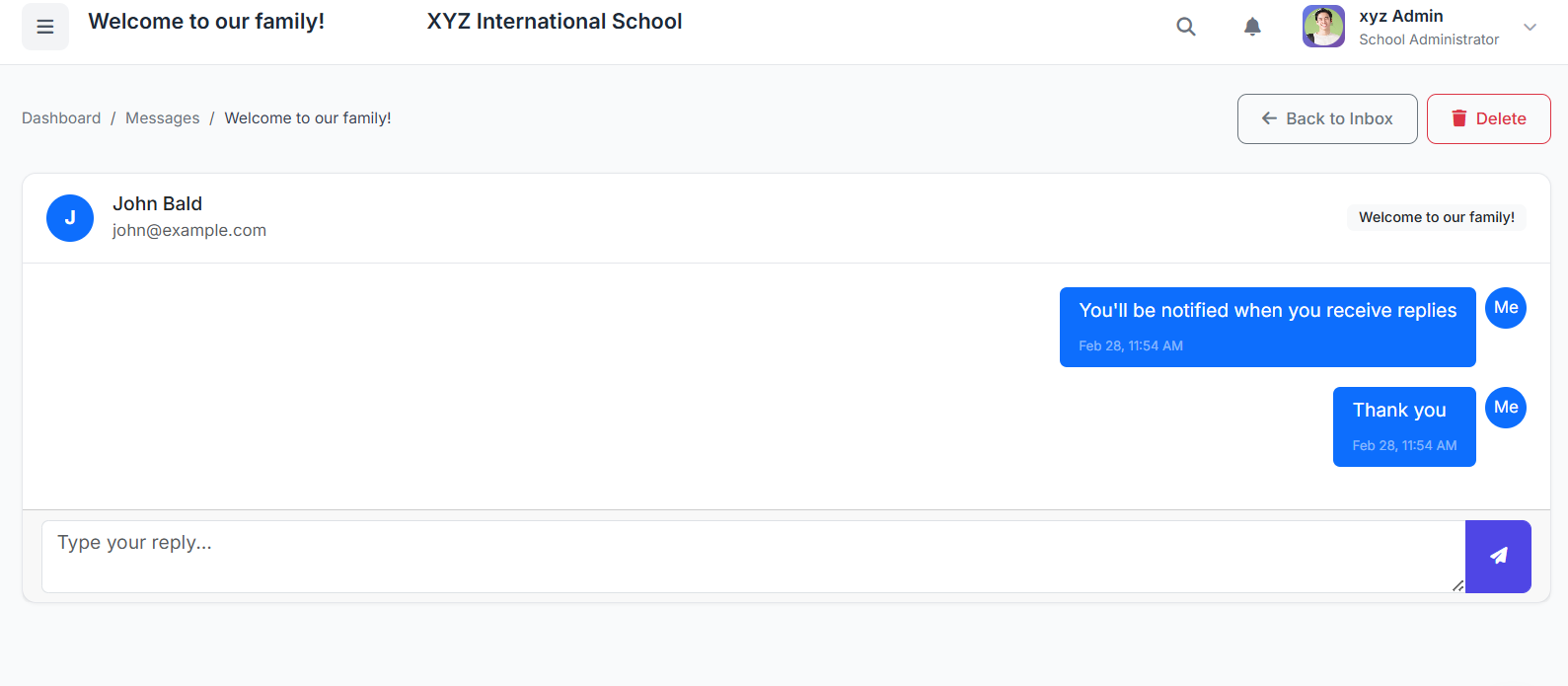
Privacy and Communication Control
Unlike announcements, messages are private and visible only to the selected recipients.
This makes the Messages module ideal for:
Sensitive communication
Follow-ups
Direct discussions between school stakeholders
Best Practices
As best practice:
Always use clear subject lines
Maintain professional language
Respond to messages promptly
Respect user privacy
Tip: Messages should be used for direct communication, while announcements are better suited for school‑wide broadcasts.
Closing
This concludes the demonstration of the Messages module.
It provides a secure and effective way to communicate directly within the school community.