👔 Module Overview
In this tutorial, we'll learn how to record, manage, and report daily staff attendance, integrate with leave management, and understand its impact on payroll.
The Staff Attendance module tracks the daily presence of all school staff. It ensures accurate workday accounting, integrates with leave balances, and provides data for payroll processing and administrative oversight.
🧭 How to Access
Navigate to: Attendance → Staff Attendance
📋 Attendance Page Layout
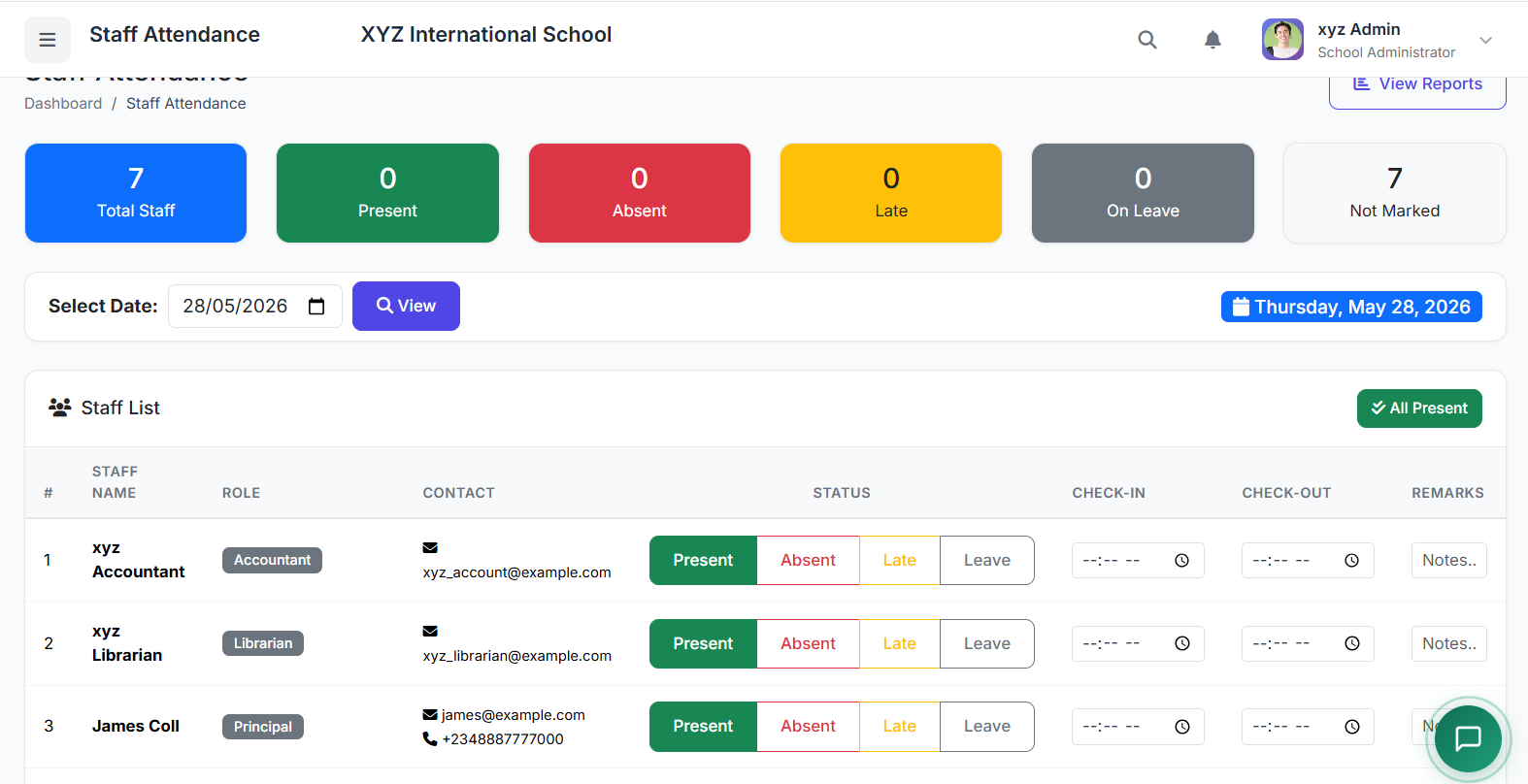
The main interface includes:
Date Selector: Choose the date for attendance (defaults to today).
Department Filter: Optional filter to view staff by department (e.g., Teaching, Administrative).
Staff List: Displays all active staff members based on selected filters.
Status Buttons: For marking each staff member's daily status.
Time Recording (Optional): Fields to log In-time and Out-time if your school uses clock-in systems.
🟢 Staff Attendance Statuses
| Status | Description |
|---|---|
| Present | Staff member worked a full day. |
| Absent | Did not report to work without approved leave. |
| Half Day | Worked for a partial day only. |
| On Leave | Absent with an approved leave (Sick, Casual, etc.). |
| Late | Arrived after the official start time. |
| Work From Home | Worked remotely (if applicable). |
✅ Process: Recording Daily Attendance
Step 1: Select Date & Filter
Choose the Date using the calendar picker.
Optionally, select a Department to narrow the list.
The staff list updates automatically.
Step 2: Mark Individual Attendance
For each staff member, click the appropriate status button.
If time tracking is enabled, you can also enter In-time and Out-time.
Changes are typically saved automatically as you select them.
Step 3: Leave Integration
The system can automatically mark staff as "On Leave" if they have an approved leave request for that day.
It references the leave type (Sick, Casual, Annual) and updates the staff member's remaining leave balance accordingly.
📊 Viewing Attendance Reports
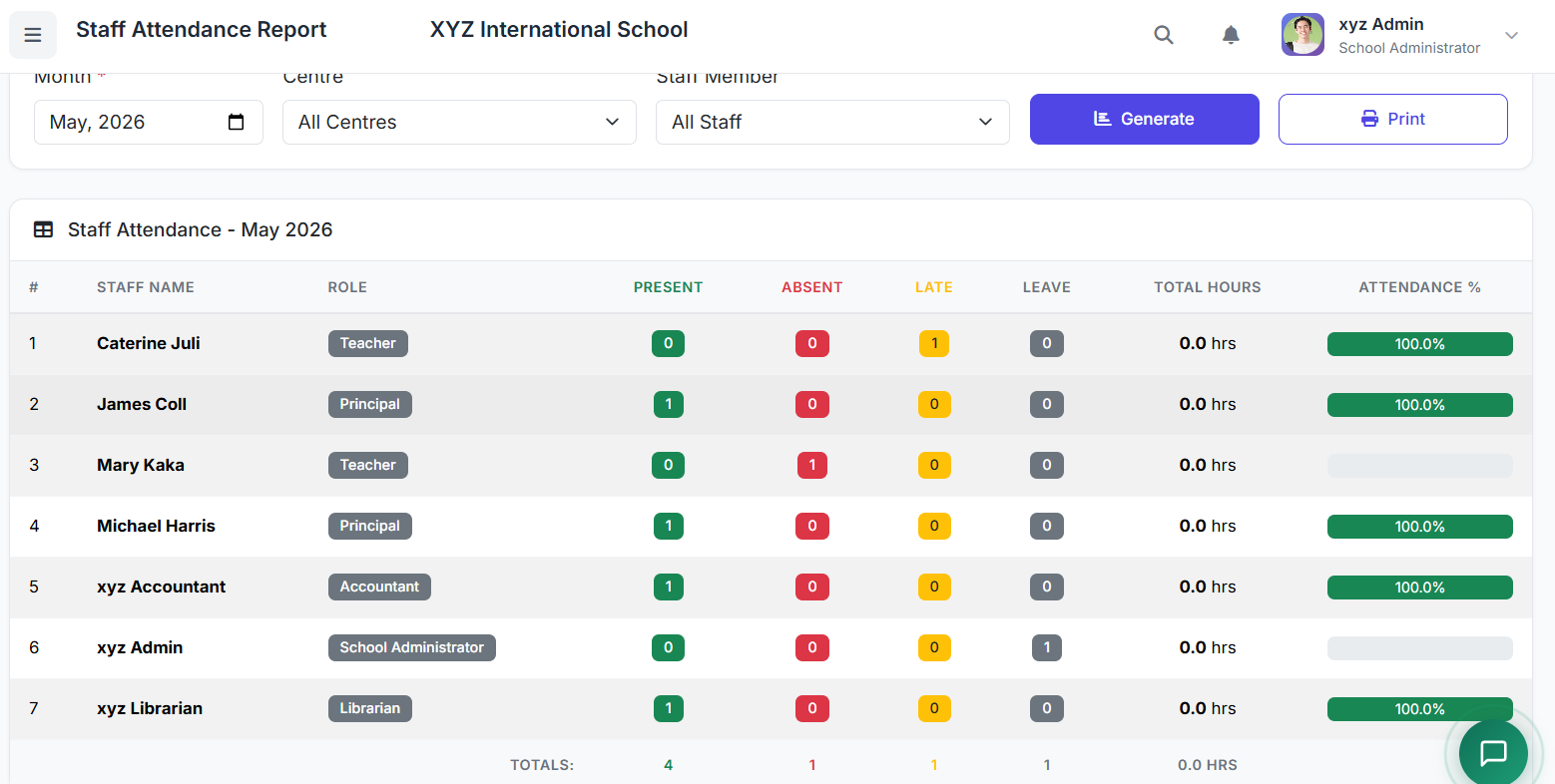
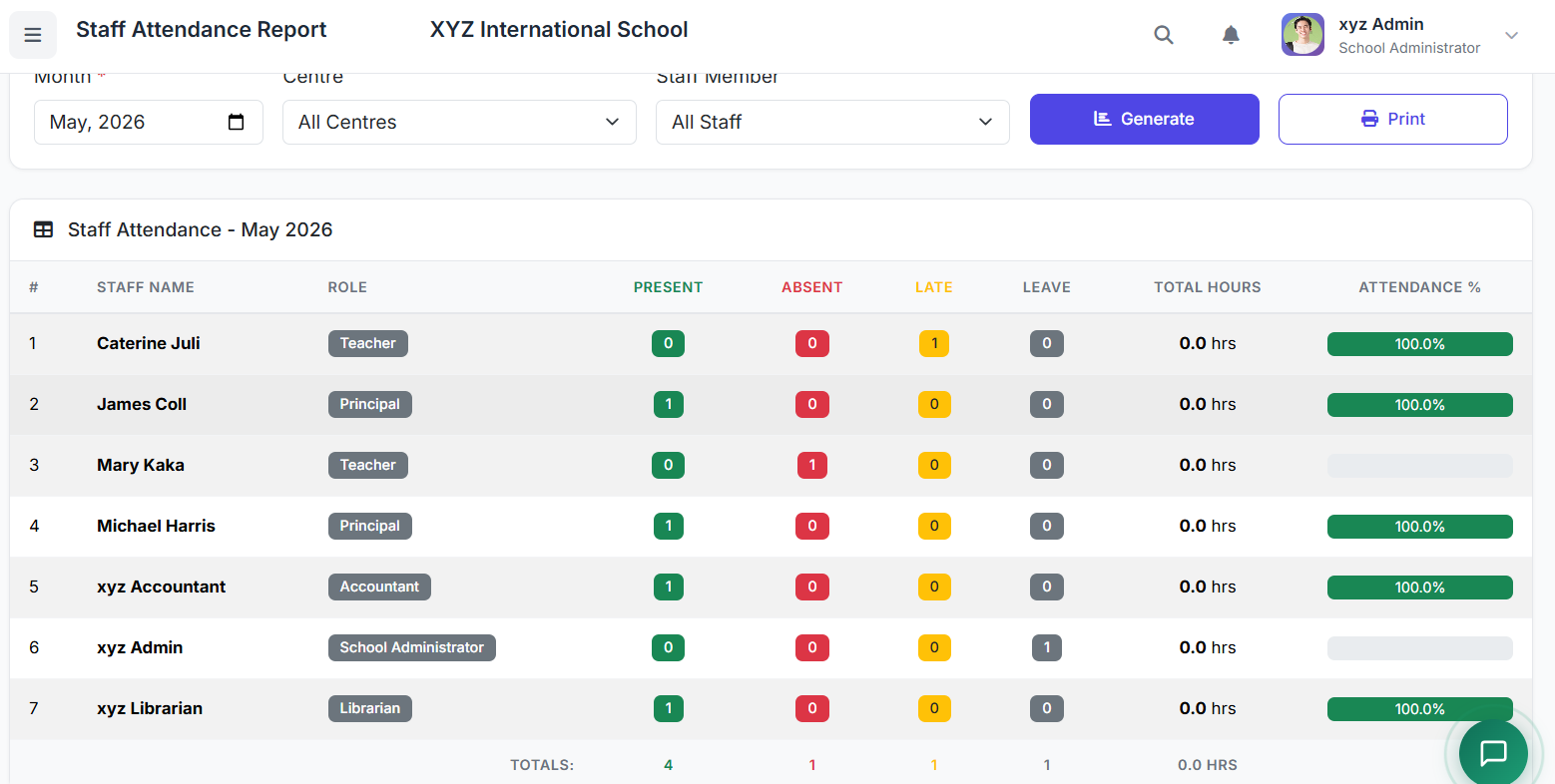
Access detailed analytics via Reports → Staff Attendance Reports.
| Report Type | Purpose |
|---|---|
| Daily Staff Attendance | Snapshot of all staff statuses for a specific day. |
| Monthly Summary | Total working days, absences, and leave days per staff member for the month. |
| Department Report | Attendance overview filtered by department for comparison. |
| Individual Staff Report | Detailed attendance history for a specific employee over a selected period. |
💵 Linking Attendance to Payroll
Attendance data directly influences payroll calculations:
Absent Days: May trigger salary deductions based on school policy.
Half Days: Calculated proportionally for salary adjustments.
Leave Types: Different leave types (e.g., Paid vs. Unpaid) are factored into final pay.
Automatic Integration: Ensures payroll is accurate and up-to-date without manual data entry.
✅ Best Practices
Record Consistently: Mark attendance daily at a fixed time (e.g., after morning assembly).
Sync with Leave: Ensure leave requests are approved in the system before marking attendance to avoid discrepancies.
Monitor Lateness: Track "Late" markings to identify patterns and enforce punctuality policies.
Review Regularly: Generate department-wise monthly reports to monitor trends and address absenteeism.
Use Data Proactively: Analyze reports to detect patterns and engage in supportive conversations with staff if needed.
The Staff Attendance module is a vital tool for workforce management, providing the data needed for operational oversight, fair payroll processing, and informed administrative decisions.
Next, we will explore the Grade Management system in detail.