🎯 Module Overview
In this tutorial, we'll learn how to configure leave types, manage applications, and track staff leave balances to ensure proper workforce planning and record-keeping.
The Leave Management Module is a digital system that replaces paper-based leave forms. It allows staff to apply online, automates balance tracking, and gives administrators tools to approve requests and monitor staff availability in real-time.
🧭 Module Access & User Roles
| Role | Access Path | Key Permissions |
|---|---|---|
| All Staff | Leave Management in sidebar | Apply for leave, view own balance & history. |
| Admin / Principal | Leave Management in sidebar | Full configuration, view all applications, approve/reject, run reports. |
⚙️ For Administrators: Setup & Configuration
1. Configuring Leave Types
Before staff can apply, you must define the types of leave available.
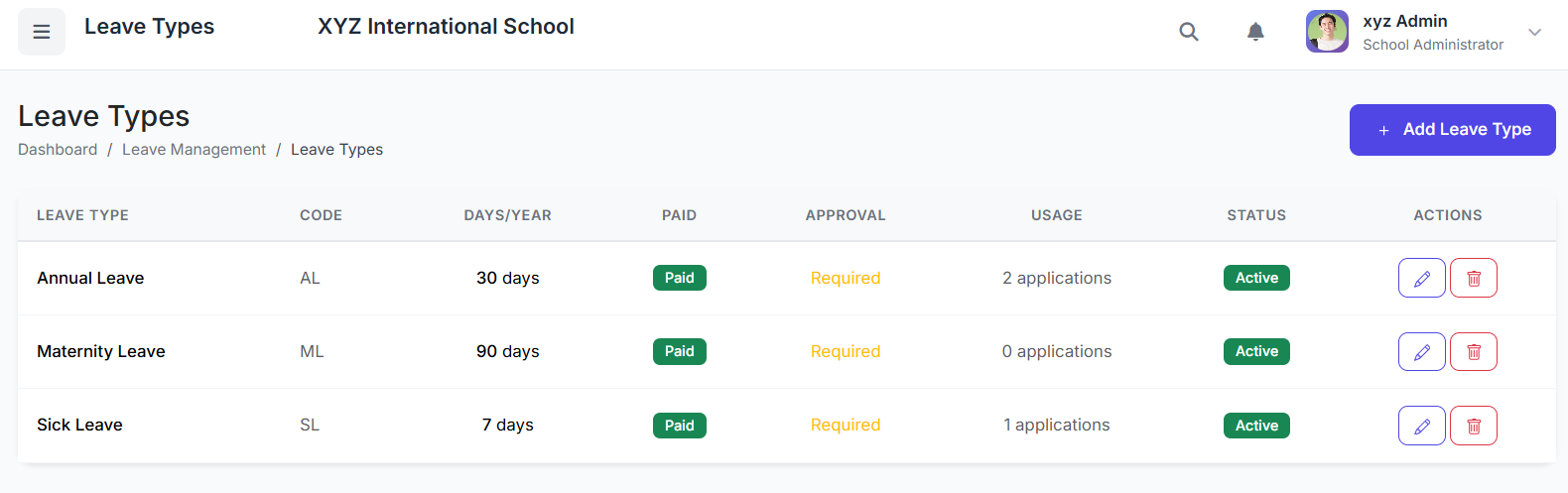

Steps to Create a Leave Type:
Go to Leave Management → Leave Types.
Click Add Leave Type.
Fill in the form:
Leave Name (e.g., "Annual Leave")
Leave Code (e.g., "AL")
Total Days Per Year (e.g.,
21; leave blank for unlimited)Leave Type: Paid or Unpaid
Approval Required: Yes (Manual) or No (Auto-approve)
Status: Active
Click Create Leave Type.
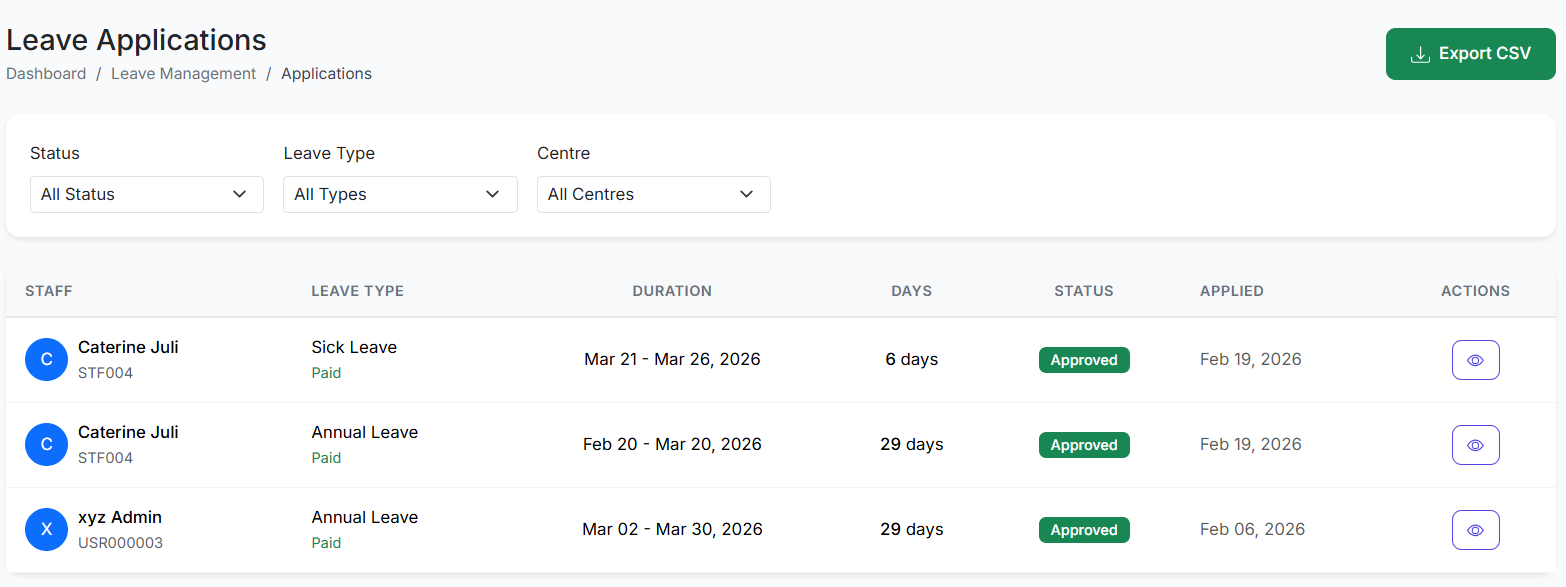
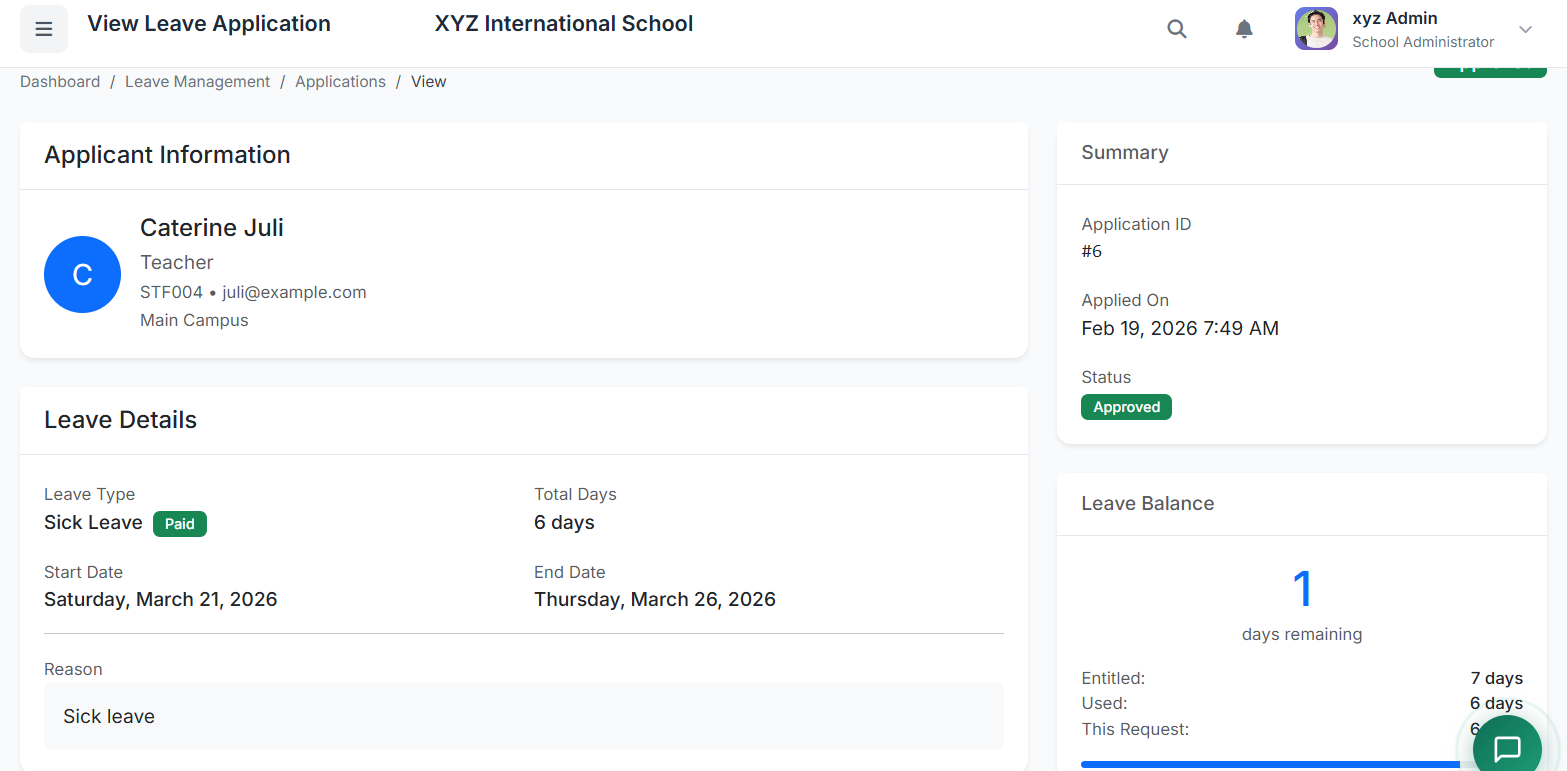
2. Reviewing & Processing Applications
Viewing the Application List:
Go to Leave Management → Applications.
Use Filters for Status (Pending/Approved/Rejected), Leave Type, or Centre.
Approving or Rejecting:
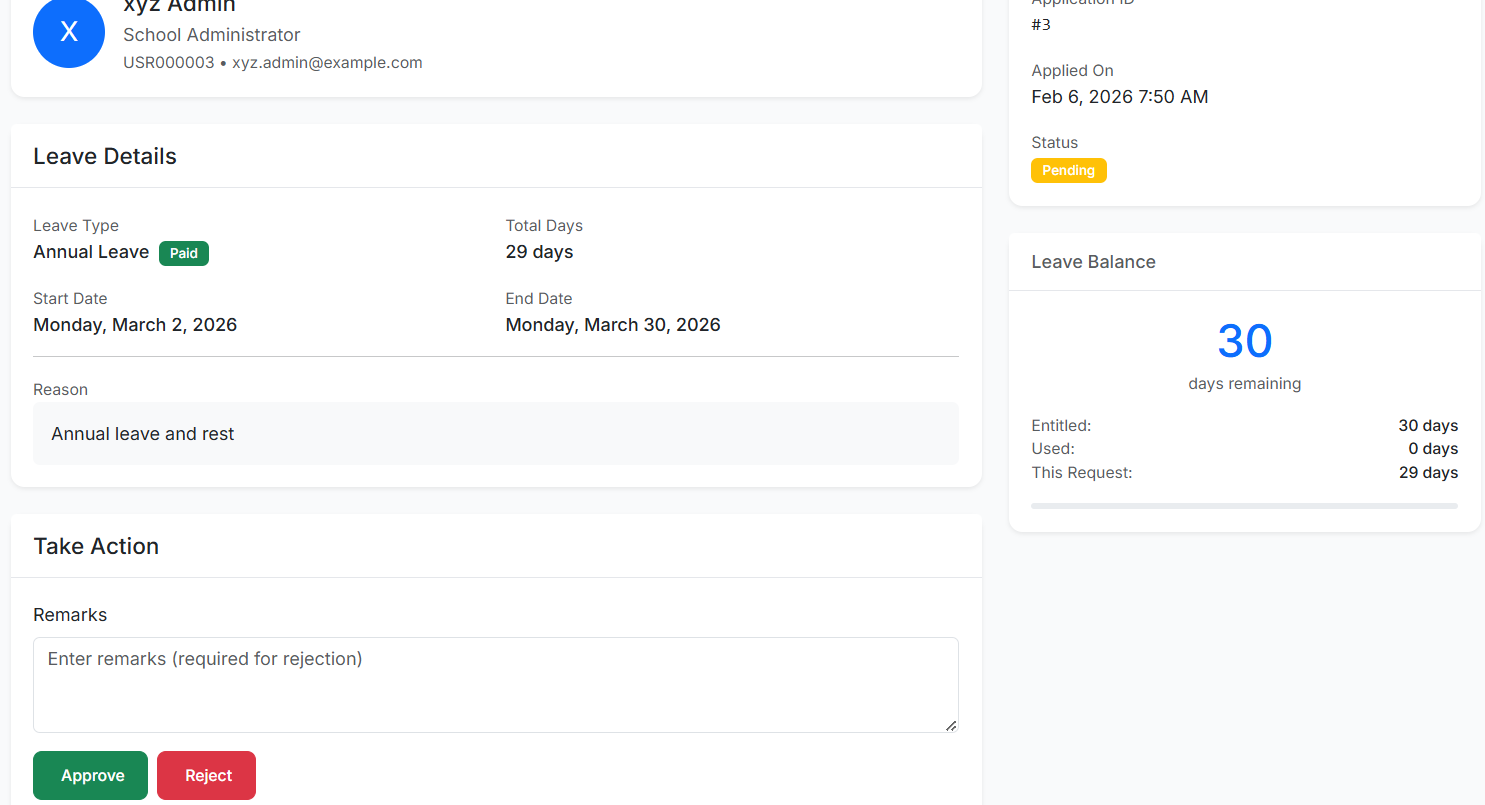
For a Pending application, click Approve (✓) or Reject (✗).
If rejecting, adding Remarks is required to explain the decision.
Confirm the action.
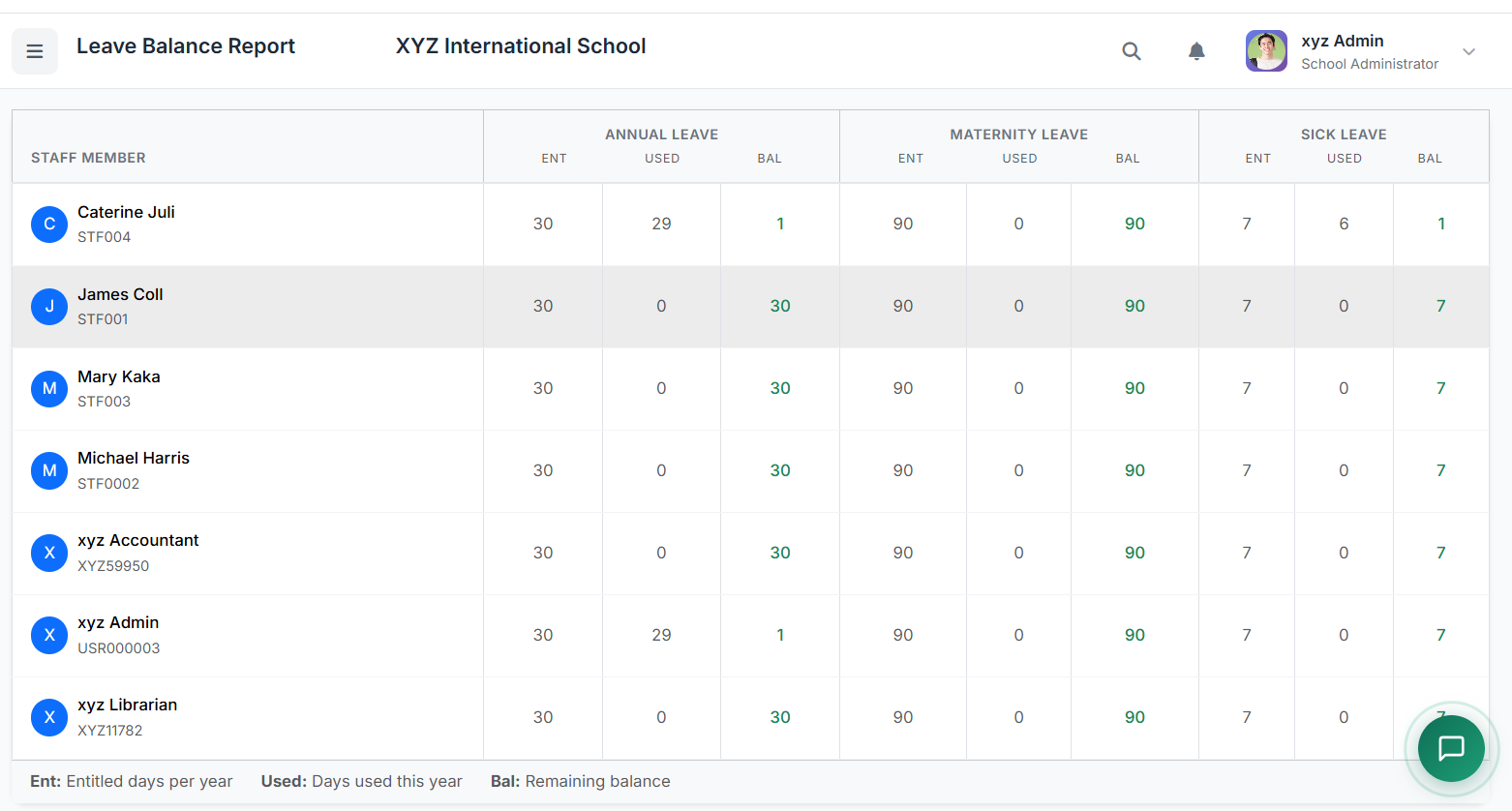
3. Monitoring Leave Balances
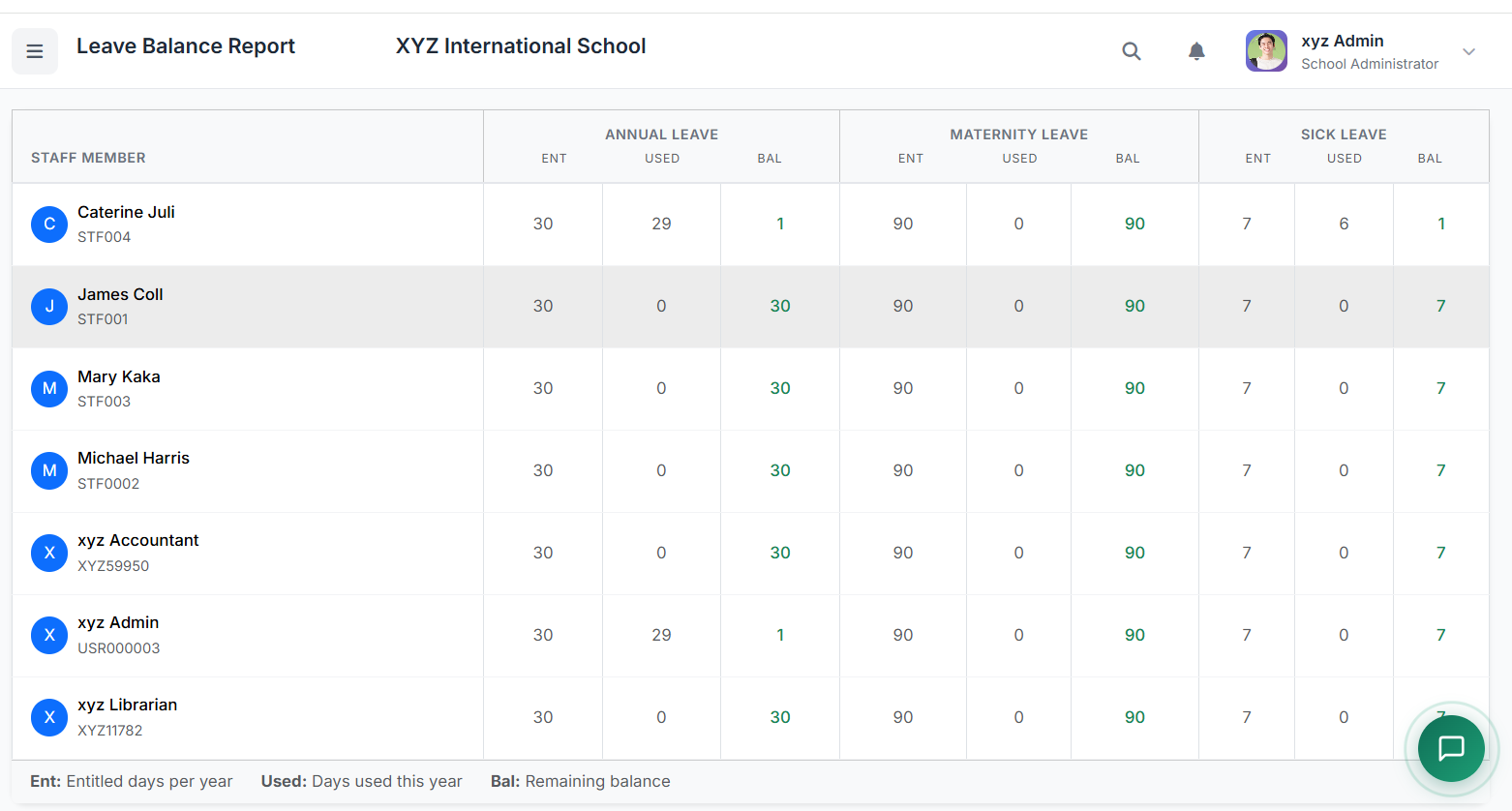
Go to Leave Management → Balance Report.
View a table of all staff showing:
Entitled days per year.
Used days.
Remaining Balance.
Use the Centre filter and Print Report option.
📝 For Staff Members: Applying & Tracking Leave
1. Checking Your Balance
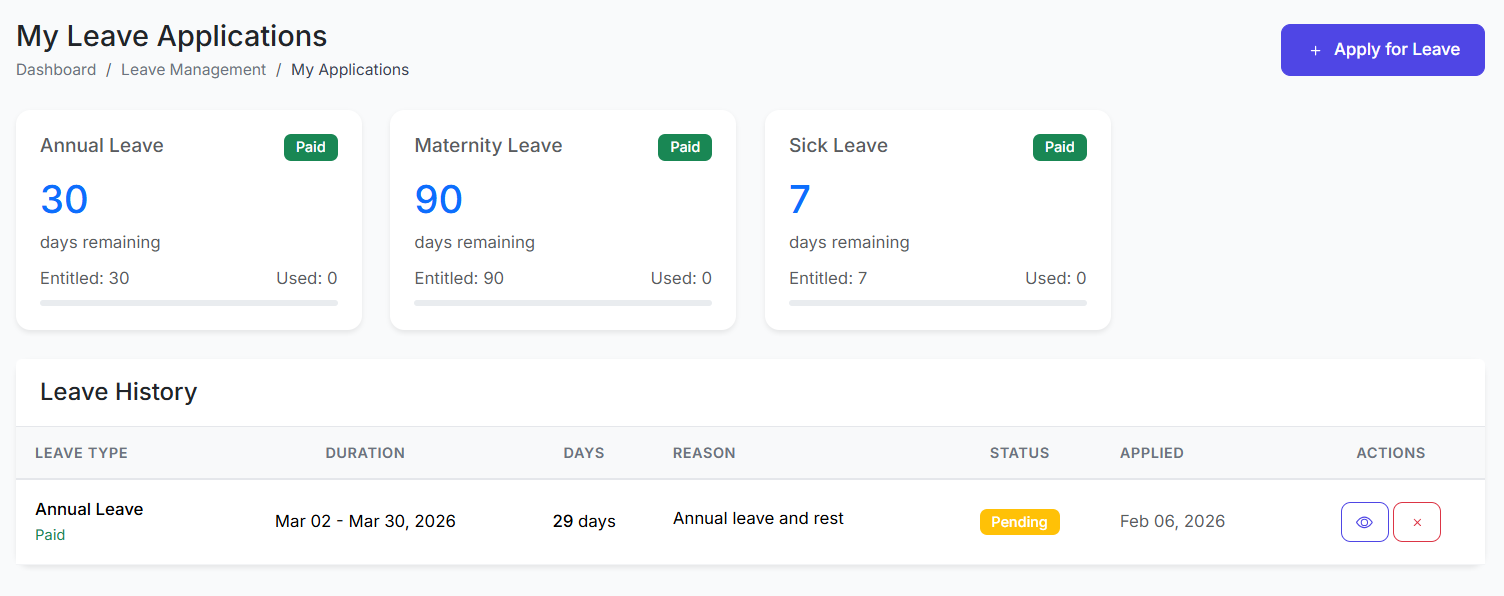
Upon logging in, your Leave Management dashboard displays balance cards for each leave type, showing remaining days.
You can also see this on the My Applications page.
2. Applying for Leave
Go to Leave Management and click Apply for Leave.
Fill in the form:
Select Leave Type.
Choose Start Date and End Date.
Enter a Reason.
(Optional) Attach supporting documents (e.g., medical certificate).
The system calculates the Total Days and checks your balance.
Click Submit Application.
⚠️ Restrictions:
You cannot apply if you have insufficient balance.
Dates cannot overlap with existing approved leave.
3. Viewing Your History & Cancelling
Go to My Applications to see all your requests with their status.
You can only Cancel applications that are still Pending.
📊 Dashboard & Reports
Administrator Dashboard Shows:
This Month: Total applications submitted.
Pending: Applications needing attention.
Approved/Rejected: Count for the month.
On Leave Today: Staff currently absent.

Staff Dashboard Shows:
Personal leave balance cards.
Recent application history.
Exporting Data:
From the Applications page, use filters and click Export CSV to download data for external reporting.
✅ Best Practices
For Administrators:
Set up all Leave Types before the start of the academic year.
Review pending applications daily for prompt responses.
Use clear remarks when approving or rejecting.
Run monthly balance reports to monitor trends and plan coverage.
For Staff:
Apply well in advance (1-2 weeks minimum).
Always check your balance before applying.
Attach supporting documents (like medical certificates) where applicable.
Provide clear reasons in your application to aid faster approval.
❓ Troubleshooting & FAQs
| Issue | Likely Solution |
|---|---|
| Cannot submit an application. | Check your leave balance for that type. |
| Application stuck on "Pending". | Contact your administrator for review. |
| Need to change an approved leave. | Contact admin to cancel it; you can then re-apply. |
| Leave balance looks incorrect. | Ensure all past applications have been properly approved/rejected by admin. |
| Can I take a half-day leave? | The system currently calculates in full days only. |
Conclusion: The Leave Management Module streamlines absentee tracking, ensures policy compliance, and provides clear visibility for both staff and administrators, making leave management efficient and transparent.