Introduction
Today, we'll explore the Staff module in SSMS.
This module manages detailed information about all employees – teachers, administrators, and support staff. Staff records contain personal details, qualifications, employment history, and can be linked to user accounts for system access.
Note: This module is quite different from the Users module (explained in our previous tutorial).
📍 Accessing the Staff Module
To open the Staff page:
Click People in the sidebar
Select Staff
📋 Staff List Page
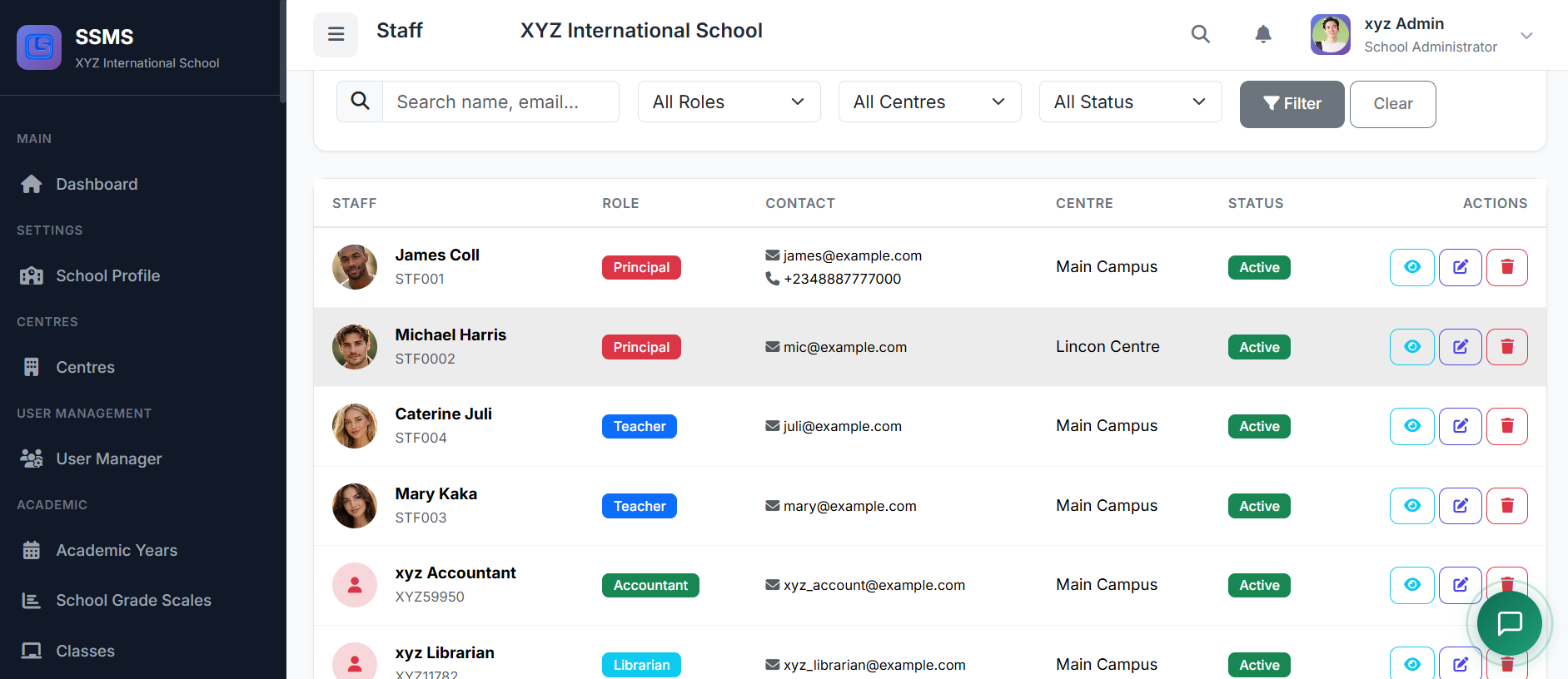
The page displays all staff members with key information:
| Column | Description |
|---|---|
| Photo | Staff profile picture |
| Staff ID | Unique identifier |
| Name | Full name |
| Department | Assigned department |
| Designation | Job title |
| Phone | Contact number |
| Centre | Assigned centre |
| Status | Active, On Leave, Resigned, etc. |
| Actions | View, Edit, Delete |

🔍 Filtering and Searching Staff
Use the filters to quickly locate staff:
Search Box → Name, ID, or Phone
Role Filter → Job title
Status Filter → Active, On Leave, Resigned
Centre Filter → For multi-centre schools
➕ Adding a New Staff Member
Click Add Staff to open the registration form.
Section 1: Personal Information

Field Description First Name, Last Name Staff member's full name Gender, Date of Birth Demographic info Phone, Email, Address Contact details Nationality, Religion, Marital Status Personal information
| Field | Description |
|---|---|
| First Name, Last Name | Staff member's full name |
| Gender, Date of Birth | Demographic info |
| Phone, Email, Address | Contact details |
| Nationality, Religion, Marital Status | Personal information |
Section 2: Employment Information
Field Description Staff ID, Centre, Department, Designation Work assignment Date of Joining Start date Employment Type Full-time, Part-time, etc. Qualification, Experience Credentials Status Current employment status
| Field | Description |
|---|---|
| Staff ID, Centre, Department, Designation | Work assignment |
| Date of Joining | Start date |
| Employment Type | Full-time, Part-time, etc. |
| Qualification, Experience | Credentials |
| Status | Current employment status |
Section 3: Emergency Contact
Field Description Name Emergency contact person Relationship How they're related Phone Contact number
| Field | Description |
|---|---|
| Name | Emergency contact person |
| Relationship | How they're related |
| Phone | Contact number |
Section 4: Photo Upload
Select photo
Preview before saving
Click Create Staff to save.
Select photo
Preview before saving
Click Create Staff to save.
👀 Viewing Staff Profile
Click View or the staff member's name. The profile shows:

| Section | Information |
|---|---|
| Header | Photo, Name, Designation |
| Personal Details | Contact info, DOB, gender |
| Employment Details | Department, joining date, status |
| Qualifications | Education and certifications |
| Assigned Classes | Teaching assignments (for teachers) |
| Salary | Payment history (shown on User Management page to minimize clutter) |
✏️ Editing Staff Information
Click Edit from the list or profile
Update the necessary fields
Click Update Staff
Click Edit from the list or profile
Update the necessary fields
Click Update Staff
🔑 Creating a User Account for Staff
To give a staff member system access:
Go to the staff profile
Click Create User Account
Set login email and initial password
Select appropriate role (Teacher, Admin, etc.)
Click Save
⚡ Staff Status Management
Status Description Active Currently employed On Leave Temporary leave of absence Resigned Voluntarily left the school Terminated Employment ended by school Retired Reached retirement age
Change status via Edit → Status dropdown → Save
| Status | Description |
|---|---|
| Active | Currently employed |
| On Leave | Temporary leave of absence |
| Resigned | Voluntarily left the school |
| Terminated | Employment ended by school |
| Retired | Reached retirement age |
Change status via Edit → Status dropdown → Save
🏢 Staff Departments
Common departments include:
| Department | Description |
|---|---|
| Teaching Staff | Classroom teachers |
| Administrative | Office staff |
| Management | Principals, Directors |
| Support Staff | Security, Maintenance, Cafeteria |
| Accounts | Finance department |
🗑️ Deleting a Staff Record
⚠️ Warning: Prefer changing status to "Resigned" instead of deleting.
⚠️ Warning: Prefer changing status to "Resigned" instead of deleting.
To delete:
Click Delete
Confirm deletion
Note: Linked user accounts will also be deactivated.
✅ Best Practices
Use a consistent Staff ID format
Keep contact information updated
Document qualifications and certifications
Link staff to user accounts as needed
Update status promptly when employment changes
Maintain emergency contact information
Use a consistent Staff ID format
Keep contact information updated
Document qualifications and certifications
Link staff to user accounts as needed
Update status promptly when employment changes
Maintain emergency contact information
🏁 Closing
That's the Staff module in SSMS – a comprehensive system for managing all employee information efficiently.