📅 Module Overview
In this tutorial, we'll learn How to record, manage, and report daily student attendance efficiently, track history, and generate insights.
The Student Attendance module allows teachers and administrators to record daily attendance, track student presence patterns, and generate reports for monitoring and compliance.
🧭 How to Access
Navigate to: Attendance → Student Attendance
📋 Attendance Page Layout
The main interface consists of:
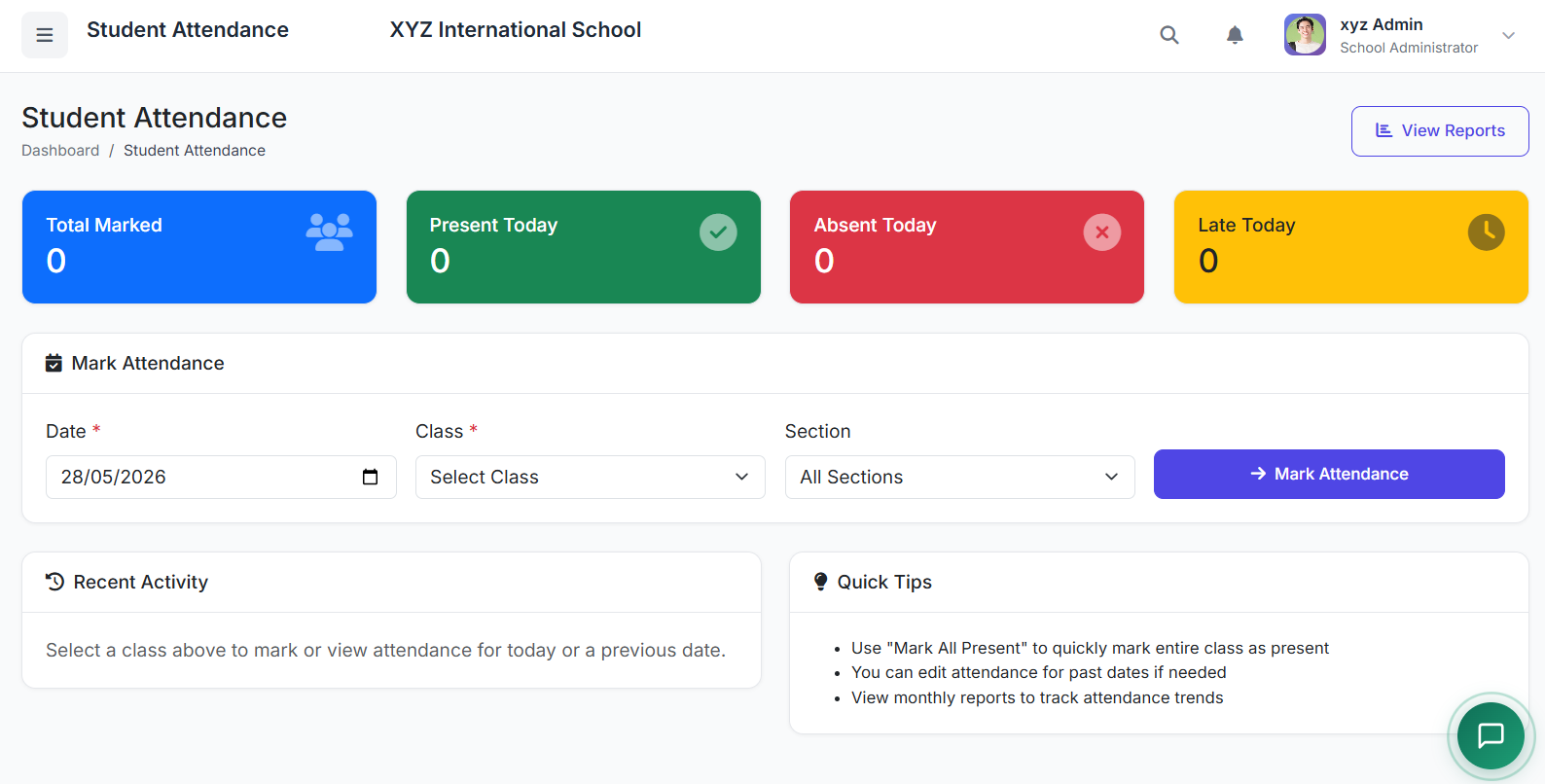
Date Selector: Choose the day for attendance (defaults to today).
Class/Section Filter: Select the specific class and section.
Student List: Automatically loads all students in the selected class/section.
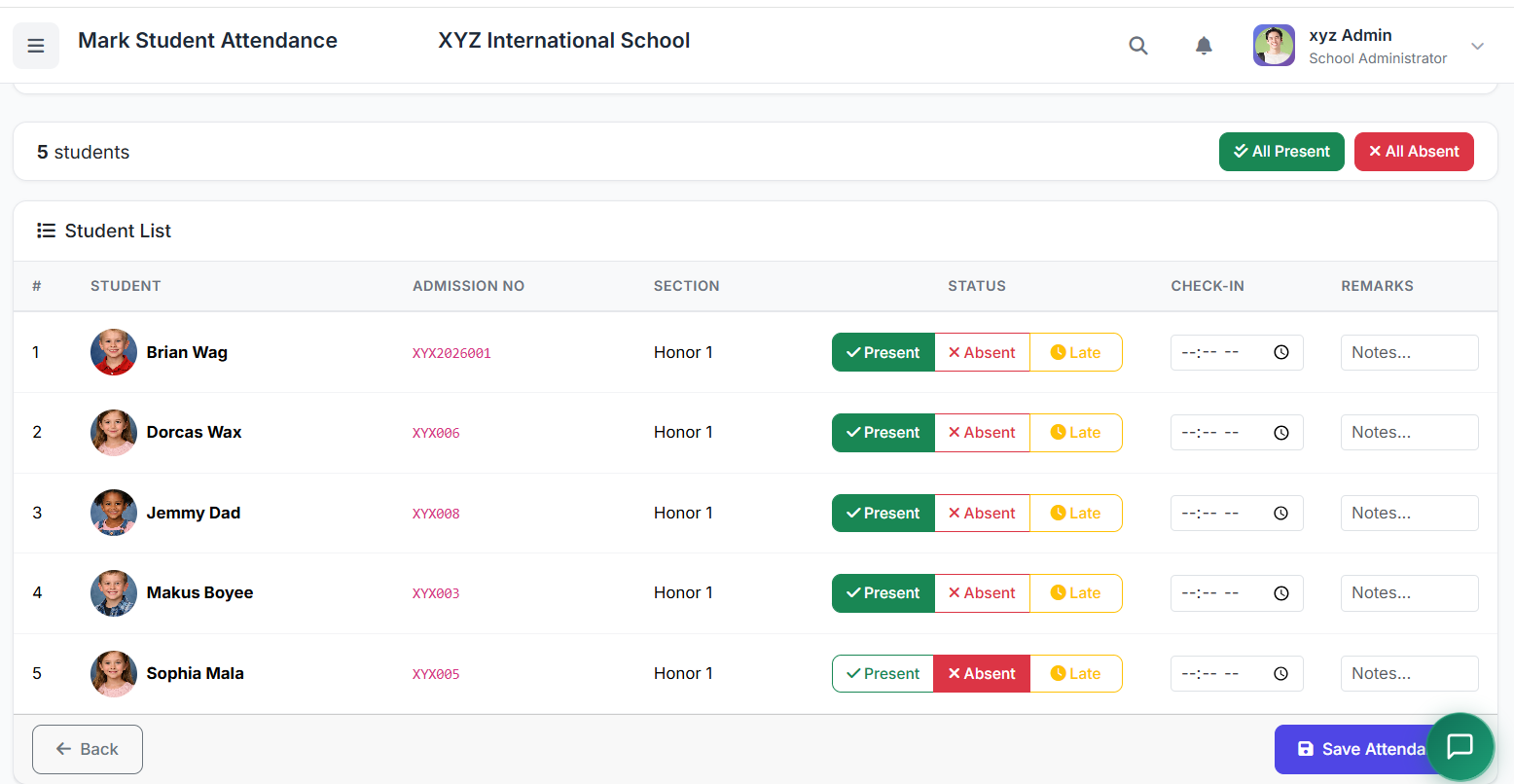
Status Buttons: For marking each student's status (P, A, L, E, H).
Bulk Actions: Buttons to mark all students as Present or Absent at once.
🟢 Attendance Statuses & Codes
| Status | Code | Description |
|---|---|---|
| Present | P | Student attended the full class/session. |
| Absent | A | Student did not attend. |
| Late | L | Student arrived after the session started. |
| Excused | E | Absent with a valid, pre-approved reason. |
| Half Day | H | Student attended for part of the day only. |
| Holiday | - | System-marked; no attendance taken. |
✅ Process: Taking Daily Attendance
Step 1: Select Date & Class
Choose the Date (use the calendar picker).
Select the Class from the dropdown.
Select the Section.
The student list for that class/section will load.
Step 2: Mark Individual Attendance
Click the appropriate status button (P, A, L, E, H) for each student.
Buttons are color-coded (Green=P, Red=A, etc.).
Step 3: Use Bulk Actions
Click Mark All Present or Mark All Absent to quickly set a baseline.
Then adjust individual students who were late or excused.
Step 4: Add Remarks (Optional but Recommended)
Click the Notes (📝) icon next to a student.
Enter a remark (e.g., "Doctor's appointment", "Left early").
Click Save. The note icon will indicate a remark exists.
📊 Viewing Attendance History
For an Individual Student:
Go to the Student's Profile.
Click the Attendance tab.
View daily records, monthly calendars, and summary percentages.
For an Entire Class:
On the Attendance page, select a Class/Section.
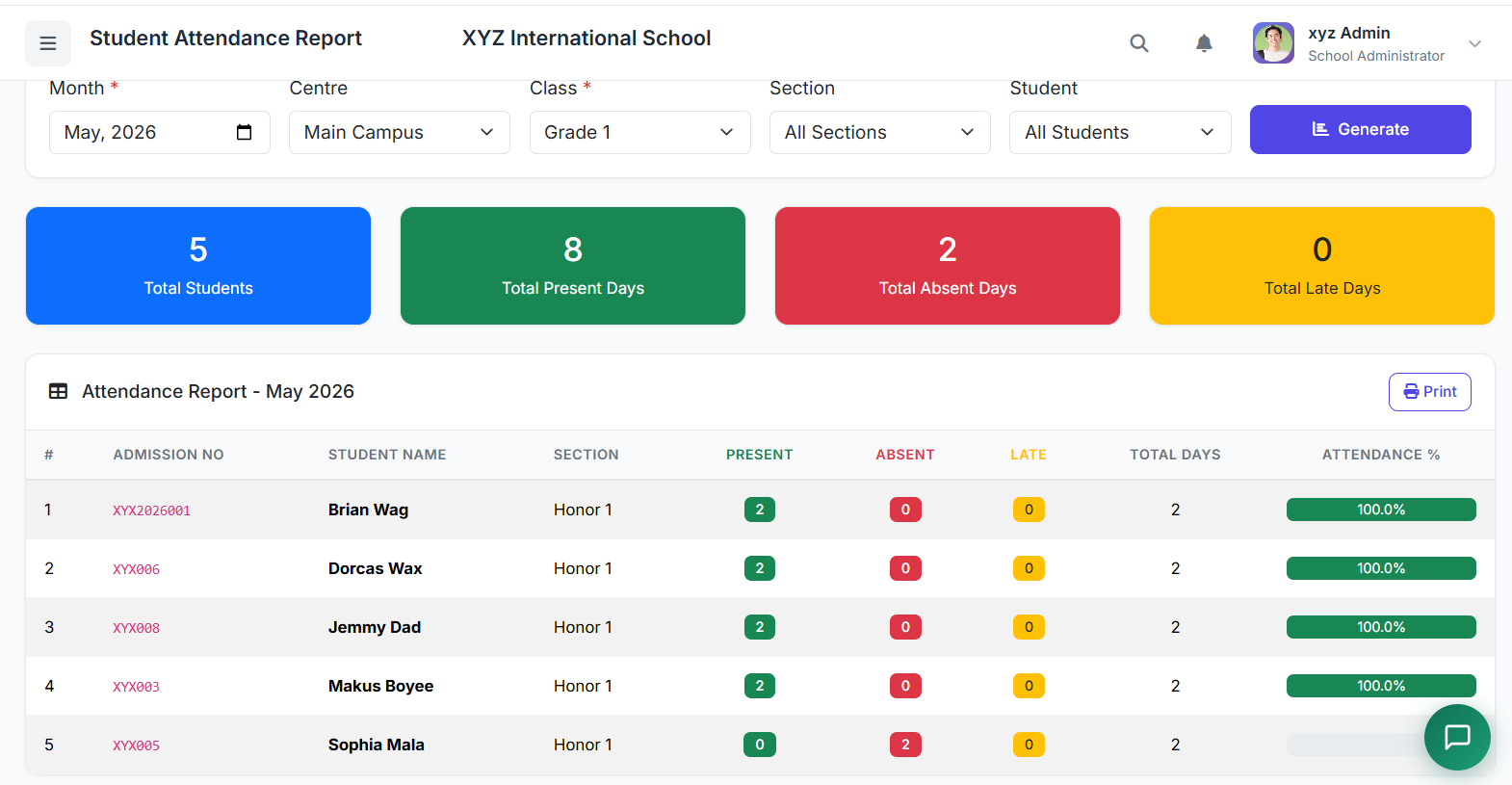
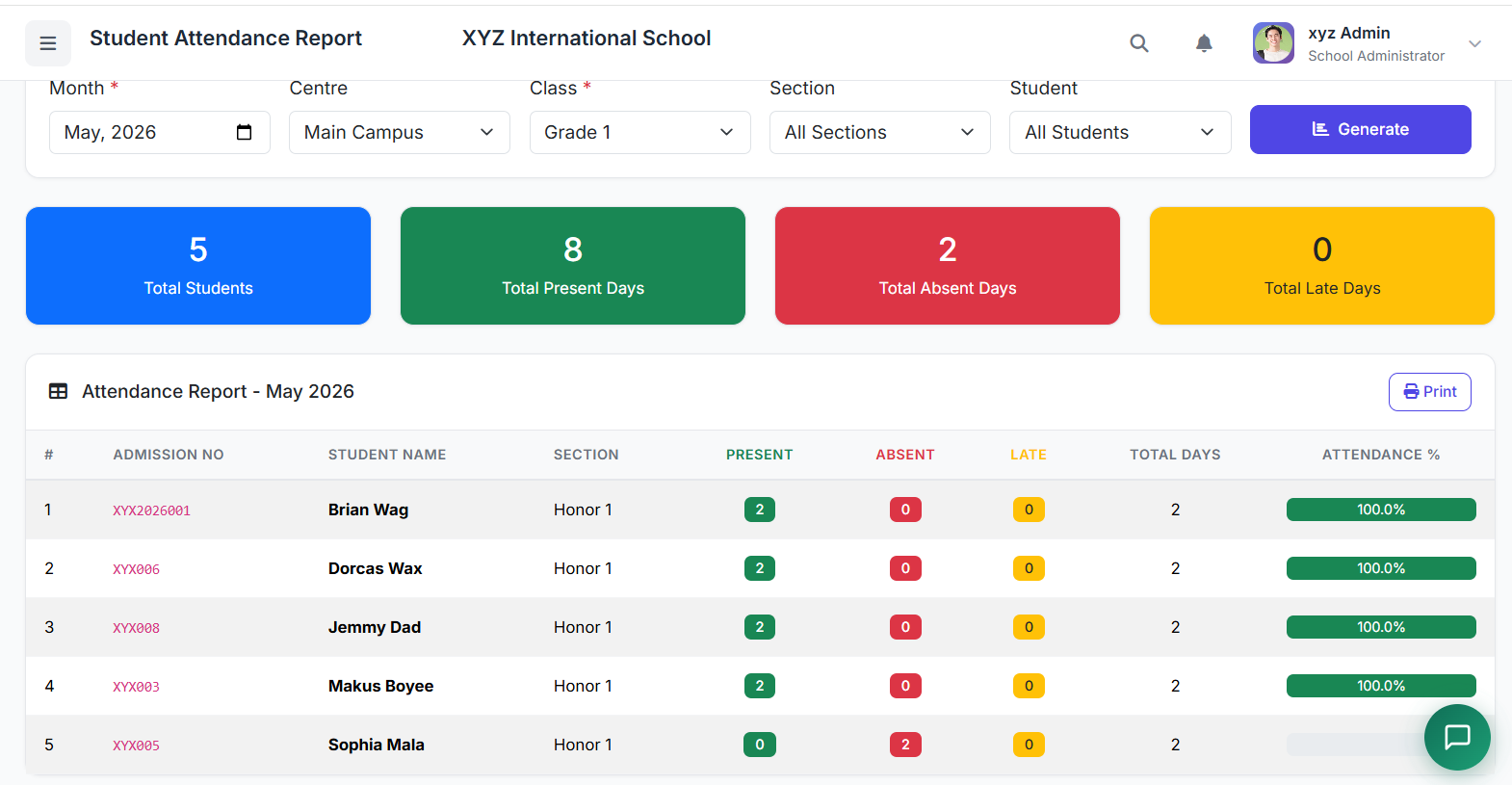
Click View History or Monthly Report.
See a summary table for all students over a selected period.
📝 Generating Attendance Reports
Access comprehensive reports via Reports → Attendance Reports.
Available reports include:
Daily Attendance Report: List of all students and their status for a specific day.
Class Attendance Report: Detailed report for one class over a custom date range.
Student Attendance Report: History for an individual student over a period.
Monthly Summary Report: Percentage-based overview for each class.
✏️ Editing Past Attendance
To correct or update a past record:
Use the Date Selector to choose the past date.
Select the Class/Section.
Modify the attendance status for the required students.
Save. All changes are logged for audit purposes.
⚠️ Note: Permission to edit past attendance may be restricted based on user role (e.g., only administrators can edit records older than one day).
✅ Best Practices
Consistency: Take attendance at the same time each day (e.g., first period).
Policy Adherence: Apply "Late" status strictly according to school policy.
Documentation: Add remarks for absences, late arrivals, or early departures to provide context.
Proactive Review: Review weekly reports to identify attendance patterns early.
Follow-up: Use reports to follow up with students/parents showing poor attendance.
Administrative Reporting: Generate and submit monthly summaries to school administration.
The Student Attendance module provides a robust system for tracking student presence, ensuring accountability, and generating valuable insights to support student engagement and administrative planning.
Next, we will explore the staff attendance system.