Introduction
Today, I'll be demonstrating the Teacher Timetable module — which displays the weekly teaching schedule from a teacher's perspective.
This timetable is automatically generated from the class timetables and helps administrators and teachers clearly understand teaching assignments.
This view ensures transparency, balanced workloads, and clear communication for teaching staff.
📍 Navigating to Teacher Timetable
To access this view:
Go to Timetable in the sidebar
Then select Teacher Timetable
This page allows us to view schedules for individual teachers across the entire week.
👤 Accessing a Teacher's Timetable
At the top of the page, select a Teacher from the dropdown list
Once selected, the teacher's weekly timetable loads automatically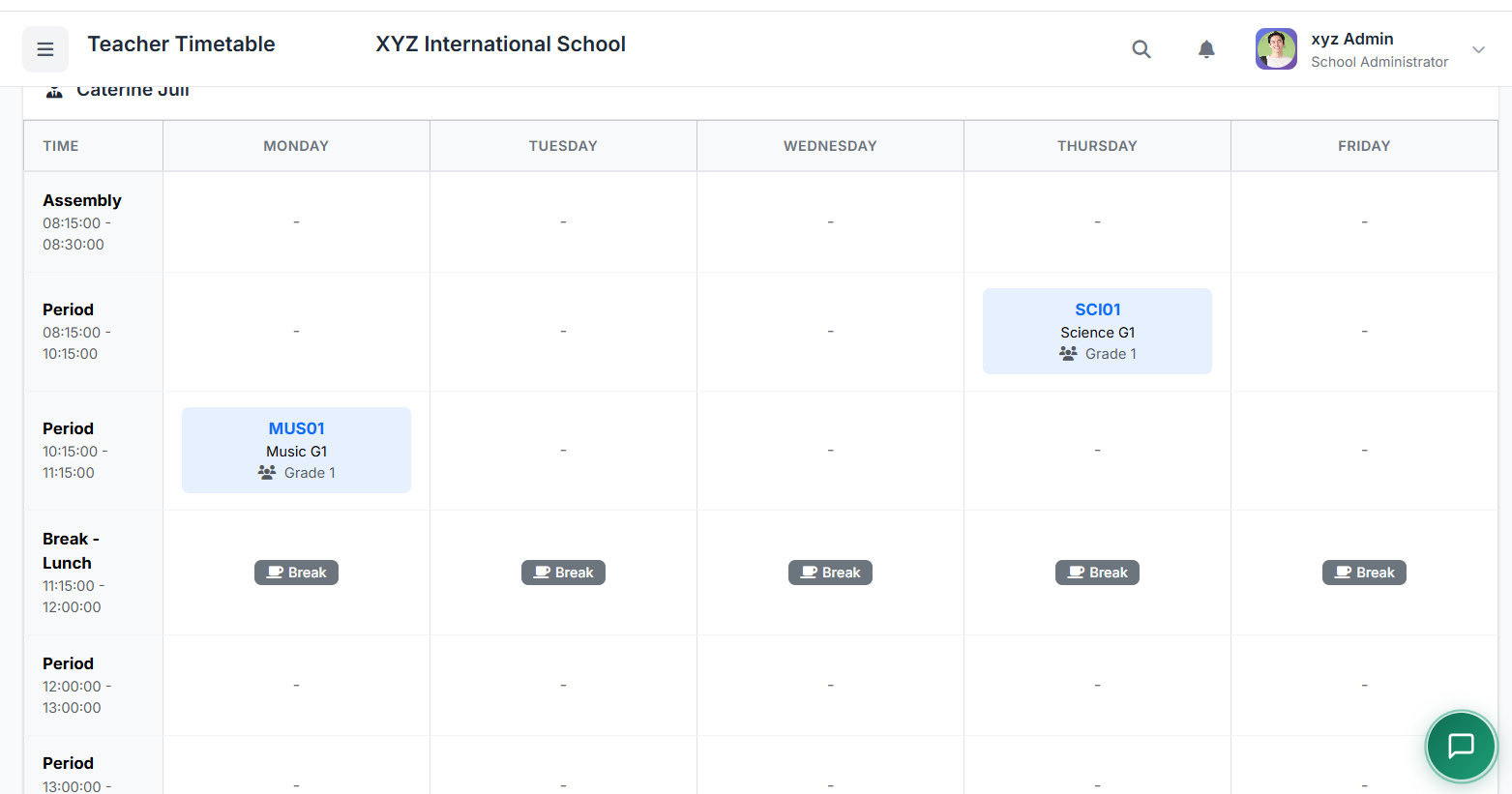
At the top of the page, select a Teacher from the dropdown list
Once selected, the teacher's weekly timetable loads automatically
📋 Teacher Timetable View Overview
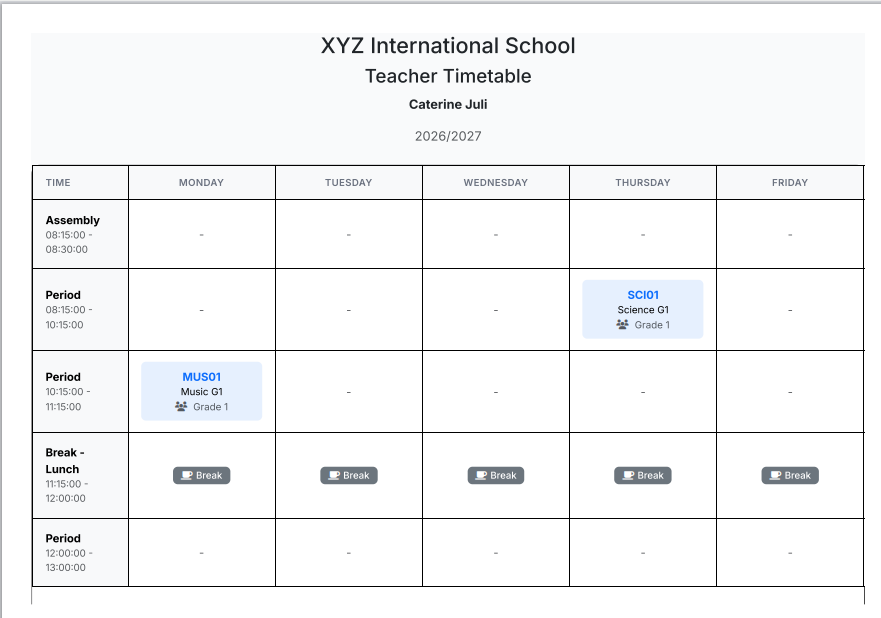
The teacher timetable is displayed as a weekly grid, showing each day and period.
| Slot Type | Description |
|---|---|
| Populated slots | Display the Class and Subject the teacher is assigned to |
| Blank slots | Indicate available or non-teaching periods |
| Break slots | Represent scheduled school breaks |
🧠 Understanding the Teacher's Schedule
Example:
| Day | Assignment |
|---|---|
| Monday | Grade 1 — English |
| Tuesday | Grade 2A — French |
| ... | ... |
This view helps teachers quickly understand their daily teaching flow.
🔍 Filtering Teacher Timetables
Additional filters allow us to customize the view:
| Filter | Purpose |
|---|---|
| Teacher's name | Select which teacher to view |
| Academic year | View past or historical timetables |
The primary filter remains the teacher selection.
🖨️ Printing Teacher Timetable
To print a teacher's timetable:
Select the teacher
Click Print
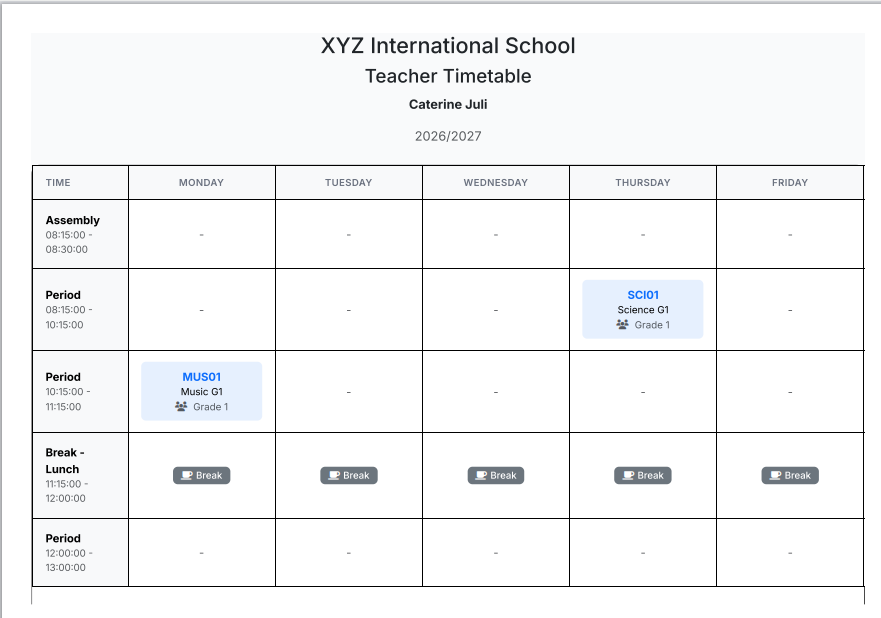
A print-friendly version opens
Print directly or save as PDF
👩🏫 Teacher Self-View Access
Teachers can also view their own timetables by logging into their accounts.
| Feature | Description |
|---|---|
| Location | Available directly from their dashboard |
| Access level | Typically read-only view |
| Benefit | Ensures schedule clarity without accidental edits |
✅ Best Practices
Practice Why It Matters Review teacher timetables after finalizing class timetables Ensures alignment and accuracy Ensure workloads are reasonable Prevents teacher burnout Confirm teachers have adequate free periods Allows time for planning and breaks Communicate schedule changes promptly Keeps everyone informed Consider teacher preferences where possible Improves job satisfaction
| Practice | Why It Matters |
|---|---|
| Review teacher timetables after finalizing class timetables | Ensures alignment and accuracy |
| Ensure workloads are reasonable | Prevents teacher burnout |
| Confirm teachers have adequate free periods | Allows time for planning and breaks |
| Communicate schedule changes promptly | Keeps everyone informed |
| Consider teacher preferences where possible | Improves job satisfaction |
🏁 Closing
That concludes our demonstration of the Teacher Timetable module.
This view ensures transparency, balanced workloads, and clear communication for teaching staff.