🎯 Module Overview
In this tutorial, we'll learn how to create, manage, and publish announcements to keep students, parents, and staff informed with targeted and timely communication.
The Announcements module enables school administrators to broadcast important messages from a central location. It supports targeted audiences, scheduling, file attachments, and readership analytics, ensuring effective communication across the school community.
🧭 How to Access
Navigate to: Communication → Announcements
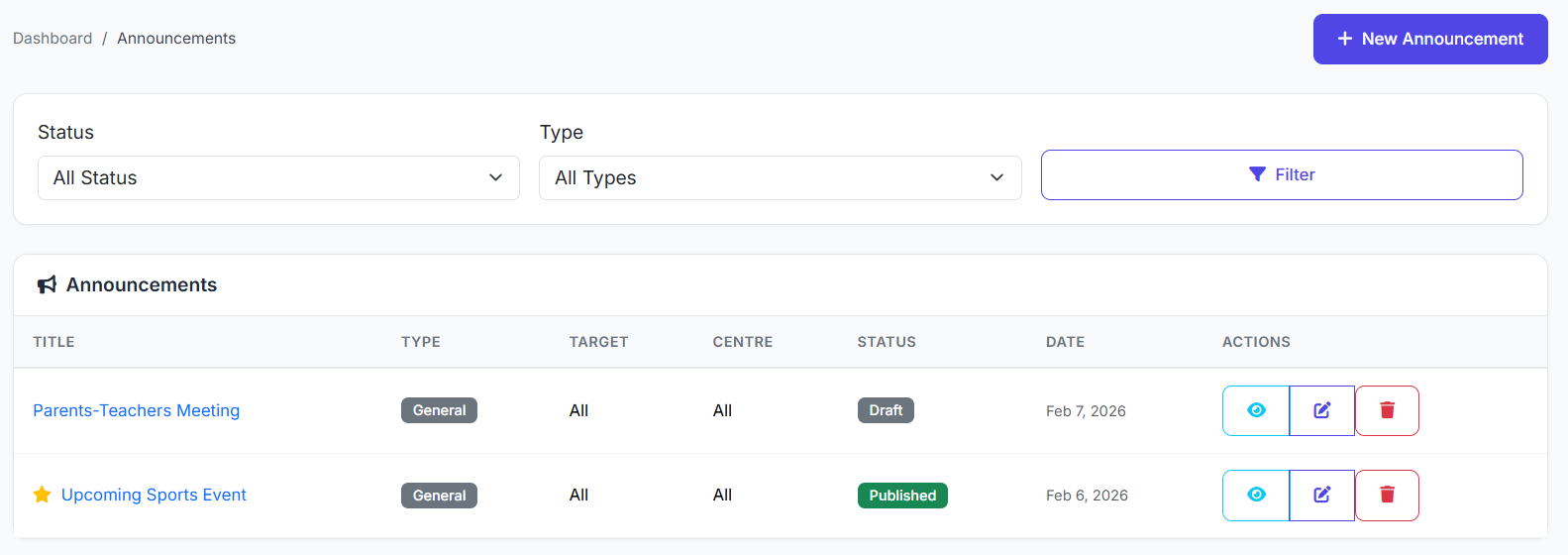
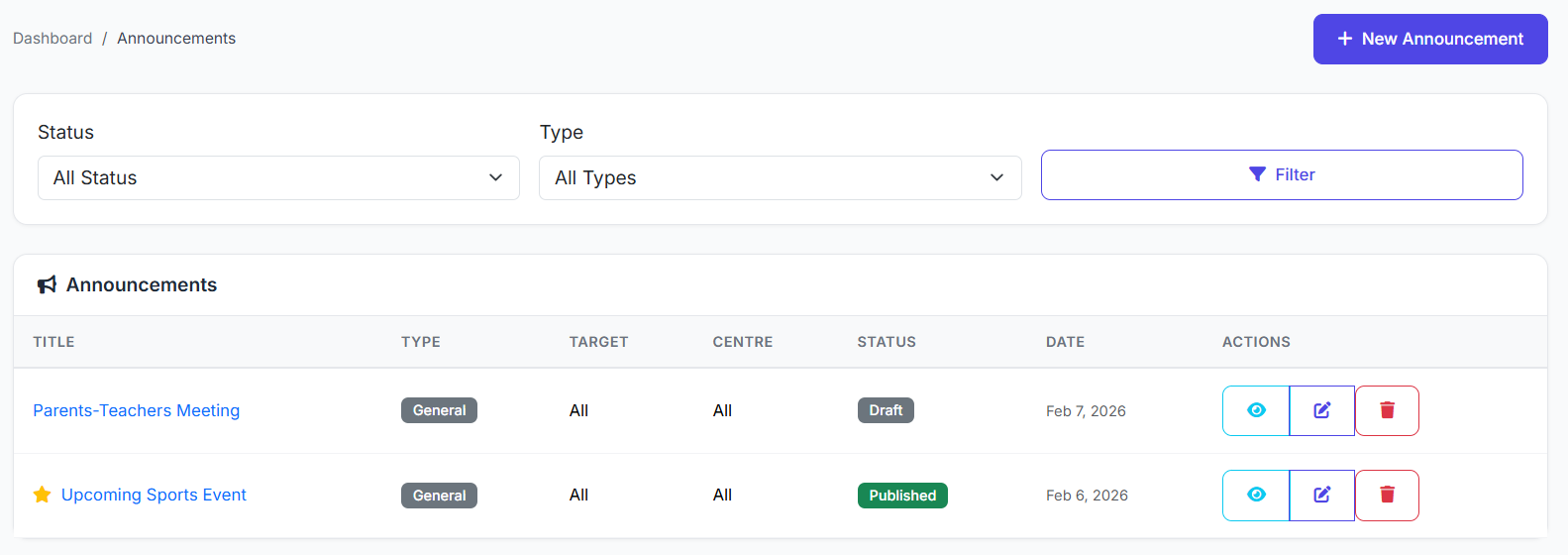
📋 Announcements List Overview
The main page displays all announcements with key details:
| Column | Description |
|---|---|
| Title | The subject of the announcement. |
| Audience | Target group (e.g., All, Parents Only, Grade 5). |
| Publication Date | When it was/will be published. |
| Author | Staff member who created it. |
| Status | Draft, Published, or Scheduled. |
| Actions | View, Edit, Delete. |
✍️ Creating a New Announcement
Click New Announcement.
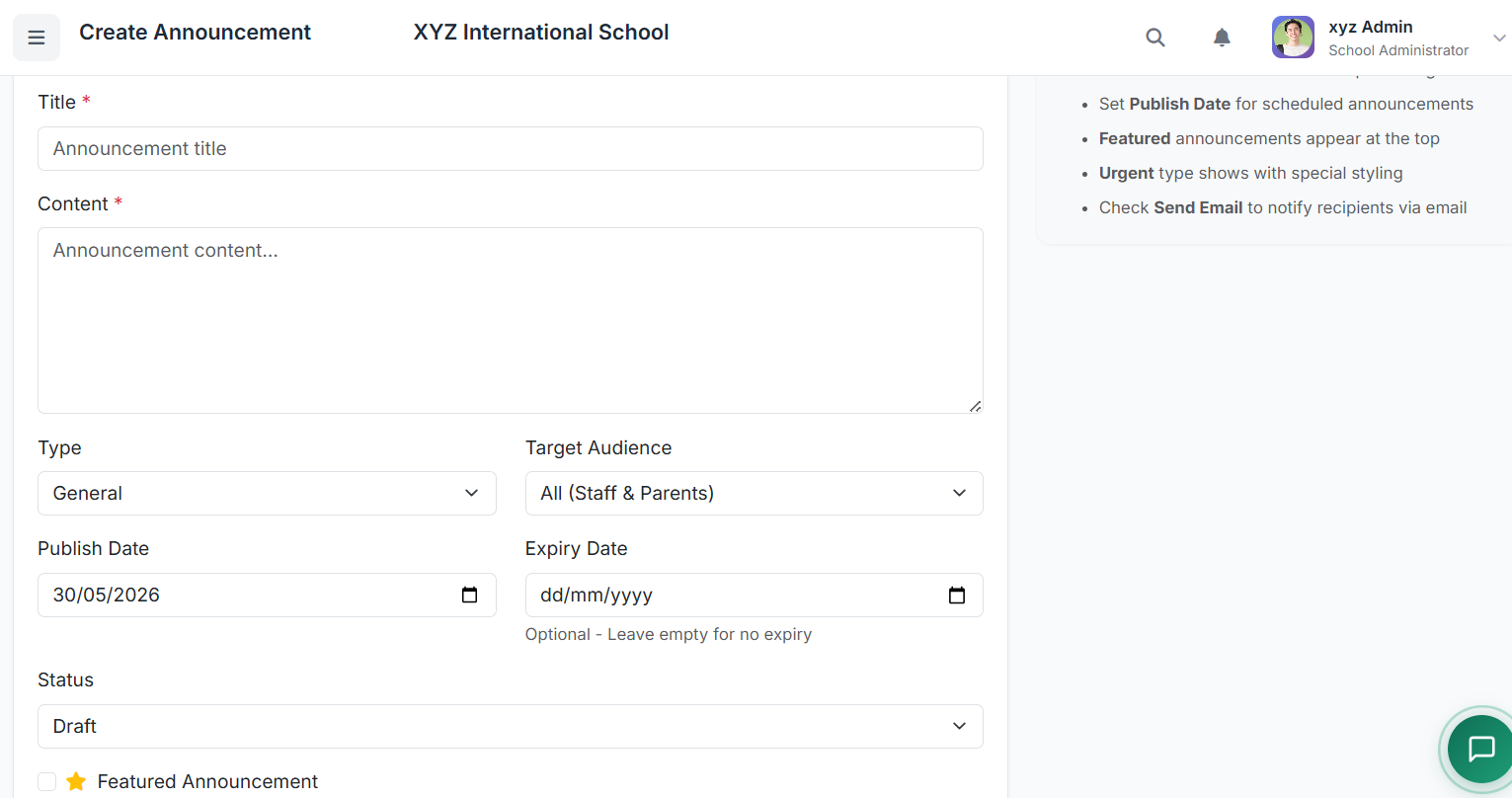
Fill in the form:
Step 1: Content
Title: A clear, concise subject line.
Message: Use the rich text editor for formatting (bold, lists, links).
Step 2: Audience Targeting
Select the recipient group:
Everyone
Students Only / Parents Only
Staff / Teachers Only
Specific Class(es)
Step 3: Configuration
Priority: Normal, Important, or Urgent (affects visual highlighting).
Publish Date: Set to now for immediate publishing, or a future date to schedule.
Expiry Date: (Optional) Auto-hide the announcement after a certain date.
Attachments: (Optional) Upload PDFs, images, or documents.
Save or Publish:
Click Save as Draft to keep it private for editing.
Click Publish to release it immediately (or on the scheduled date).
📊 Announcement Analytics & Tracking
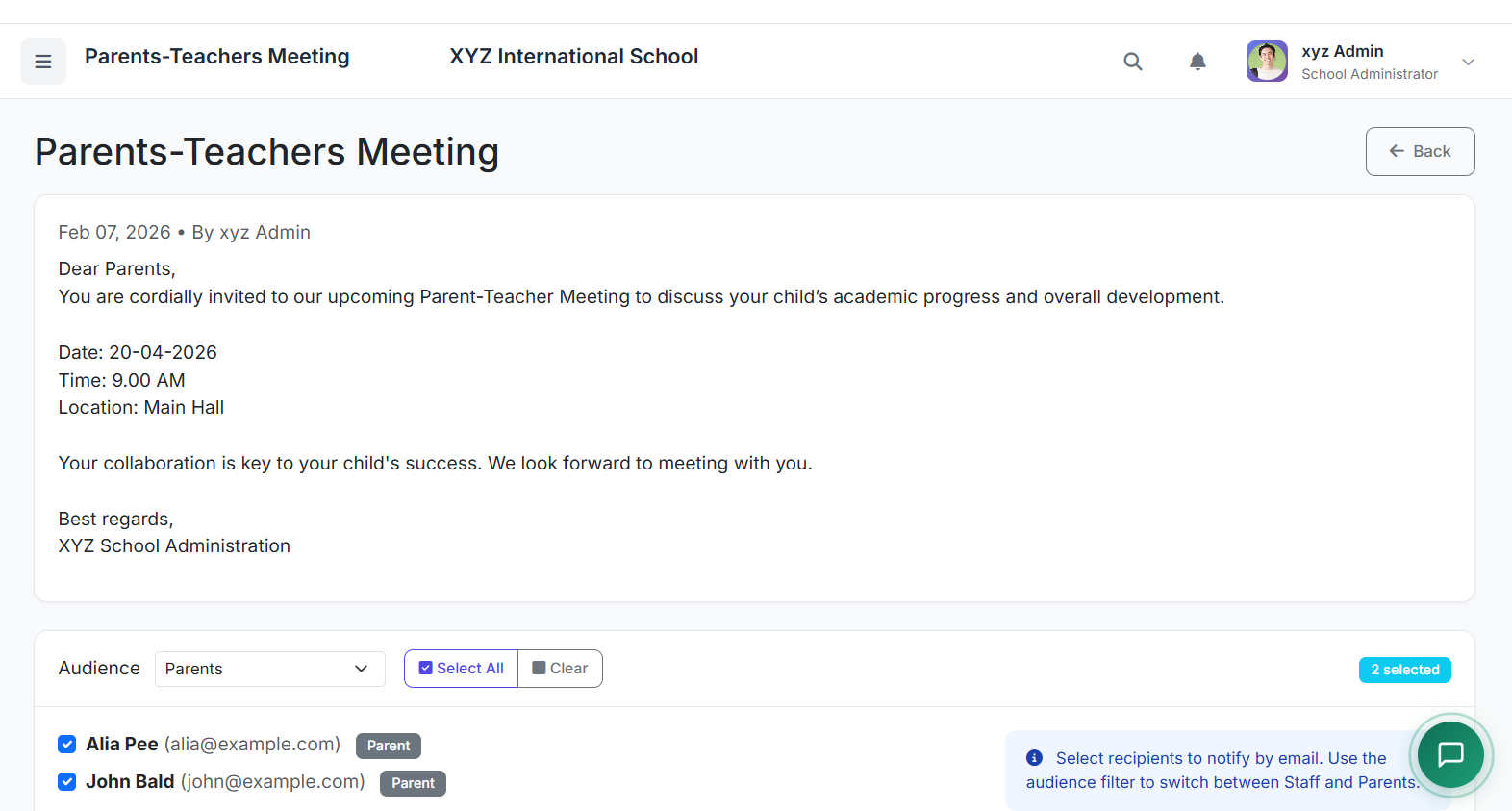
Once published, administrators can track engagement:
Total Recipients: Number of people the announcement was sent to.
Read Count: How many users have opened it.
Read Percentage: Proportion of recipients who have viewed it.
This data helps ensure important information is being seen.
✅ Best Practices
Clear Titles: Use specific, action-oriented titles (e.g., "Parent-Teacher Meeting Rescheduled").
Audience Targeting: Always select the most specific audience possible to avoid unnecessary notifications.
Use Priority Wisely: Reserve "Urgent" for time-critical messages (e.g., school closures).
Set Expiry Dates: For event reminders or temporary notices, set an expiry date to keep dashboards clean.
Review Before Sending: Always proofread for clarity and accuracy before publishing.
Leverage Scheduling: Prepare and schedule announcements in advance for holidays, exam schedules, or term start dates.
The Announcements module is a powerful tool for maintaining clear, organized, and effective communication with the entire school community, helping ensure everyone stays informed and engaged.
Next, we will explore the Internal Messaging system for direct communication.