Introduction
Apply Discount is a bulk fee discount tool built into the Finance module of SSMS. It allows authorised staff to apply pre-configured fee discounts to:
All students in the school (or a specific centre)
All students in a class (e.g., Grade 3A)
A single specific student (by searching by name or admission number)
Apply Discount saves significant time at the beginning of an academic year or when a new discount policy is rolled out school-wide.
What happens when a discount is applied?
When you apply a discount, SSMS:
Inserts a record linking the student, the discount, and the academic year.
Automatically recalculates the fee balance for every fee record that student has in that academic year, taking into account all discounts assigned to them (including any they already had before).
Never removes existing discounts — it only adds the new one on top.
What does NOT happen?
No payment is recorded or reversed.
Existing payments already made are not altered.
Discounts from previous academic years are not affected.
2. Who Can Use It?
| Role | Can Access Apply Discount? |
|---|---|
| School Administrator | Yes — full access across all centres |
| Principal | Yes — limited to assigned centre |
| Vice Principal | Yes — limited to assigned centre |
| Accountant | Yes — full access |
| Teacher | No |
| Parent | No |
| Student | No |
3. Before You Start
Before using Apply Discount, ensure the following are set up:
✅ Checklist
Fee discounts exist
Go to Finance → Fee Discounts and confirm at least one active discount is listed. If none exist, click Add Discount to create one first.An academic year exists
Go to Settings → Academic Years and confirm the current year is set up.Student fees are assigned
Students must have fee records in the target academic year. Apply Discount only affects students who already have fee records. It does not create new fee assignments.You have the correct permission
Your role must have permission to apply discounts.
4. How to Access the Page
There are two ways to reach the Apply Discount page:
Method A — Via the Sidebar
Log in to SSMS.
In the left sidebar, scroll down to the FINANCE section.
Click Apply Discount.
Method B — Via the Fee Discounts Page
In the sidebar, click Fee Discounts under Finance.
On the Fee Discounts page, click the Apply Discount button next to the Add Discount button.
5. Understanding the Page Layout
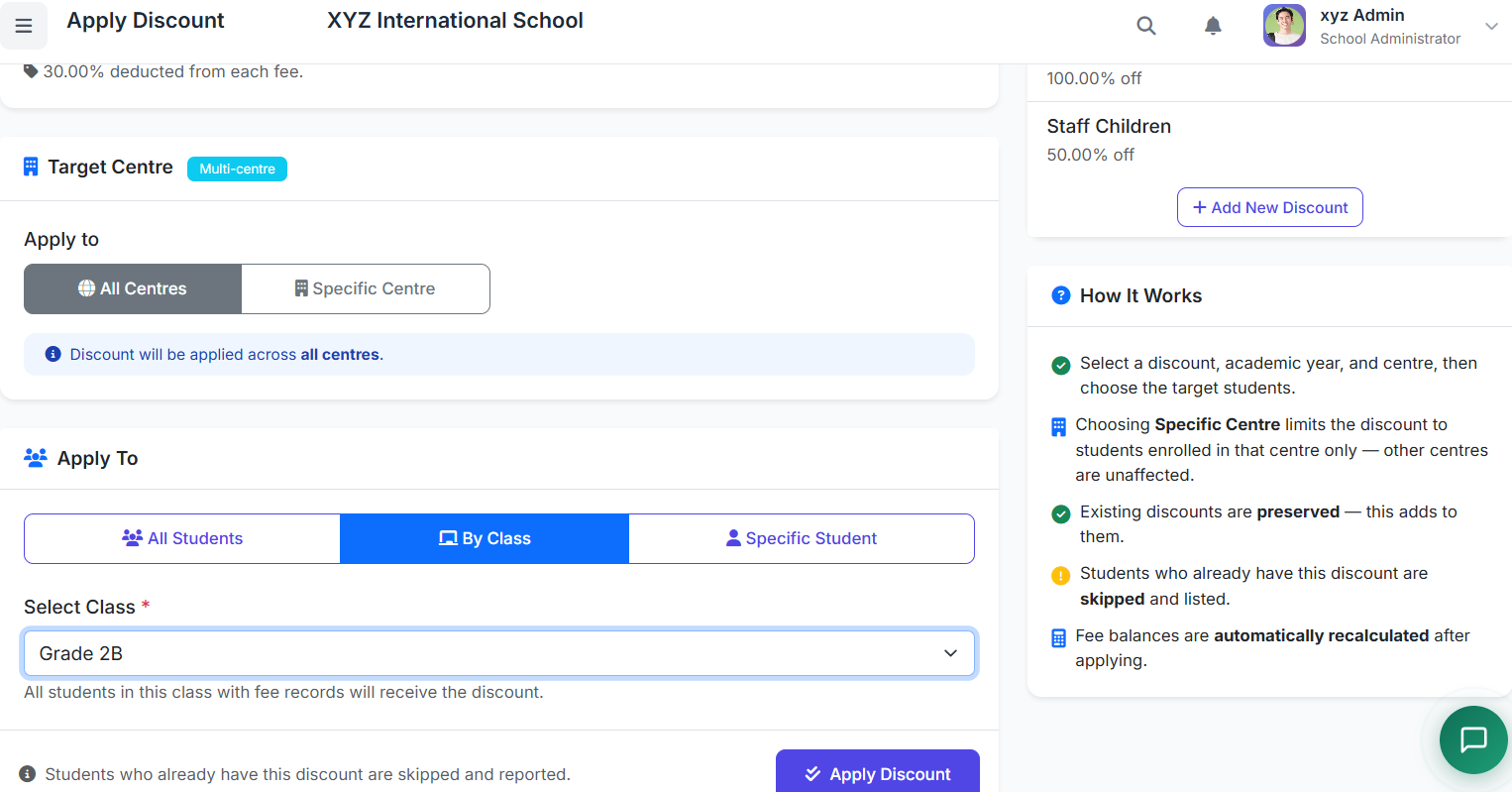
The Apply Discount page is divided into the following sections:
| Section | Purpose |
|---|---|
| Discount Settings | Choose which discount to apply and for which academic year |
| Target Centre | (Multi-centre schools only) Choose whether to apply school-wide or to a specific centre |
| Apply To | Choose the target: All Students, a Class, or a specific Student |
| Available Discounts | Quick reference list of all active discounts with their values |
| How It Works | Summary of key rules for applying discounts |
6. Step-by-Step: Apply a Discount to All Students
Use this when you want to apply a discount to every student in the school (or a centre) who has fee records for a specific academic year.
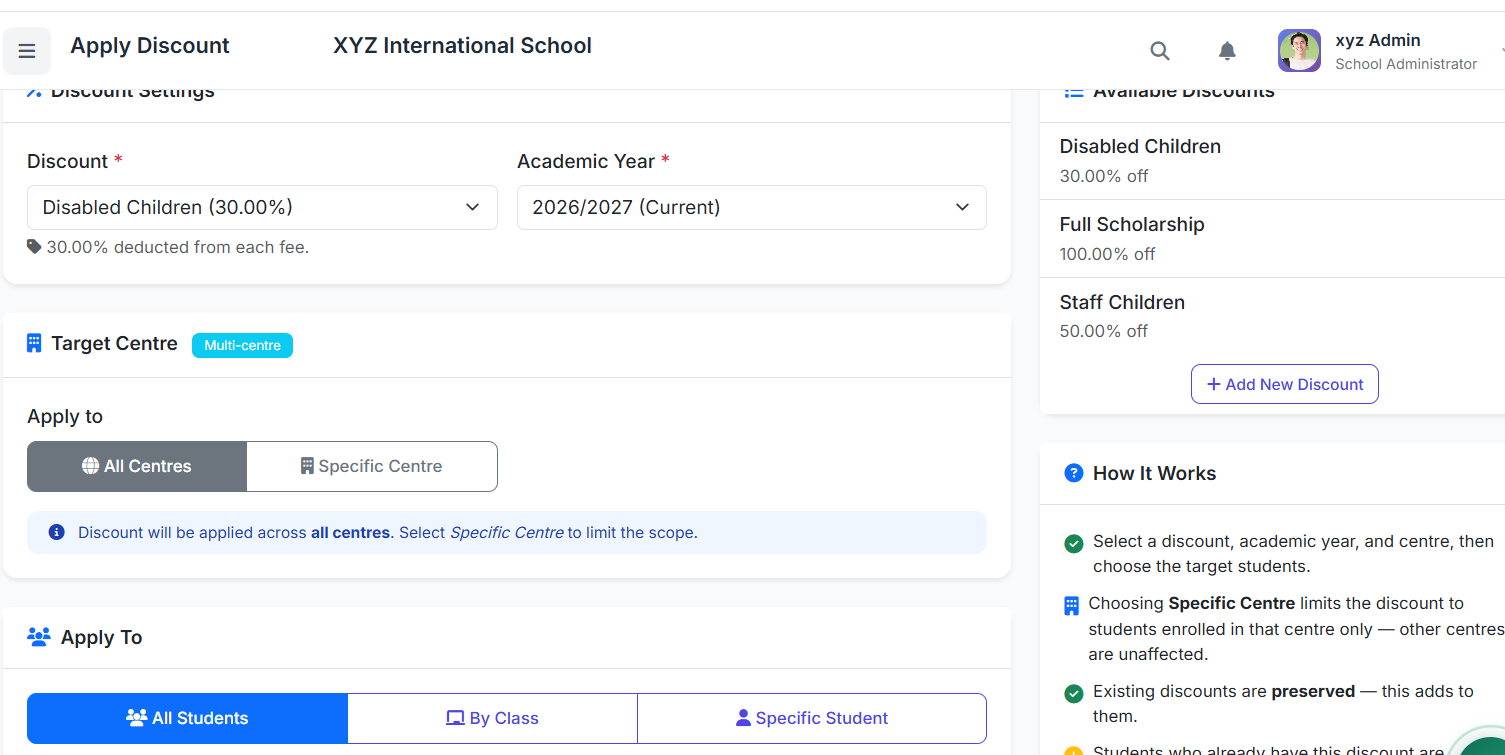
Example Use Case:
A school decides to give all students a 10% reduction for the 2025/2026 academic year due to economic hardship.
Steps
Navigate to Finance → Apply Discount.
Under Discount Settings, select the discount you want to apply.
Select the Academic Year.
For multi-centre schools:
Leave All Centres selected to apply school-wide.
Or choose Specific Centre and select a centre.
In the Apply To section, confirm All Students is selected.
Click Apply Discount.
Wait for processing to complete and review the result messages:
Success Message: "Discount applied to X students."
Warning Message: "This discount has already been applied to some students."
7. Step-by-Step: Apply a Discount to a Specific Class
Use this when a discount applies to one class only.
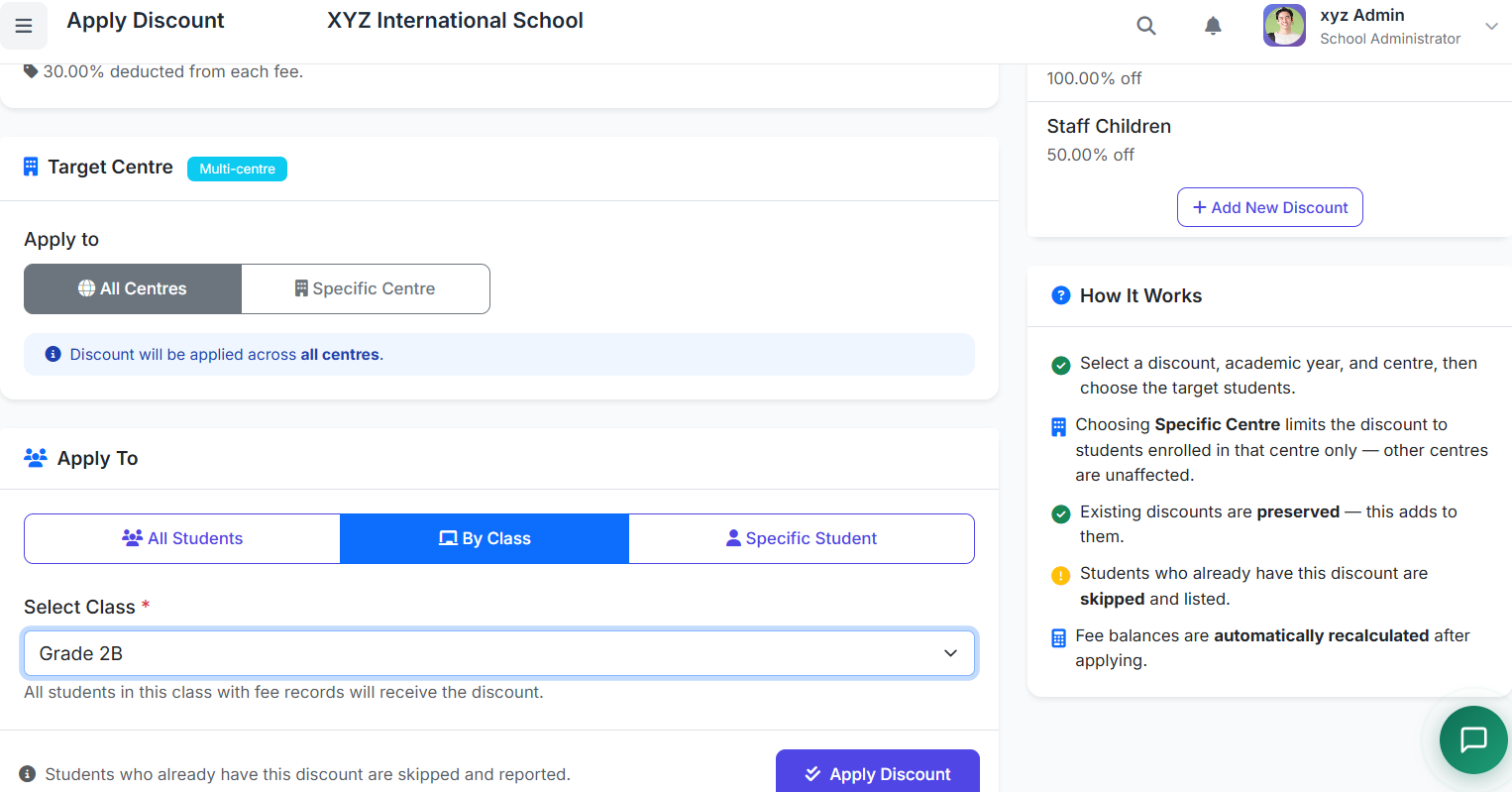
Example Use Case:
Staff children in Grade 1A receive a 50% Staff Children discount.
Steps
Navigate to Finance → Apply Discount.
Select the Discount and Academic Year.
Select the appropriate Target Centre if needed.
Under Apply To, choose By Class.
Select the target class.
Click Apply Discount.
Review the result messages displayed.
8. Step-by-Step: Apply a Discount to a Specific Student
Use this when only one student needs a discount.
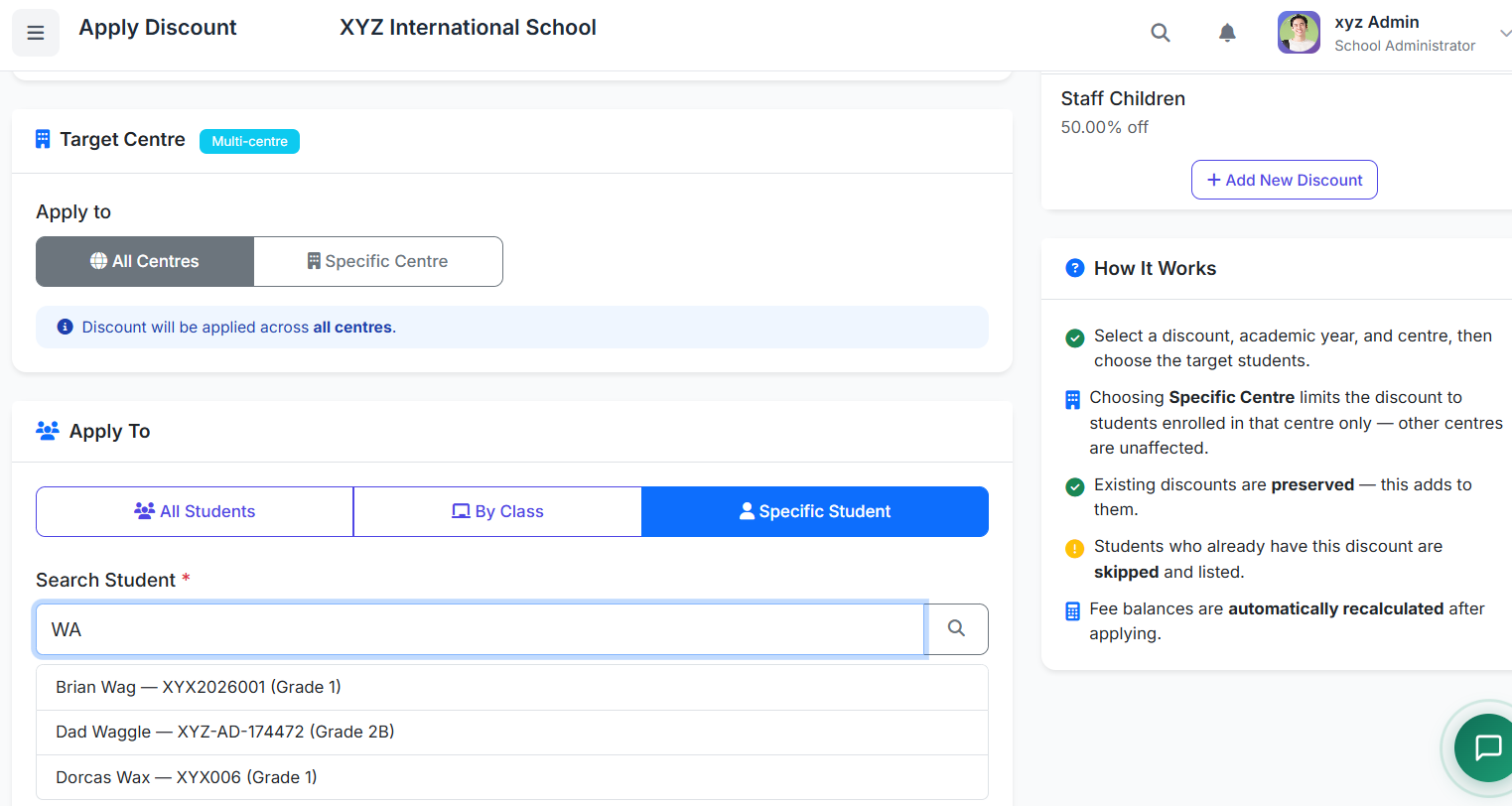
Example Use Case:
A new student joins mid-year and qualifies for a Disabled Children discount.
Steps
Navigate to Finance → Apply Discount.
Select the Discount and Academic Year.
Optionally select a Target Centre.
Under Apply To, select Specific Student.
Enter the student's name or admission number in the search box.
Select the student from the search results.
Confirm the student information shown.
Click Apply Discount.
Review the result messages.
9. Multi-Centre Schools — Applying by Centre
Schools with more than one centre have an additional Target Centre section.
Choosing "All Centres"
The discount applies to eligible students across every centre.
Classes and student searches include all centres.
Choosing "Specific Centre"
Only students in the selected centre are affected.
Classes and student searches are filtered automatically.
Principals and Vice Principals
If your account is restricted to a specific centre, the Target Centre section may not appear. Your access is automatically limited to your assigned centre.
Practical Example
A school has three centres: Main Campus, North Campus, and East Campus.
To apply a Staff Children discount only to Main Campus:
Select Staff Children discount.
Select the academic year.
Choose Specific Centre → Main Campus.
Select All Students.
Click Apply Discount.
✅ Only Main Campus students receive the discount.
10. Understanding the Results
After clicking Apply Discount, the page reloads and shows result messages.
| Message Type | Example | Meaning |
|---|---|---|
| Success | "Discount applied to 42 student(s)." | Discount applied successfully; fee balances recalculated. |
| Warning | "This discount has already been applied to some students." | Students who already had the discount were skipped to prevent duplication. |
| Error | "No students with fee records found for the selected criteria." | Possible reasons: wrong academic year, fees not assigned, wrong centre/class/student. |
| Information | "No changes were made." | All matched students already had the discount or no eligible students were found. |
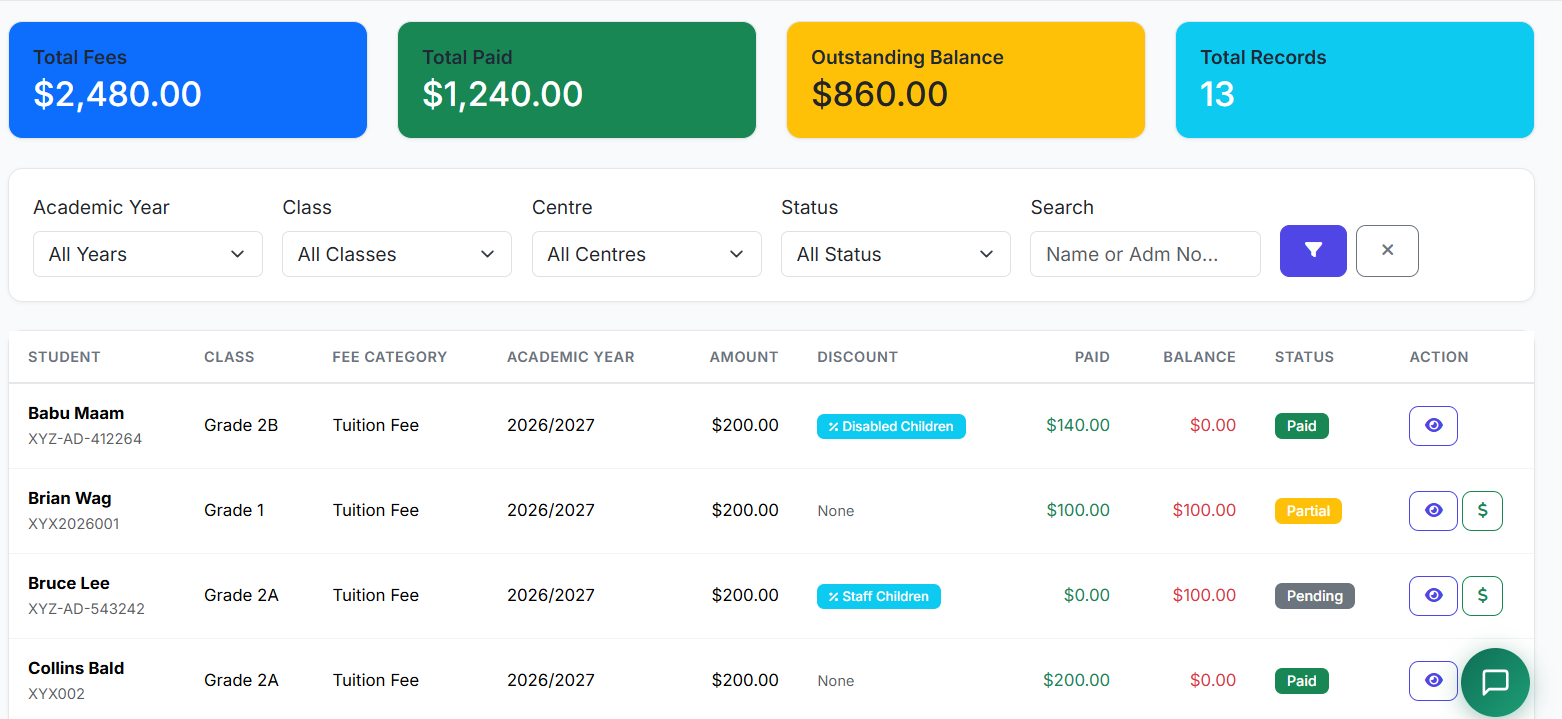
11. Discount Column in Student Fees List
After applying discounts, the Student Fees list now includes a Discount column.
| Column | Description |
|---|---|
| Discount | Shows discount name(s) applied to the student |
| None | Displayed if no discount exists |
Multiple discounts appear together as a list.
12. Important Rules and Behaviour
| Rule | Detail |
|---|---|
| Existing discounts preserved | New discounts do not remove old ones |
| No duplicate discounts | Same discount cannot be applied twice |
| Automatic recalculation | Fee balances update automatically |
| Percentage discounts | Calculated per fee line |
| Fixed discounts | Cannot exceed fee amount |
| Multiple discounts | Discounts combine together |
| Discount cap | Total discount cannot exceed fee amount |
| Active discounts only | Only active discounts are applied |
| Students with fees only | Students without fees are skipped |
| Transaction-safe | Failed operations are rolled back |
13. Frequently Asked Questions (FAQ)
Can I apply multiple discounts at once?
No. Each action applies one discount at a time. To apply multiple discounts, repeat the process.
What if a student's fee has already been fully paid?
The discount still applies and balances are recalculated.
Can I remove a discount after applying it?
Not through this bulk page. Manage discounts individually through Student Fee Details.
The student I'm searching for does not appear.
Check that:
The student is active.
You entered at least two characters.
The correct centre is selected.
The admission number or name is correct.
I applied a discount but the balance did not change.
The student may already have paid enough to cover the discounted fee amount.
"Apply Discount" is missing from the menu.
Your role may not have permission. Contact your System Administrator.
Can I apply a discount to a previous academic year?
Yes. Simply choose the required academic year.
14. Troubleshooting
| Problem | Likely Cause | Solution |
|---|---|---|
| Access Denied | Missing permission | Contact System Administrator |
| No discounts displayed | No active discounts exist | Create a discount first |
| Empty class list | No classes available | Check Academic → Classes |
| Student not found | Wrong centre or inactive student | Verify student details |
| No students found | Fees not assigned | Run Assign Fees first |
| Applied to 0 students | Discount already exists | Verify fee details |
| Page error | System/server issue | Re-login or contact support |