📌 Overview
In this tutorial, we'll learn how to create and manage Grade Scales to standardize the conversion of numerical marks into letter grades and grade points.
Grade Scales are rules that convert numerical exam scores into standardized letter grades (e.g., A, B, C) and calculate corresponding grade points. SSMS supports multiple grading systems, allowing you to use the right standard for each academic level.
🧭 How to Access
Navigate to: Examinations → Grade Scales
🎯 Purpose & Importance
Grade Scales are essential because they:
Ensure standardized grading across all classes and teachers.
Automatically convert numerical scores into letter grades.
Calculate GPA (Grade Point Average) and CGPA (Cumulative GPA).
Generate consistent performance remarks on report cards.
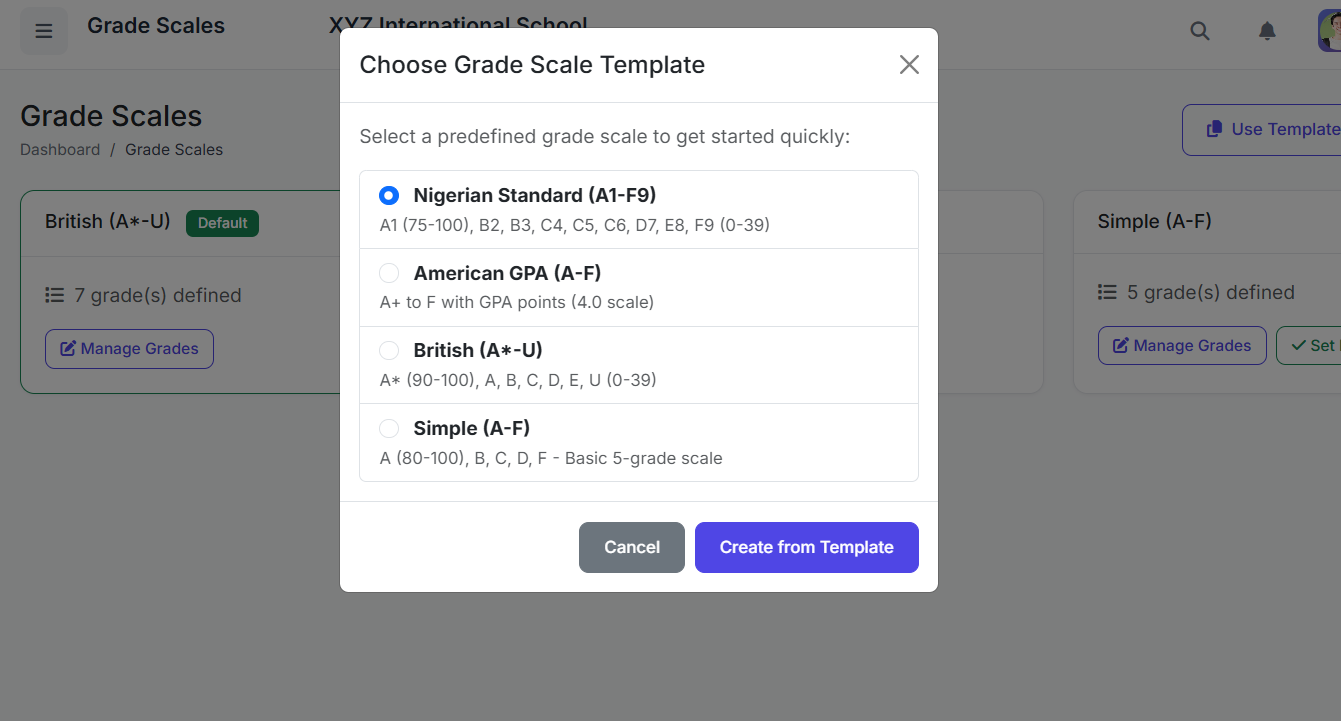
SSMS supports multiple grading systems including American GPA (A–F), British (A–U), Nigeria Standard (A1–F9), Simple A–F.
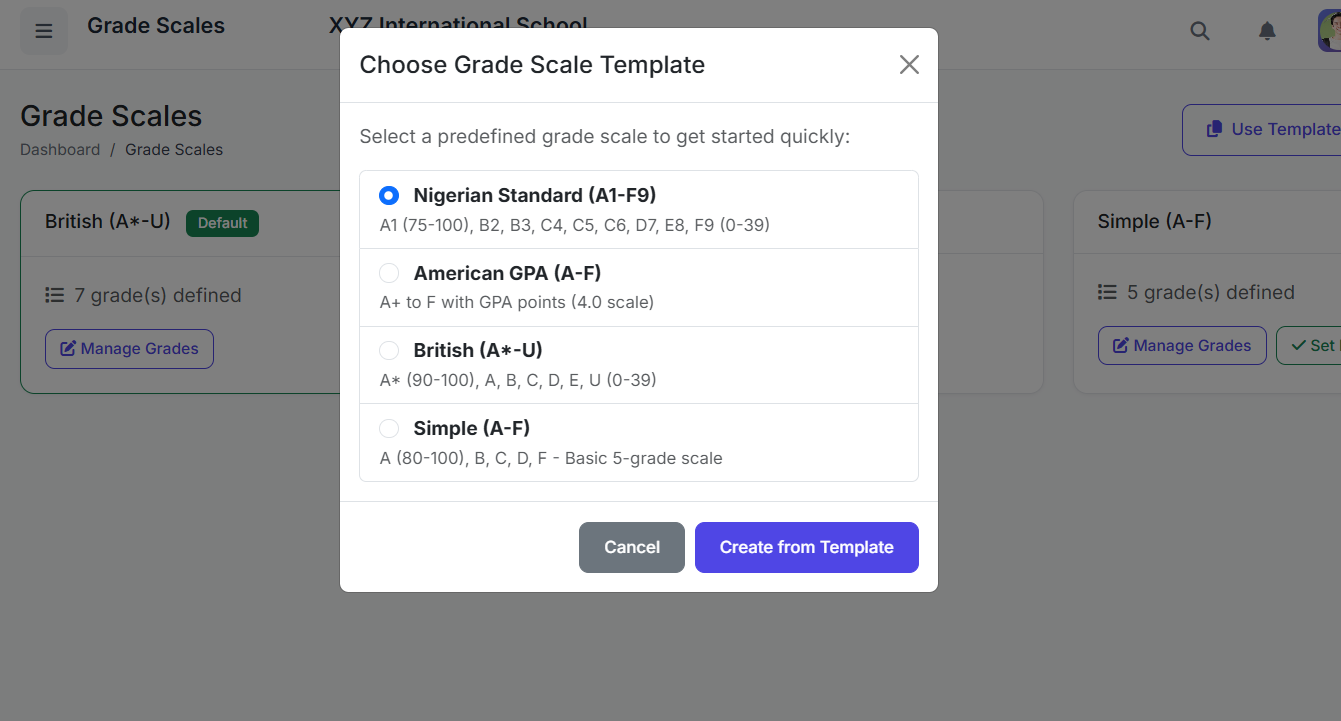
📋 Grade Scales List Page
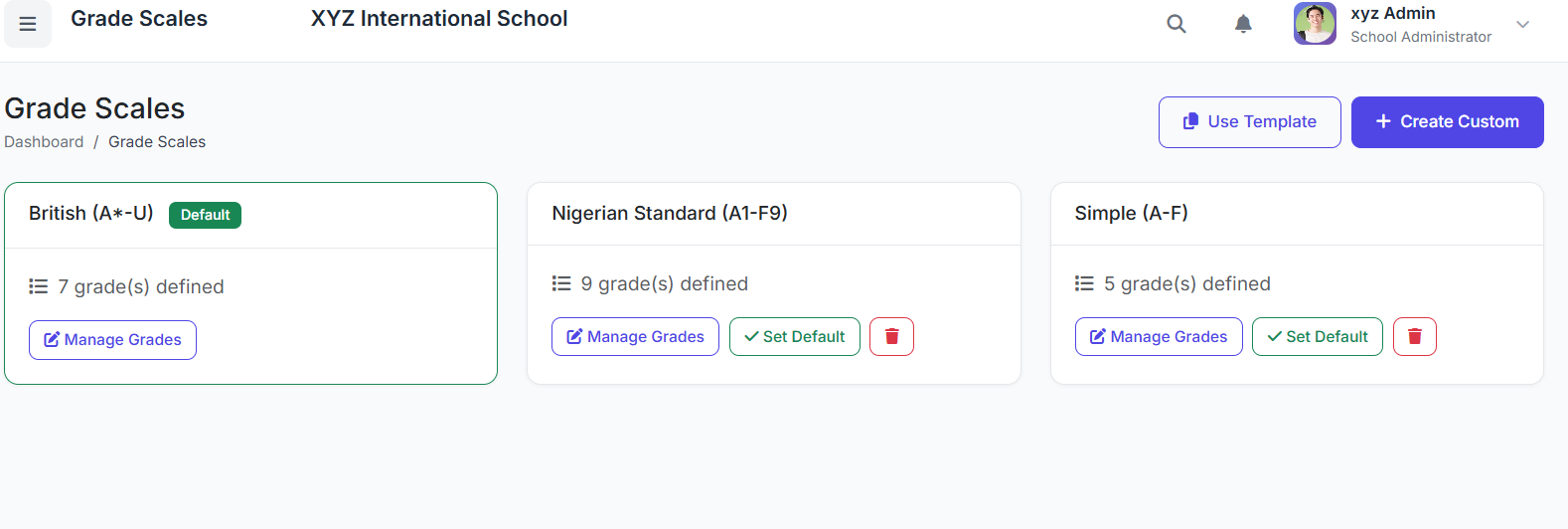
The main page displays all configured scales with the following columns:
Scale Name
Description
Number of Grades
Status (Active/Inactive)
Actions (Edit, View, Delete)
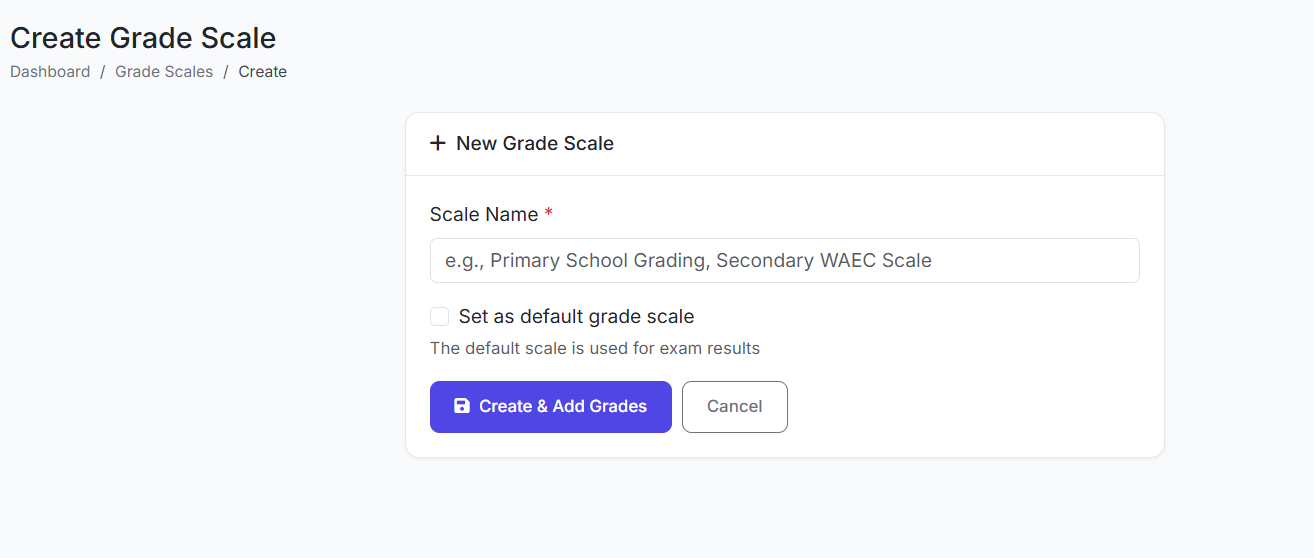
➕ Creating a New Grade Scale
Step 1: Enter Basic Details
Click Add Grade Scale.
Fill in:
Scale Name (e.g., "Primary School GPA Scale")
Description (Optional)
Status (Active or Inactive)
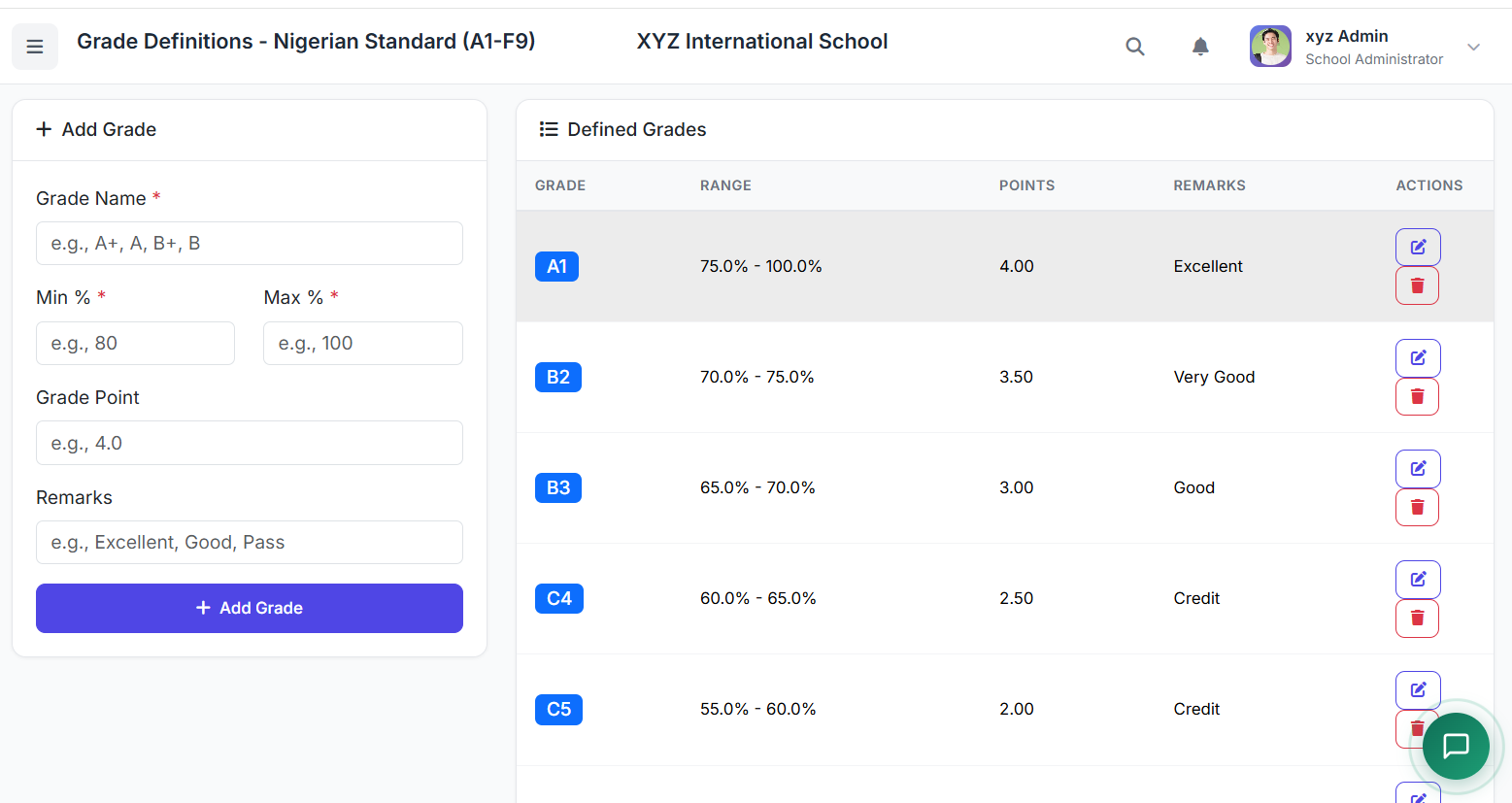
Step 2: Define the Grade Ranges
Click Add Grade.
For each grade level, define:
Grade: The letter grade (e.g., A+, B, F).
Minimum Score: The lowest mark for this grade.
Maximum Score: The highest mark for this grade.
Grade Point: The numerical value (e.g., 4.0, 3.5, 0.0).
Remark: An automatic comment (e.g., "Excellent", "Pass", "Fail").
Repeat until all grades for the scale are defined.
Click Save Grade Scale.
📊 Example Grade Scale Setup
| Grade | Min Score | Max Score | Grade Point | Remark |
|---|---|---|---|---|
| A+ | 90 | 100 | 4.0 | Outstanding |
| A | 80 | 89 | 3.5 | Excellent |
| B+ | 70 | 79 | 3.0 | Very Good |
| B | 60 | 69 | 2.5 | Good |
| C+ | 50 | 59 | 2.0 | Average |
| C | 40 | 49 | 1.5 | Below Average |
| F | 0 | 39 | 0.0 | Fail |
✏️ Editing a Grade Scale
On the list page, click Edit for the desired scale.
Modify the name, description, status, or individual grade definitions.
Click Save.
⚠️ Important Note: Editing a grade scale that is already linked to published exams can change how existing results are displayed. Use caution.
✅ Best Practices
Set Up First: Create all necessary grade scales before setting up exams.
Consistency: Use consistent grade point values across related scales (e.g., all secondary school scales).
Clear Remarks: Add meaningful remarks that are appropriate for reports and transcripts.
Scale by Level: Consider using separate scales for different school levels (e.g., Primary vs. Senior Secondary).
Archive, Don't Delete: Avoid deleting grade scales that have already been used in past exams to preserve historical data integrity. Mark them as Inactive instead.
This concludes the section on Grade Scales. The next part of the video will cover Exam Types.