Introduction
Today, I’ll walk you through the dashboard in SSMS — your home base for managing your school efficiently.
The dashboard gives you a quick overview of important information and real-time statistics about your school, helping you stay informed and take action quickly.
📍 Accessing the Dashboard
Once you log in, the system automatically takes you to the Dashboard. You can also access it anytime by going to:
Main Menu → Dashboard

School Admin Dashboard

Principal Dashboard
 Teacher Dashboard
 Accountant Dashboard
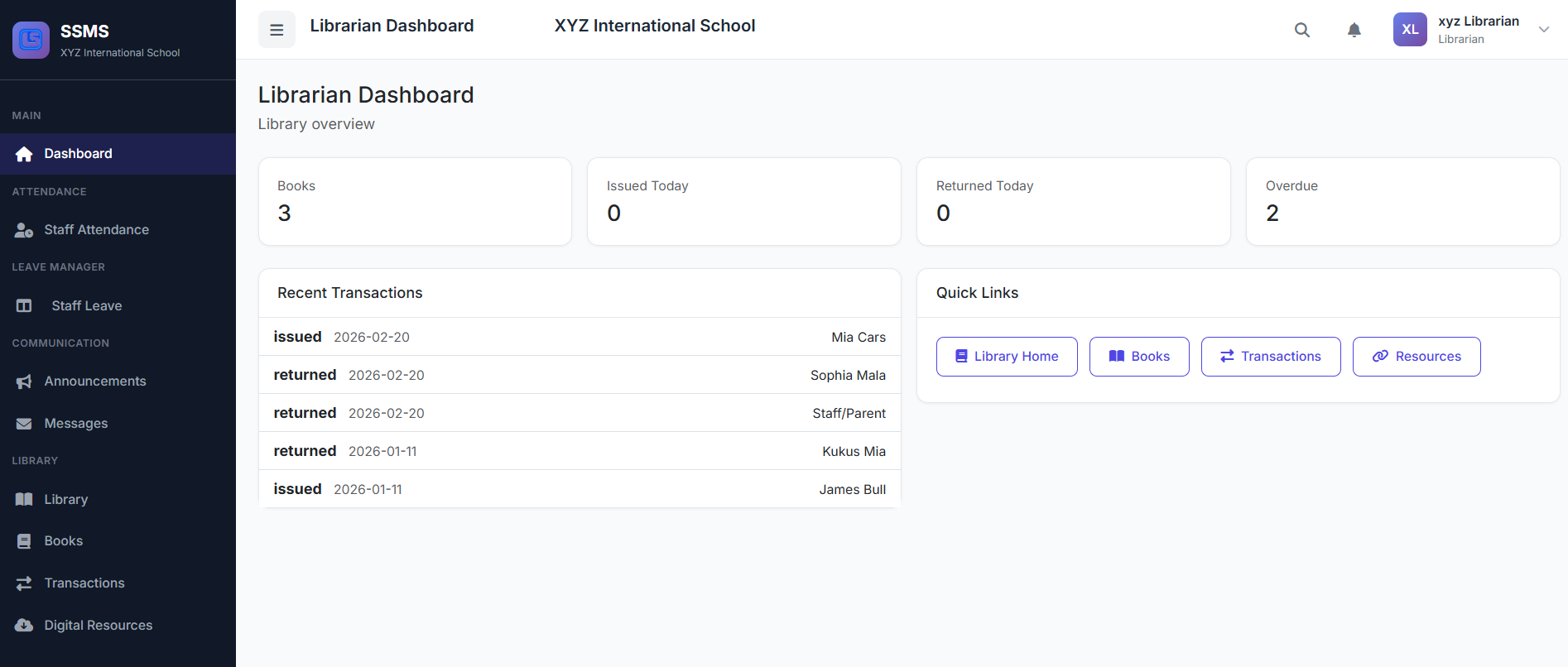 Librarian Dashboard
 Parent Dashboard
🧭 Dashboard Overview
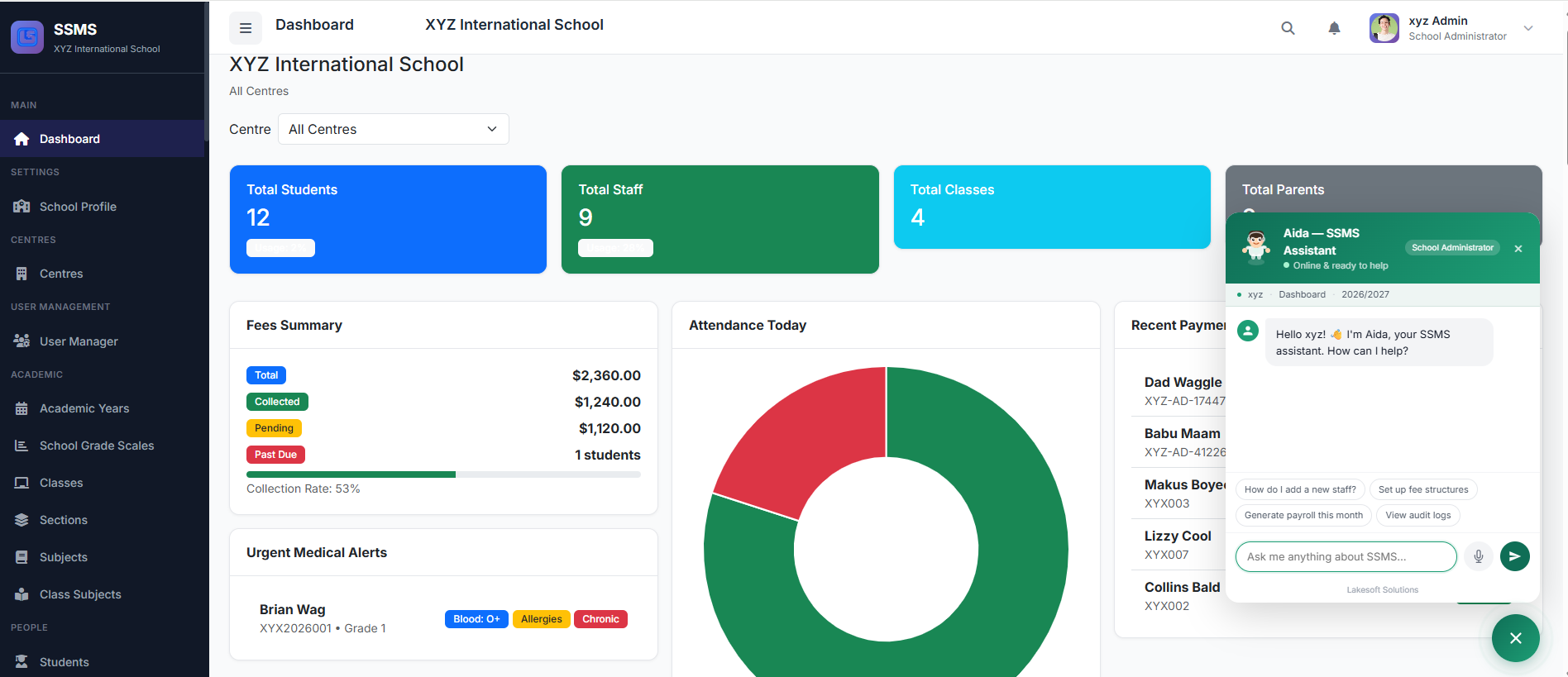
The Admin Dashboard aggregates all key school and centre metrics in one page. It provides real-time data and quick access to common tasks used in daily operations.
Centre-aware Filter: Switching the Centre filter at the top of the dashboard recalculates and displays information for that centre only.
📊 Statistics Cards
At the top of the dashboard, summary cards show key metrics:
Total Students – Active students + usage badge against plan limits
Total Staff – Active staff members + usage badge
Total Classes – Active classes in the selected scope
Total Parents – Number of parent profiles linked to students
💰 Fee Summary
A quick snapshot of your school’s fee performance (All Centres or a specific centre).
Visible to School Admin and Principal — updates automatically as payments are recorded.
Overview numbers: Total assigned fees, collected amount, pending balances, past-due student count
Progress & rate: Progress bar + collection percentage
Fee collection: Total fees collected for the current period
📈 Charts & Graphs
Visual tools to make data easier to understand:
Attendance Today (doughnut chart) – Present vs absent
Students by Class (bar chart) – Compare class sizes
Collections Trend (line chart) – Daily collections over last 30 days
Enrollment trends & audit logs – For deeper analysis
These visuals help you analyze performance, track patterns, and make informed decisions.
🏢 Centres Usage
Lets the admin know when the number of centres is close to the limit allowed by your subscription plan.
🕒 Recent Activities
Below the statistics cards, you’ll find the latest system actions:
New student enrollments
Recent fee payments (student names + amounts)
This allows administrators to monitor financial activity quickly.
🚨 Urgent Medical Alerts
Located directly under the Fee Summary on the School Admin dashboard.
Highlights students with urgent health flags — critical medical info at a glance for quick, informed responses.
Displays:
Student name, admission number, current class
Badges: Blood group, Allergies, Chronic conditions
Shows up to six recent/most-relevant cases.
For privacy, only high-signal indicators appear; full records stay in Health Profiles.
📝 Chronological Audit Log
A table showing key changes: who did what and on which entity.
Stays updated in real time — complete visibility of all system actions.
⚡ Quick Actions
A dropdown menu for common tasks:
Change profile information
View messages inbox
Access help & support
Logout
These shortcuts save time by reducing clicks for daily tasks.
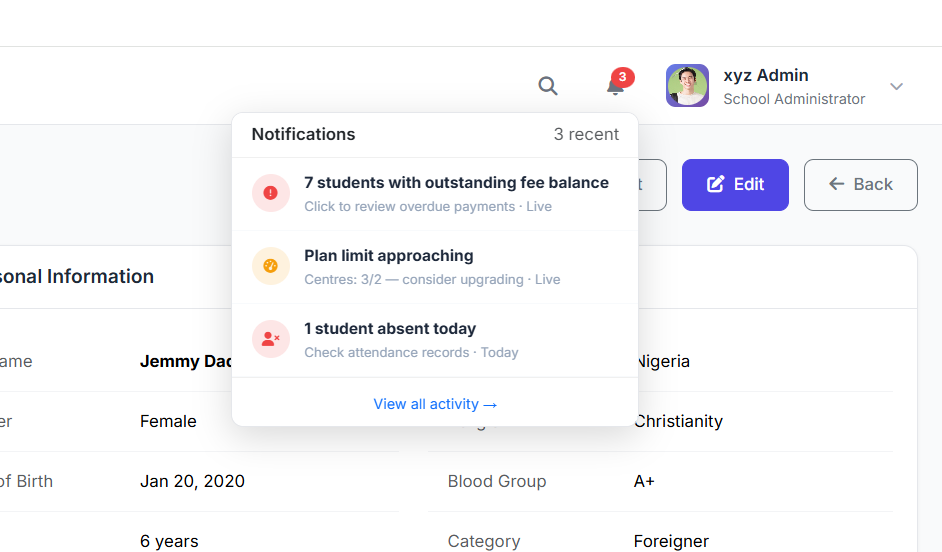
🔔 Notifications Panel
Keeps you informed about:
System alerts
Pending approvals
Important reminders
Helps administrators respond promptly to urgent tasks.
💡 Pro Tip
The menu bar can be easily collapsed — handy if the content page is too wide or elements are out of view.
🚀 Final Thoughts
SSMS contains many powerful modules designed for every school need, with more coming.
But you don’t have to use everything — only what’s relevant to your school administration. As your school grows, you may find new features useful.
The SSMS dashboard gives you a complete snapshot of your school’s operations — all in one place.