Introduction
Today, we'll explore how to transfer Students from one centre to another in SSMS.
The student transfer moves one or more students from a source Centre/Class/Section to a target Centre — with optional Class/Section changes. It supports inter‑centre transfers, bulk class promotions within a centre, or correcting placement.
👤 Who Can Use It?
| Role | Access Level |
|---|---|
| School Admin | Sees and moves students across all centres |
| Principal (and similar centre‑bound roles) | Limited to their own centre for both source and target |
📍 Where To Find It?
To open the Student Transfer page:
Go to People in the sidebar
Select Student Transfer
This automatically updates student records from the old centre to the new centre. It leaves class/section unchanged when the target fields are left blank.
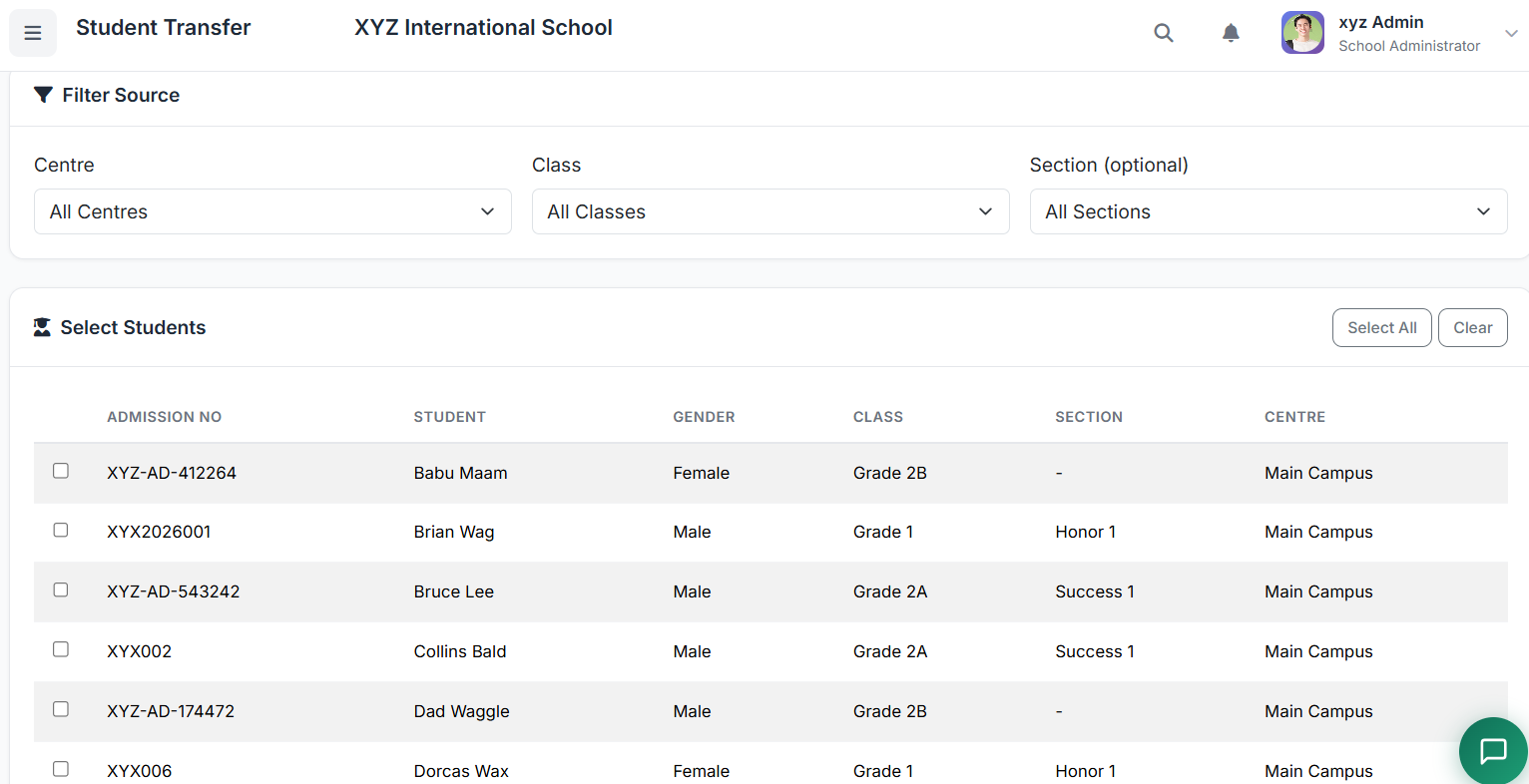
🔍 Step 1: Filter Source
Choose which students to list:
| Filter | Description |
|---|---|
| Centre | All centres or a specific source centre |
| Class | Narrows students by class |
| Section (optional) | Narrows further within the class |
The table refreshes to show students that match the filters.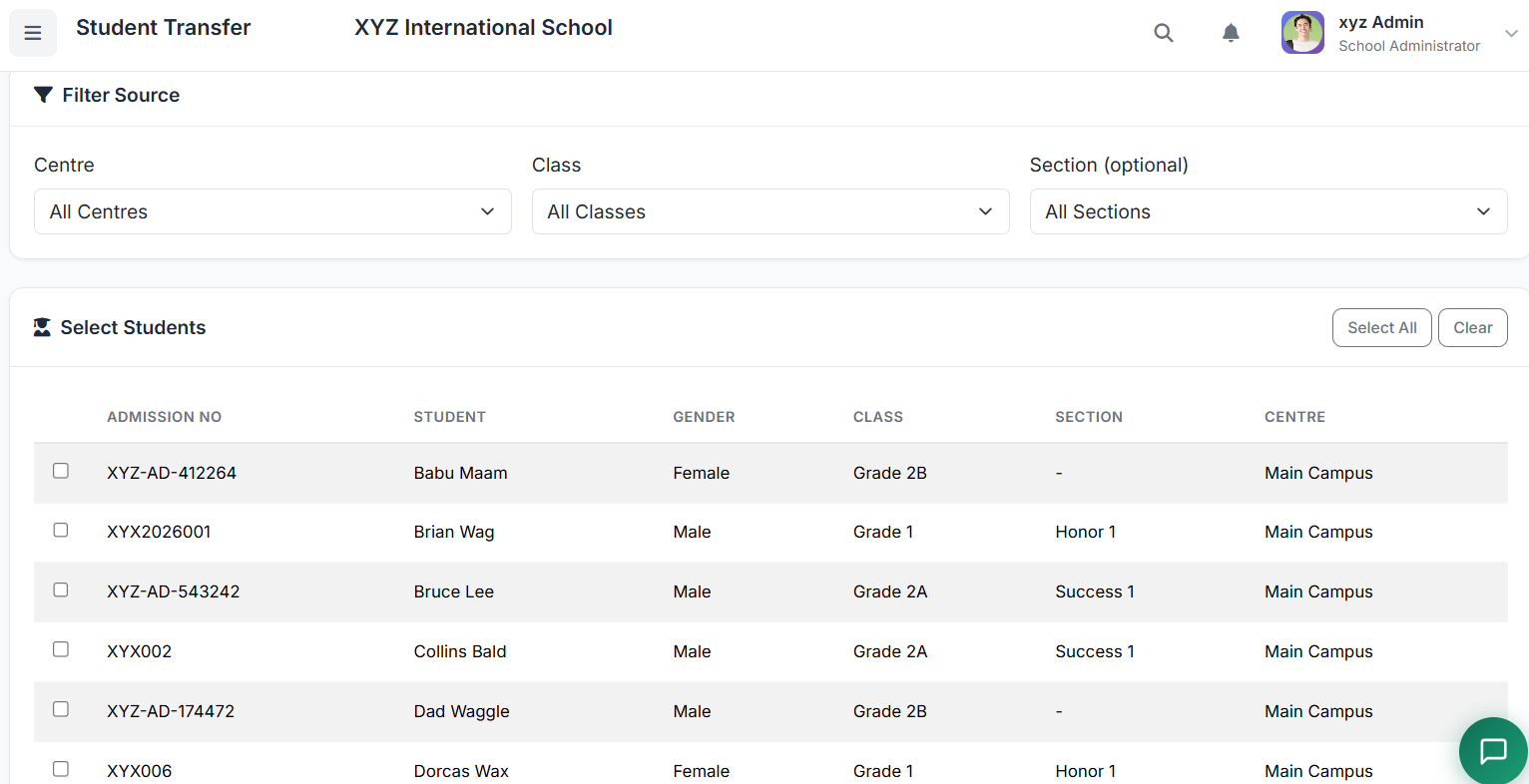
☑️ Step 2: Select Students
The table includes checkboxes to pick multiple students.
Tick the checkbox next to each student to include in the transfer
Use Select All or Clear to manage selections quickly
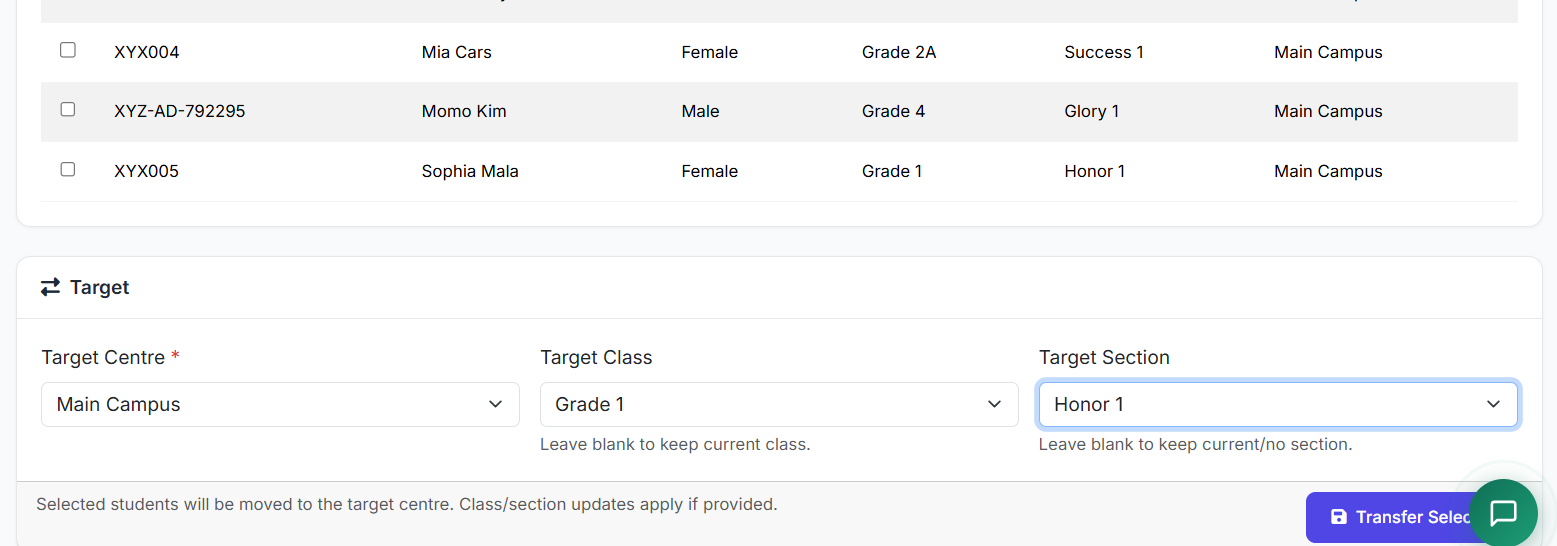
🎯 Step 3: Target Section
The target is where to move the selected students.
| Field | Required? | Description |
|---|---|---|
| Target Centre | ✅ Required | Where to move the students |
| Target Class | Optional | Populated by the selected centre. Leave blank to keep each student's current class. |
| Target Section | Optional | Populated by the selected class. Leave blank to keep current/no section. |
Tip: After picking a centre, the Class dropdown loads classes available in that centre.
After picking a class, the Section dropdown shows sections in that class.
✅ Step 4: Confirm Transfer
Click Transfer Selected
You should see a success message
The student list will reflect the new placements on the next load
🔧 Troubleshooting
| Issue | Solution |
|---|---|
| Target Class not populating | Ensure a Target Centre is selected — the class list loads from that centre |
| Target Section not populating | Ensure a Target Class is selected — some classes may have no sections |
| Dropdown is disabled | You're likely on a centre‑bound role — centre is intentionally locked to your assigned centre |
| "No students found" | Loosen the filters (set Section to All Sections, or Centre to All Centres when allowed) |
| Validation error on submit | Target Centre is required — ensure you selected it. If setting a Target Class, it must belong to the selected Target Centre |
✅ Best Practices
Review the selection count before submitting
For mass promotions, transfer by class in batches to keep control
After transfer, verify class rosters and timetable allocations if your workflow depends on them
🏁 Closing
That's how you transfer students with ease in SSMS.