Introduction
Today, I'll be demonstrating the Teacher Subjects module — used to assign teachers to specific subjects and classes.
This setup is essential for timetable creation and ensures that only the right teachers are scheduled to teach the right subjects.
This module ensures accurate teacher allocation and smooth timetable generation.
📍 Navigating to Teacher Subjects
To access this feature:
Navigate to Timetable in the sidebar
Then select Teacher Subjects
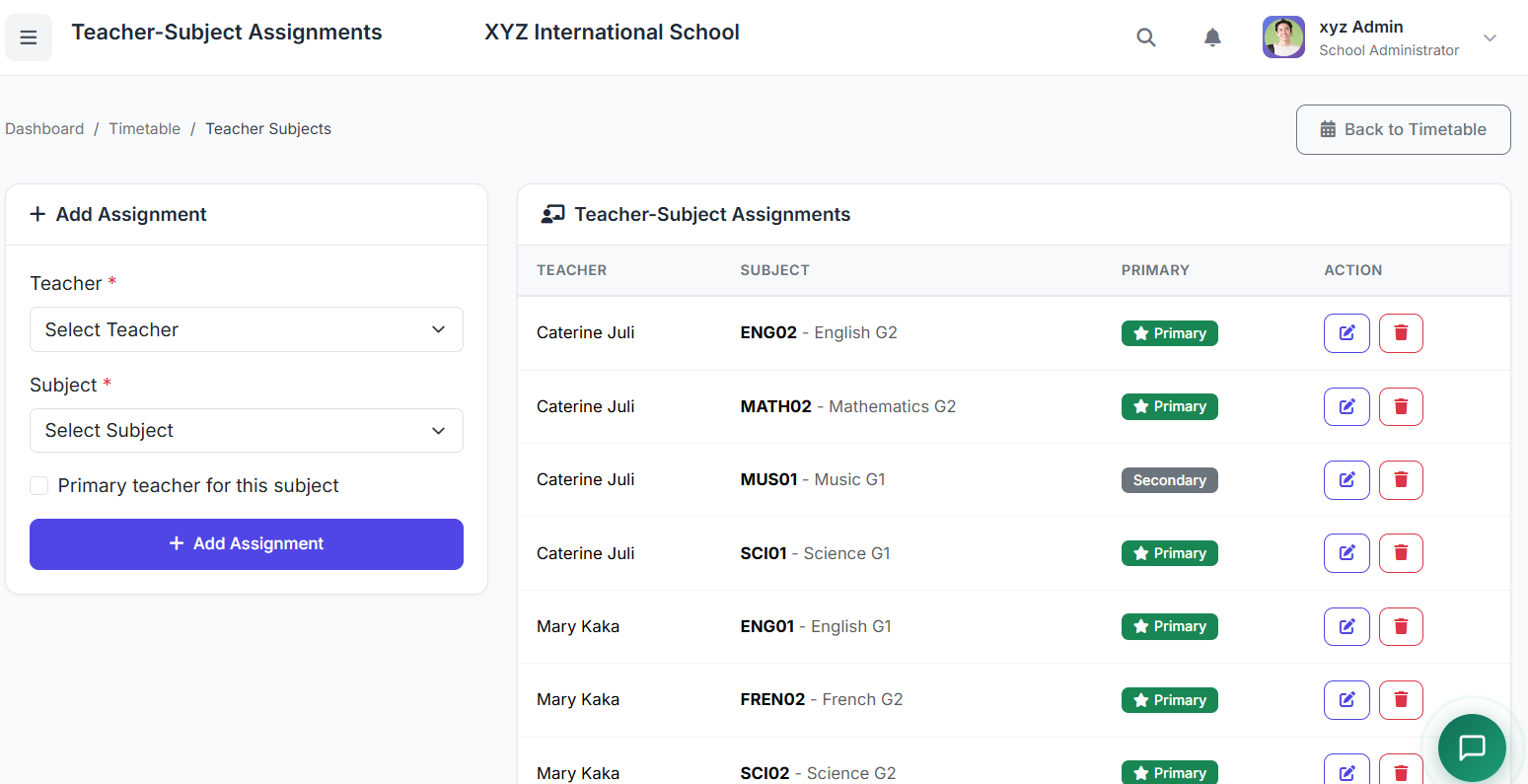
This page manages all teacher-to-class-to-subject assignments in the system.
🧠 Understanding Teacher Subject Assignments
Teacher Subject assignments define who teaches what and where.
| Example | Assignment |
|---|---|
| Teacher A | Mathematics + Science in multiple grades |
| Teacher B | English + Social Studies |
These assignments form the foundation for automatic and conflict-free timetable generation.
📌 Note
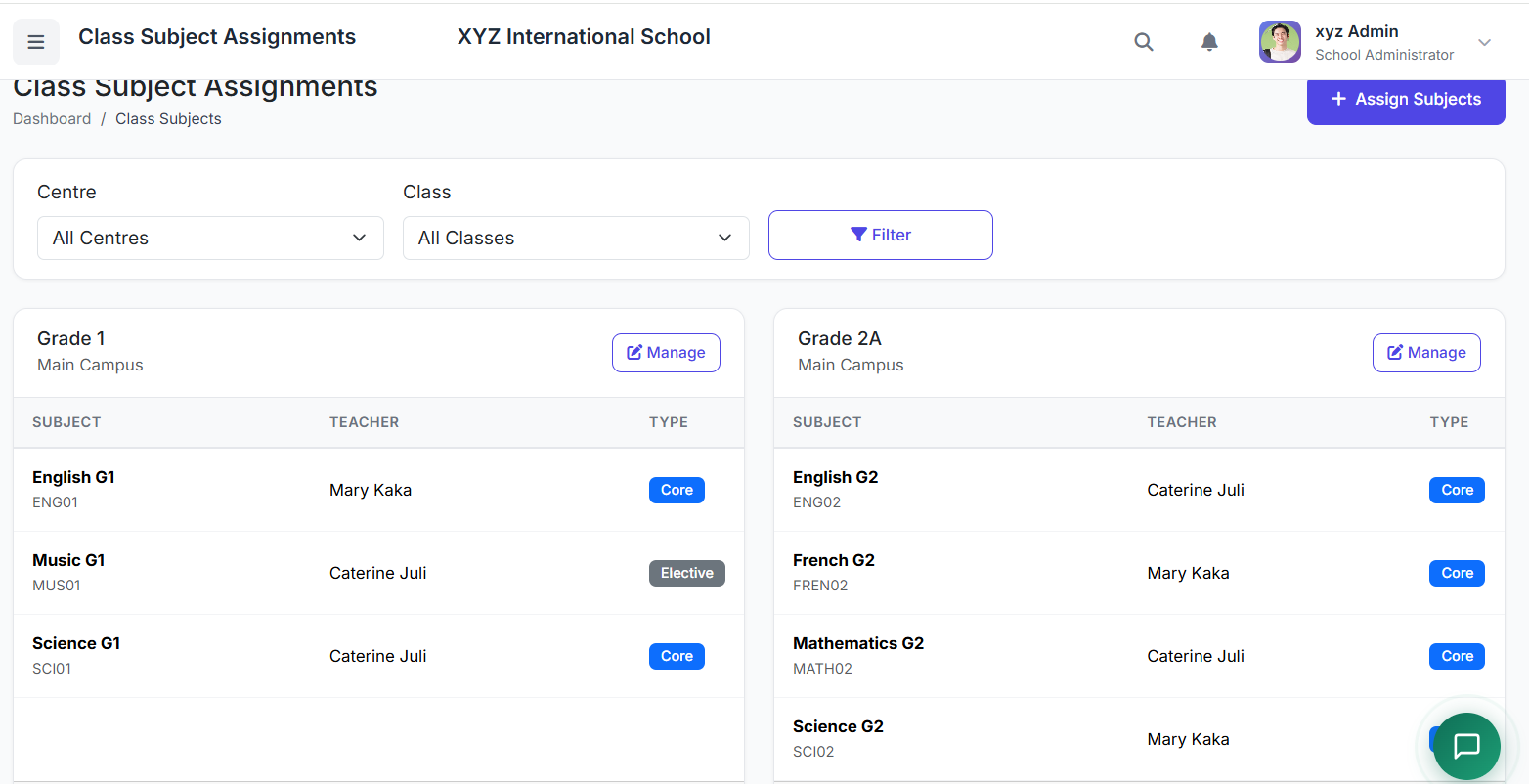
Teachers can alternatively be assigned in the Assign Subjects to Class section (which we have done previously). We see that all teachers assigned are also showing here.
📋 Teacher Subjects List Interface Overview
On this page, we can see all existing teacher subject assignments.
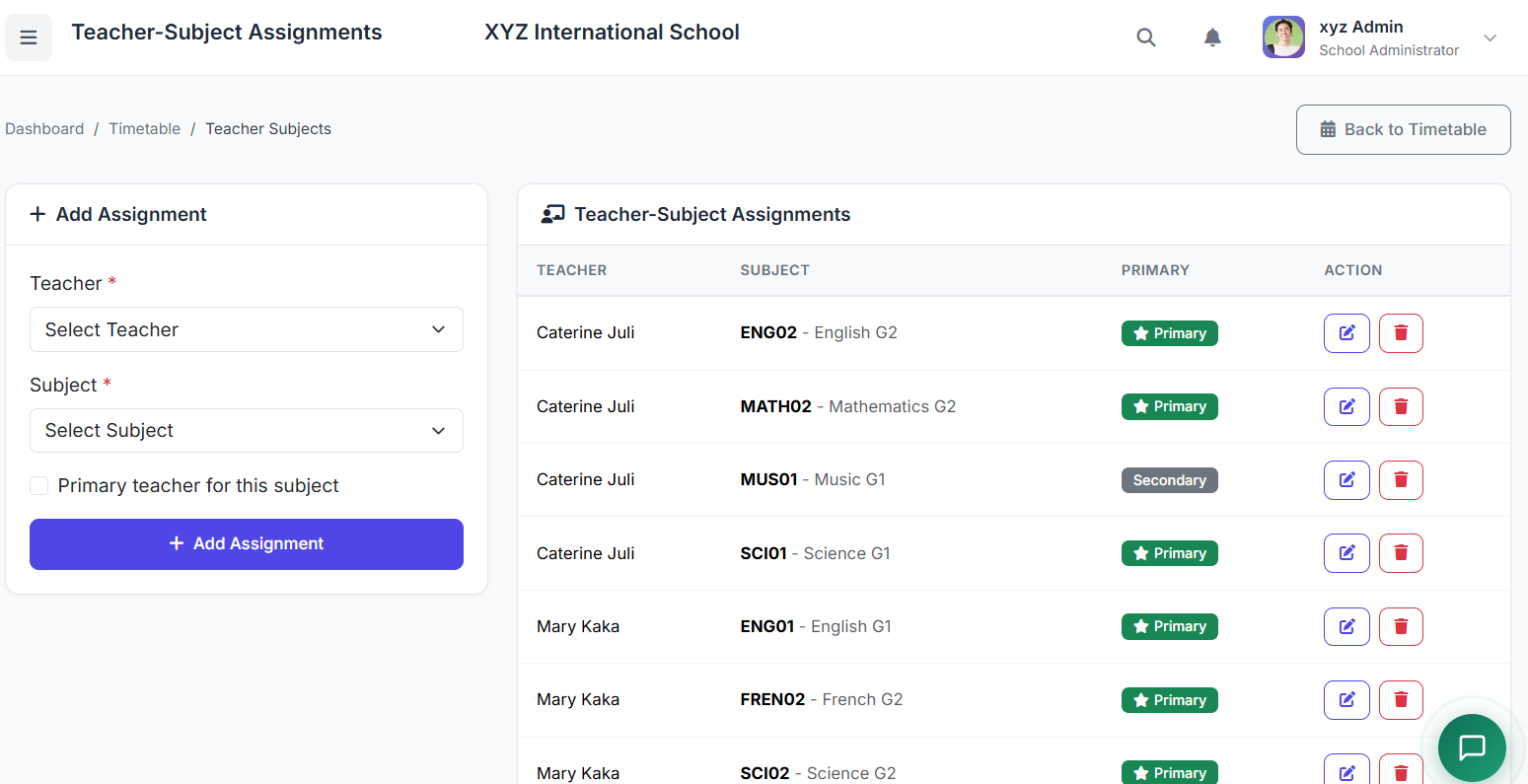
Each record shows:
| Column | Description |
|---|---|
| Teacher's Name | Who is teaching |
| Class | Where they are teaching |
| Subject | What they are teaching |
| Actions | Edit or Delete the assignment |
➕ Creating Teacher Subject Assignments – Individual Method
Step 1: Open Assignment Form
To create an assignment manually, click Add Teacher Subject.
Step 2: Fill Assignment Details
Field Description Teacher Select the teacher from the list Class Choose the class Subject Select the subject the teacher will handle Primary Status Set if the teacher is the class teacher for this class
| Field | Description |
|---|---|
| Teacher | Select the teacher from the list |
| Class | Choose the class |
| Subject | Select the subject the teacher will handle |
| Primary Status | Set if the teacher is the class teacher for this class |
Step 3: Save
Click Save to complete the assignment.
✏️ Editing and Removing Assignments
Action How to Do It Important Note Edit Click Edit → Update teacher/subject → Save Changes update existing records Delete Click Delete ⚠️ Directly affects timetable entries for that class and subject
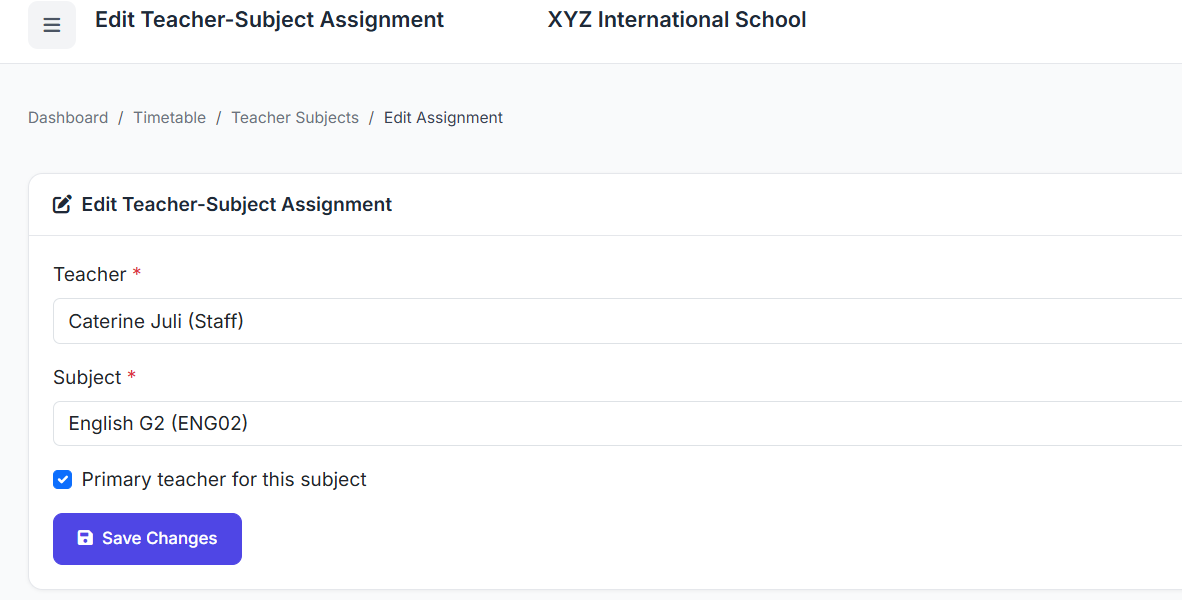
| Action | How to Do It | Important Note |
|---|---|---|
| Edit | Click Edit → Update teacher/subject → Save | Changes update existing records |
| Delete | Click Delete | ⚠️ Directly affects timetable entries for that class and subject |
✅ Best Practices
Practice Why It Matters Assign teachers before creating timetables Ensures schedules are complete Balance teaching loads across staff Prevents burnout and inequity Update assignments when there are staff changes Keeps records accurate Review all assignments at the start of each academic year Catches outdated assignments early Consider teacher specializations Maintains teaching quality
| Practice | Why It Matters |
|---|---|
| Assign teachers before creating timetables | Ensures schedules are complete |
| Balance teaching loads across staff | Prevents burnout and inequity |
| Update assignments when there are staff changes | Keeps records accurate |
| Review all assignments at the start of each academic year | Catches outdated assignments early |
| Consider teacher specializations | Maintains teaching quality |
🏁 Closing
That concludes our demonstration of the Teacher Subjects module.
This module ensures accurate teacher allocation and smooth timetable generation.