🕒 Module Overview
The Time Slots module defines the building blocks of the school day. It specifies the start time, end time, and purpose (e.g., Class, Break, Lunch) for each period. This configuration is the essential first step before creating any class timetables.
🧭 How to Access
Click Timetable in the main sidebar.
Select Time Slots.
📐 Purpose & Importance
Time Slots are critical because they:
Define the start and end times for every period.
Ensure consistency across all class timetables.
Clearly allocate time for teaching, breaks, lunch, and assemblies.
Standardize period durations throughout the school.
📋 Time Slots List Overview
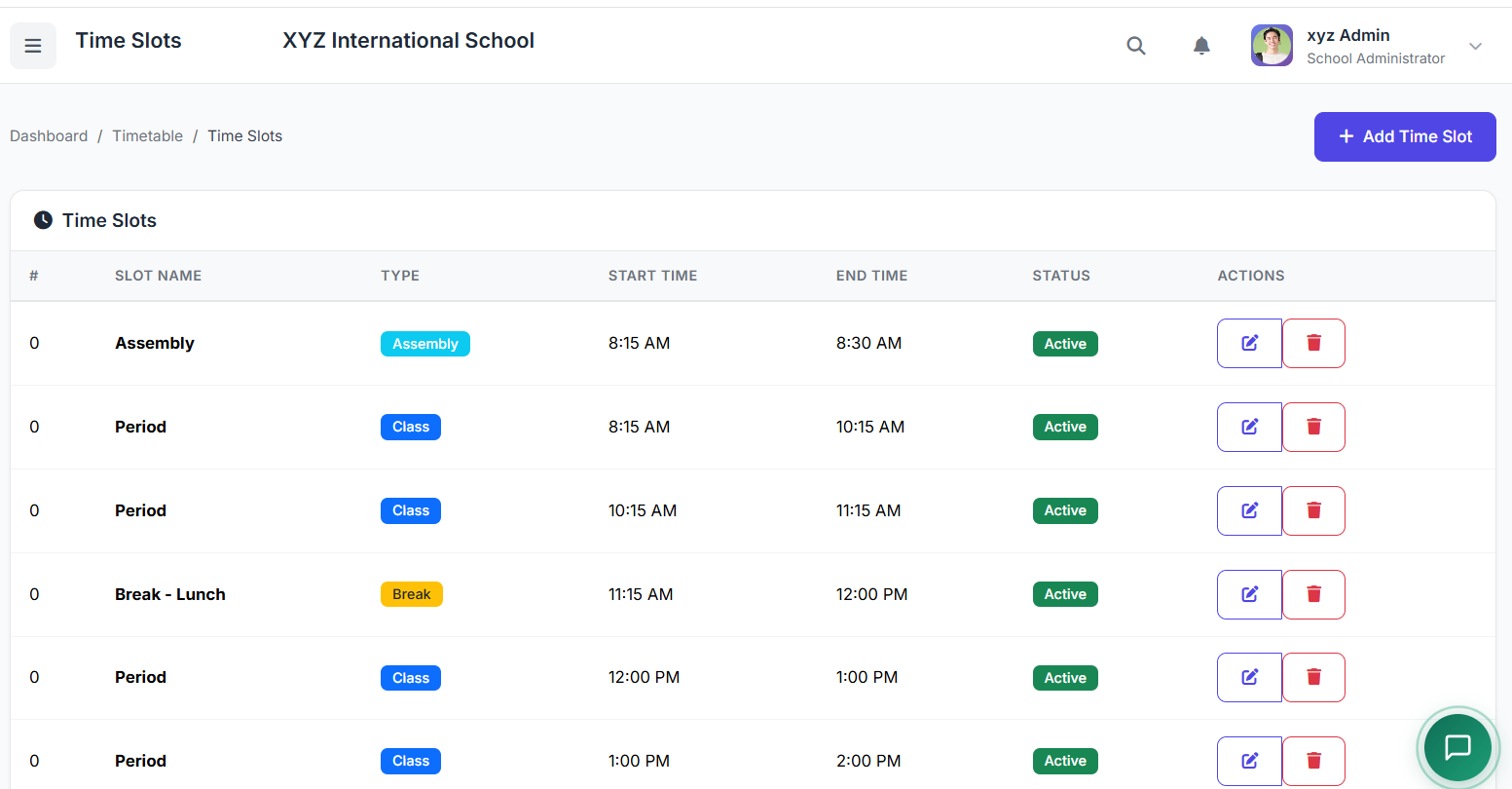
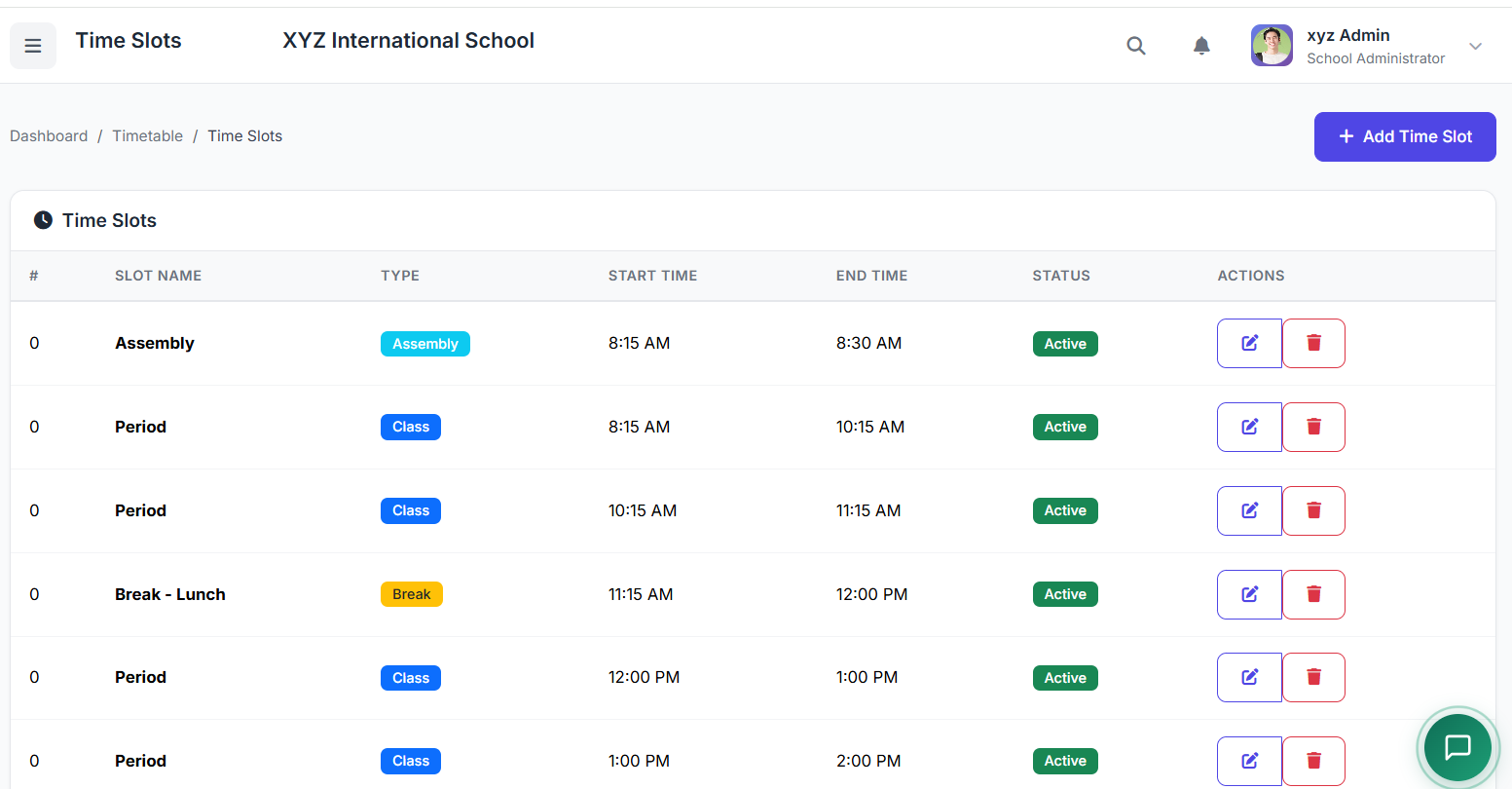
The main page lists all configured slots. Key columns include:
| Column | Description |
|---|---|
| Slot Name | e.g., Period 1, Lunch |
| Start & End Time | Defines the slot's timeframe. |
| Duration | Automatically calculated. |
| Slot Type | Class, Break, Assembly, etc. |
| Order | Sequence in the daily schedule. |
| Actions | Edit or Delete. |
➕ Creating a New Time Slot
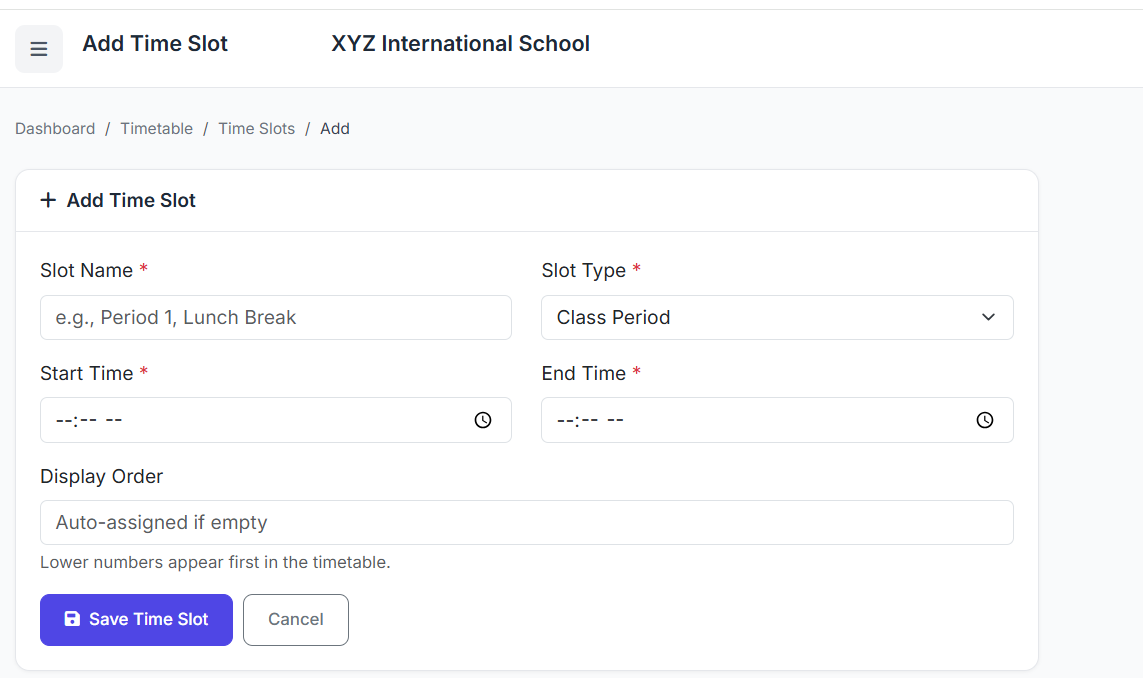
Click the Add Time Slot button.
Fill in the form:
Slot Name (e.g.,
Period 1,Lunch)Start Time and End Time
Slot Type (Select from: Class, Break, Lunch, Assembly, Sports, etc.)
Order (The numerical sequence, e.g., 1, 2, 3...)
Click Create Time Slot.
📅 Example Daily Schedule
A standard school day might be structured as follows:
| Order | Slot Name | Type | Time |
|---|---|---|---|
| 1 | Assembly | Assembly | 8:00 AM - 8:15 AM |
| 2 | Period 1 | Class | 8:15 AM - 9:00 AM |
| 3 | Period 2 | Class | 9:00 AM - 9:45 AM |
| 4 | Break | Break | 9:45 AM - 10:00 AM |
| 5 | Period 3 | Class | 10:00 AM - 10:45 AM |
| 6 | Lunch | Lunch | 10:45 AM - 11:30 AM |
| 7 | Period 4 | Class | 11:30 AM - 12:15 PM |
| 8 | Period 5 | Class | 12:15 PM - 1:00 PM |
This clear order ensures timetables display correctly for staff and students.
⚙️ Understanding Slot Types
Each type serves a specific purpose in the timetable:
| Slot Type | Purpose |
|---|---|
| Class | Used for teaching subject periods. |
| Break / Lunch | Non-teaching periods; appear as free time. |
| Assembly | Special period, often without a subject/teacher assigned. |
| Sports / Activity | For extracurricular or special activity periods. |
✏️ Editing a Time Slot
To modify a slot:
Click the Edit button for the slot.
Update the time, name, type, or order.
Click Save.
⚠️ Important: Changes affect all timetables that use this time slot.
🗑️ Deleting a Time Slot
A time slot cannot be deleted if it is already in use on any timetable.
To delete:
First, remove the slot from all timetables.
Then, click the Delete button.
Confirm the action.
✅ Best Practices
Set Up First: Configure all time slots before creating any timetables.
Be Comprehensive: Include breaks, lunch, and assemblies in your slot list.
Consistency: Use consistent durations for teaching periods where possible.
Check Order: Double-check the Order field to ensure the daily sequence is logical.
Special Schedules: Create separate Time Slot Sets for special days (e.g., half-days, exam days).
You have now learned how to set up Time Slots, the foundational structure for an accurate and well-organized school timetable.
Next, we will use these slots to build actual class timetables.